
Create your first form
Create forms from scratch or XLSForm, then build a complete questionnaire with data types, options, logic, constraints, groups, repeats, cloning, preview, validation, and save.
Choose a form source
ComMicPlan creates forms from two sources. Build from scratch opens a blank questionnaire builder after the form row is created. Upload XLSForm imports an existing .xlsx file with survey, choices, and settings sheets.
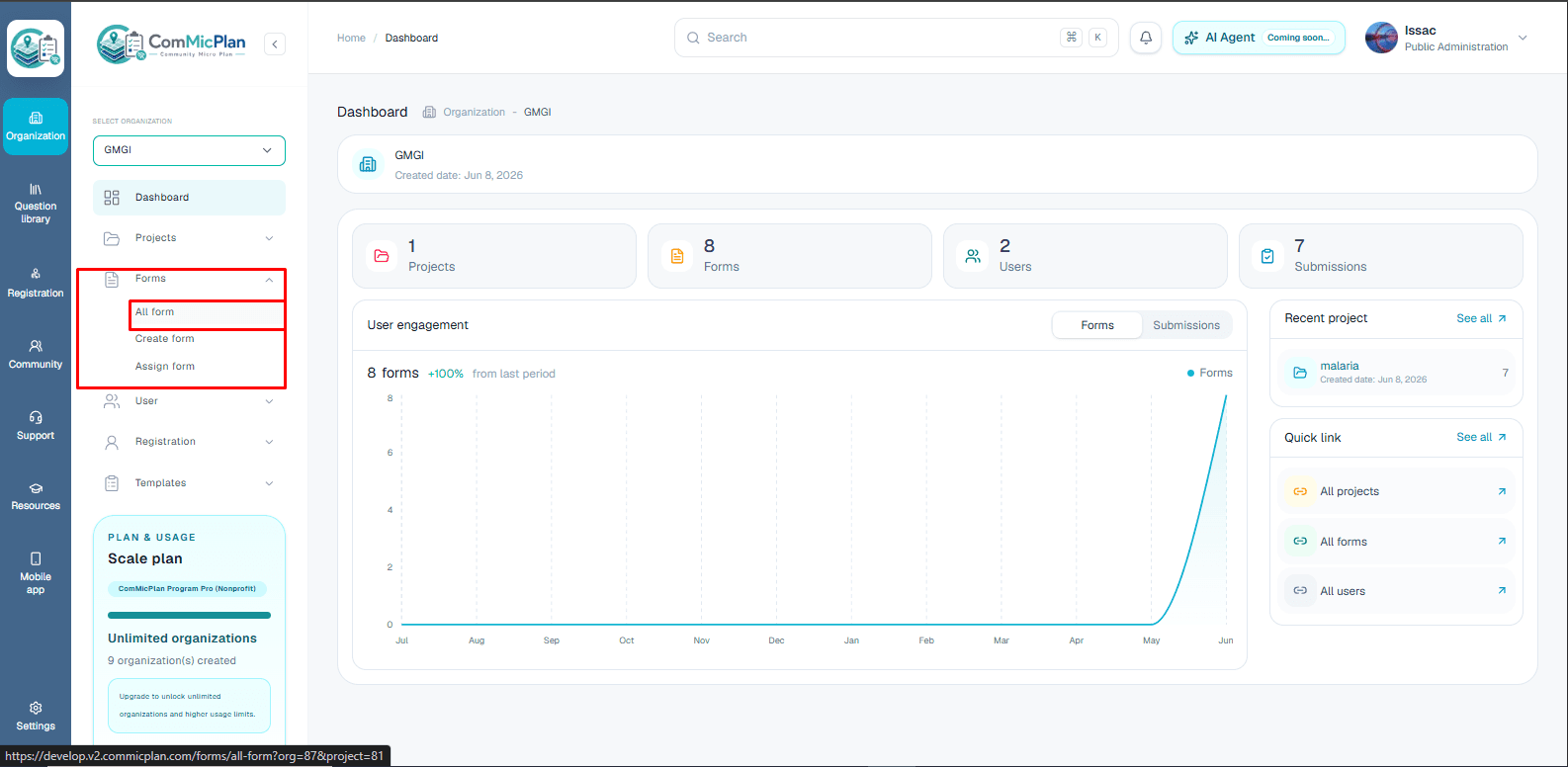
- 1.Open Forms, then Create form.
- 2.Choose Build from scratch when you want to design the form in the browser.
- 3.Choose Upload XLSForm when you already have a compatible XLSForm file.
- 4.After either source succeeds, ComMicPlan opens the question builder for the created form.
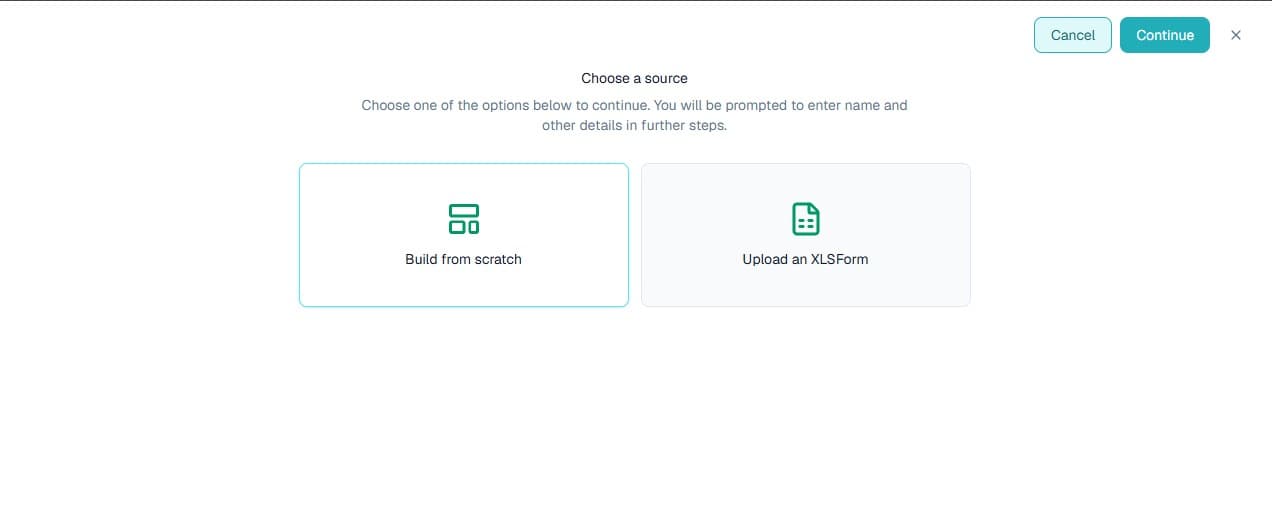
Build from scratch
Use this path when the form structure is new or when the team wants to control each question directly. The form creator asks for project, metadata, and housekeeping notes before opening the builder.
- 1.Select Build from scratch.
- 2.Enter the form name and choose the project where submissions should live.
- 3.Add the housekeeping notes, sector, and country.
- 4.Click Create to open the builder at /forms/{formId}/questions with the org and project query preserved.
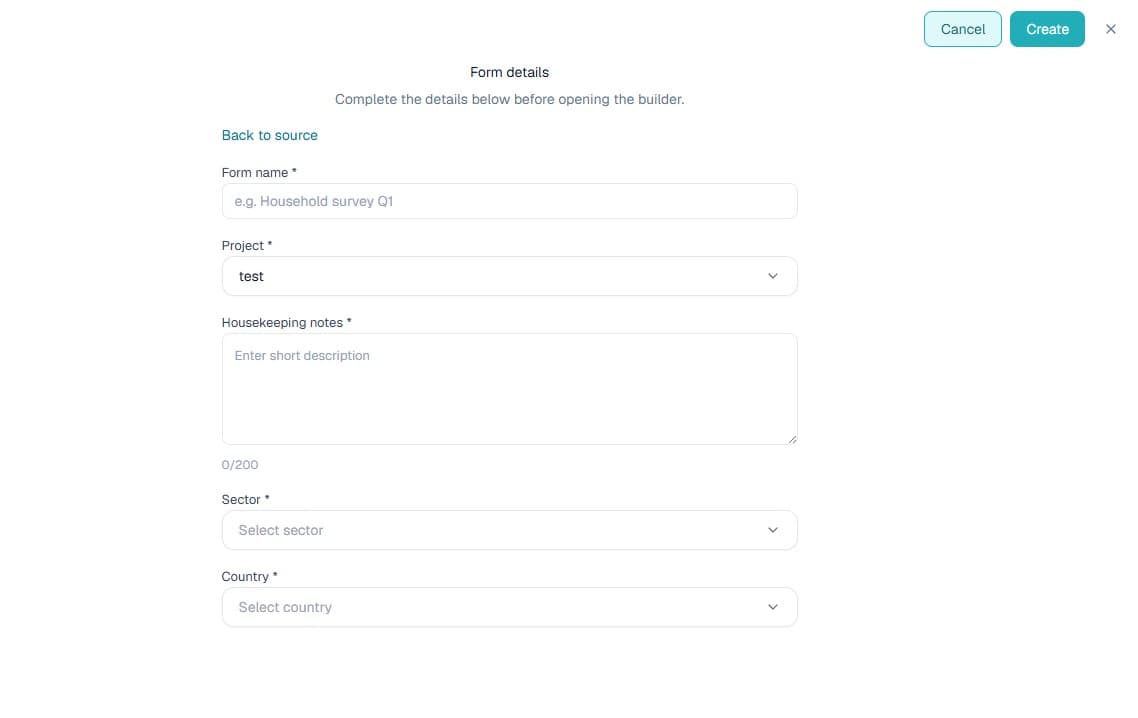
Upload XLSForm
Use XLSForm upload when you are migrating from KoboToolbox, ODK, or another XLSForm-compatible workflow. The uploaded file creates the form and loads its questionnaire into the same builder experience.
- 1.Select Upload XLSForm.
- 2.Choose the project, housekeeping notes, sector, and country.
- 3.Attach the .xlsx file.
- 4.Create the form, then review the imported questions inside the builder before saving or collecting data.
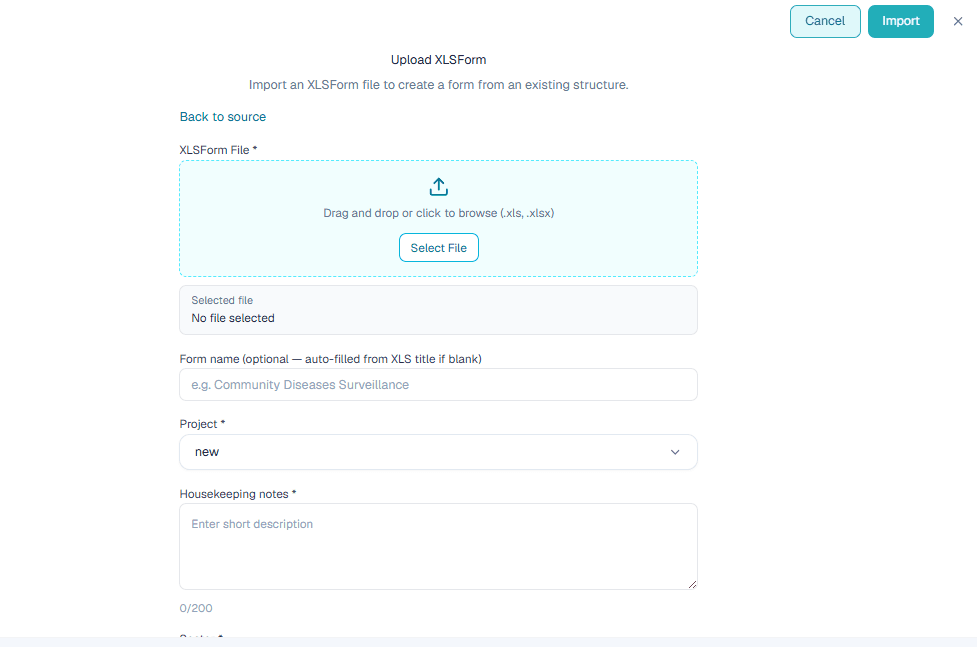
Form details
The form details step decides where the form belongs and how it will be categorized later. Use a clear form name, attach the correct project, and keep notes short enough for operational scanning.
- 1.Form name is the title users see in the form list and form dashboard.
- 2.Project connects the form to a specific field activity.
- 3.Housekeeping notes explain collection purpose or internal handling notes.
- 4.Sector and country make the form easier to filter and govern.
Builder layout
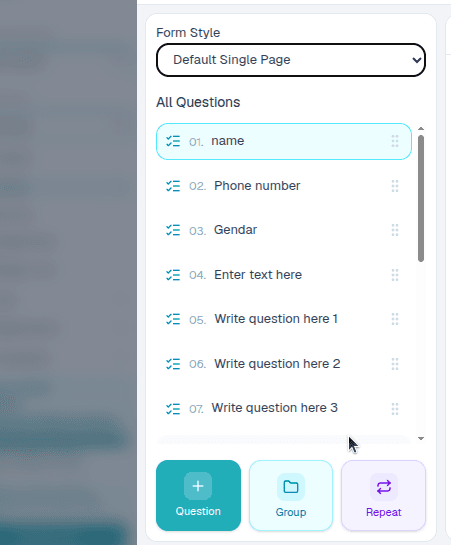
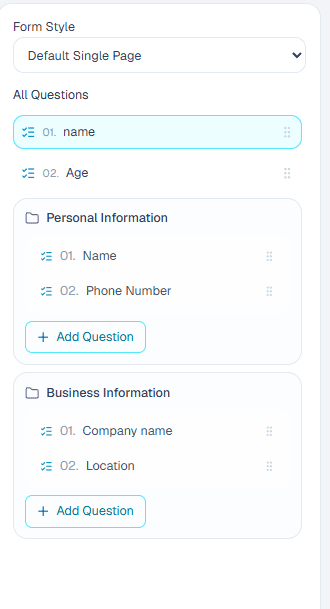
The question builder is split into a working shell: a draft notice, header actions, the question list on the left, and the active editor on the right. Drafts are kept in the browser, while Save persists the questionnaire to the form.
- 1Use Form Style to choose the collection layout.
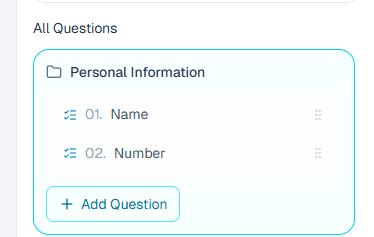
- 2Use All Questions to select and reorder top-level questions, groups, and repeat sections.
- 3Use the active editor to change question type, text, options, settings, logic, constraints, and calculations.
- 4Use Preview, Validate XForm, Export XForm, and Save before assigning the form to collectors.
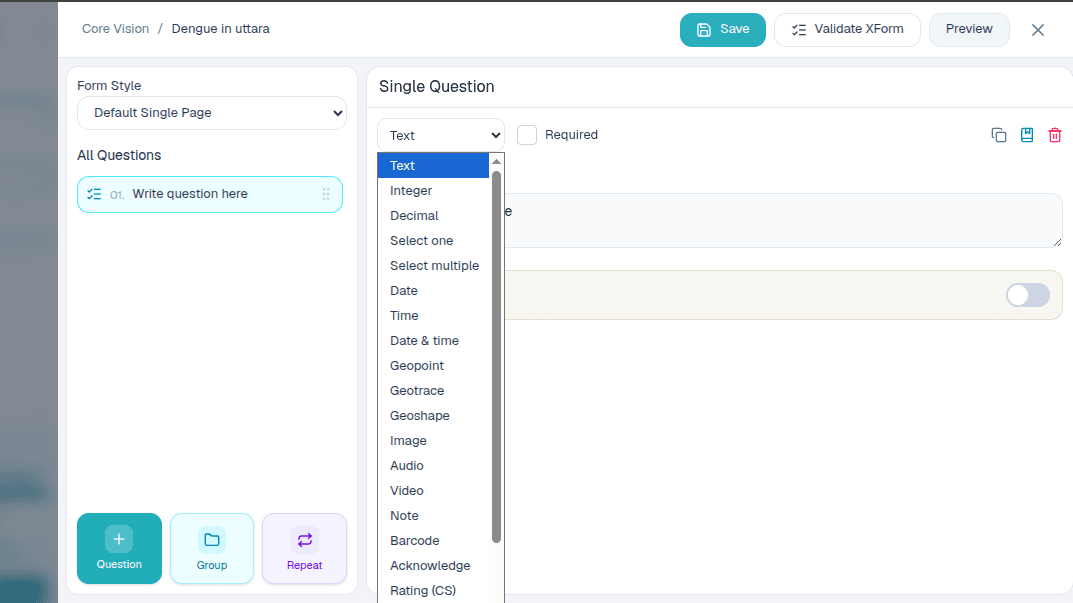
Question list
The left builder list is the form outline. It supports single questions, groups, repeat groups, nested group children, and drag ordering. The active row controls what appears in the editor panel.
- 1.Click Question to add a normal top-level question.
- 2.Click Group to add a section that contains child questions.
- 3.Click Repeat to collect the same child questions for multiple people, crops, assets, visits, or other repeated records.
- 4.Drag rows to reorder the questionnaire; drag children inside a group to reorder that group.
Editor panel
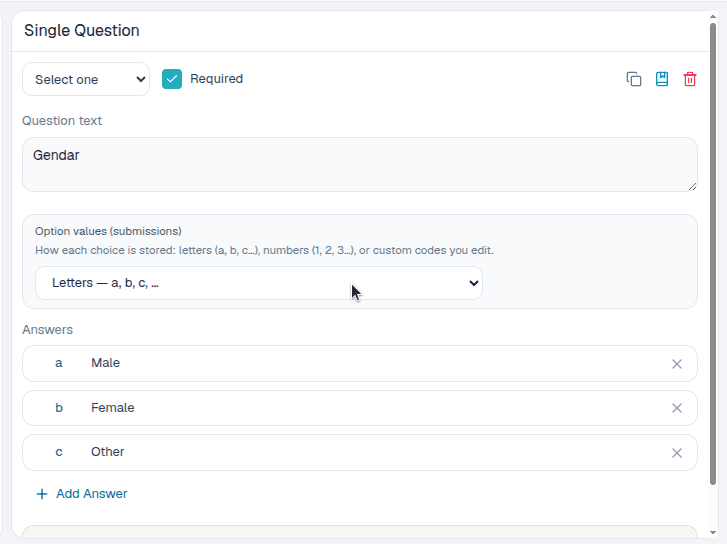
The editor panel controls the selected question. For a single question, it shows type, required state, question text, answers when relevant, and the settings tabs. For a group or repeat, it shows group title, child questions, duplicate, delete, and nested question controls.
- 1.Change the question type only when you are sure the answer shape should change.
- 2.Use clear question text that field collectors can read without extra explanation.
- 3.Use the Required toggle for questions that must be answered before submission.
- 4.Open settings when you need options, skip logic, constraints, calculations, appearance, or defaults.
Create your first question
Start with one normal question before building a large questionnaire. This section should show the actual builder controls for adding a question, selecting it from the list, editing its label, choosing its type, saving, cloning, grouping, and previewing the result.
- 1.Click Question to add a new top-level question.
- 2.Select the new question in All Questions.
- 3.Enter the question label and confirm the generated question name.
- 4.Choose the question type.
- 5.Turn Required on only when the answer must be collected.
- 6.Use Clone when a similar question already exists.
- 7.Use Group when several questions belong to the same section.
- 8.Preview the form after the question is configured.
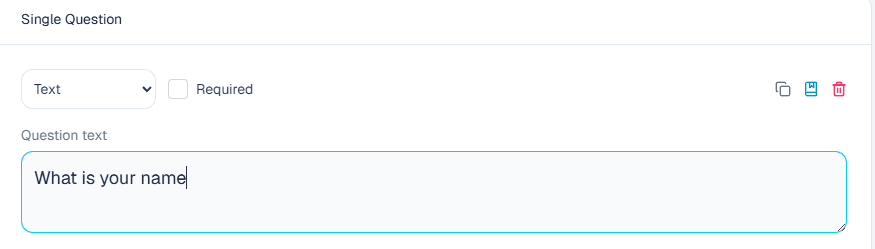
Text
Collect short names, IDs, notes, descriptions, or longer written responses when multiline appearance is enabled.

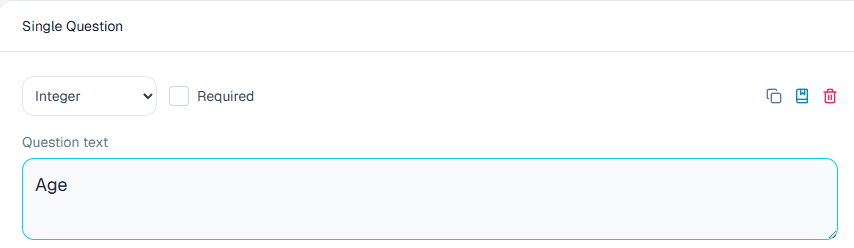
Integer
Collect whole numbers such as age, number of household members, visit count, quantity, or score.

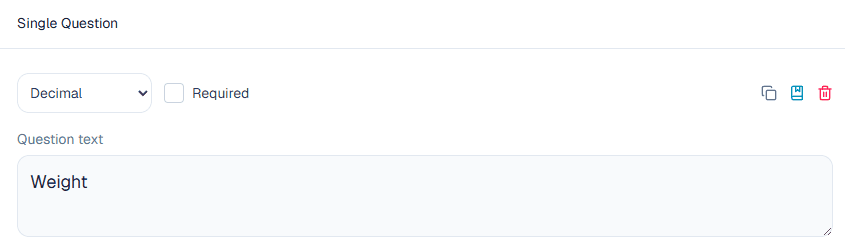
Decimal
Collect numeric values with fractions, such as weight, price, area, distance, percentage, or measurement.

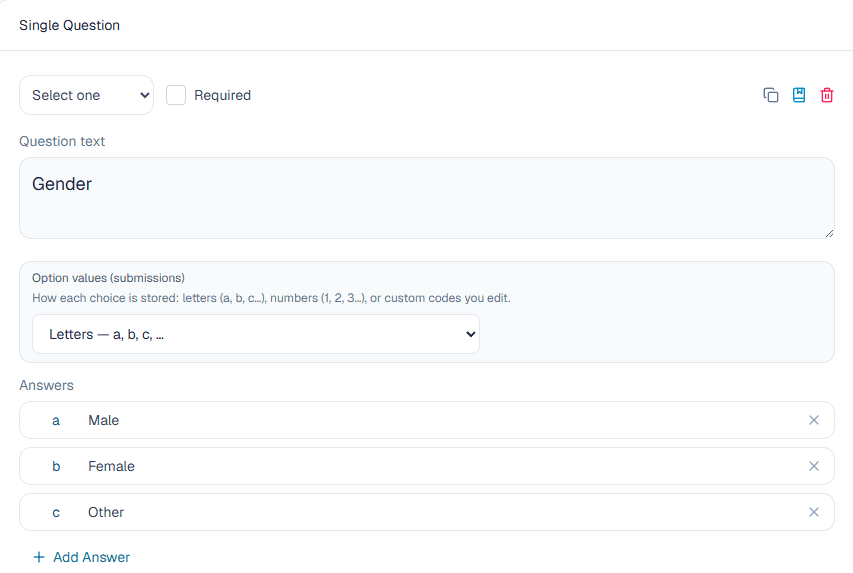
Select one
Let the collector choose exactly one answer from a controlled option list.

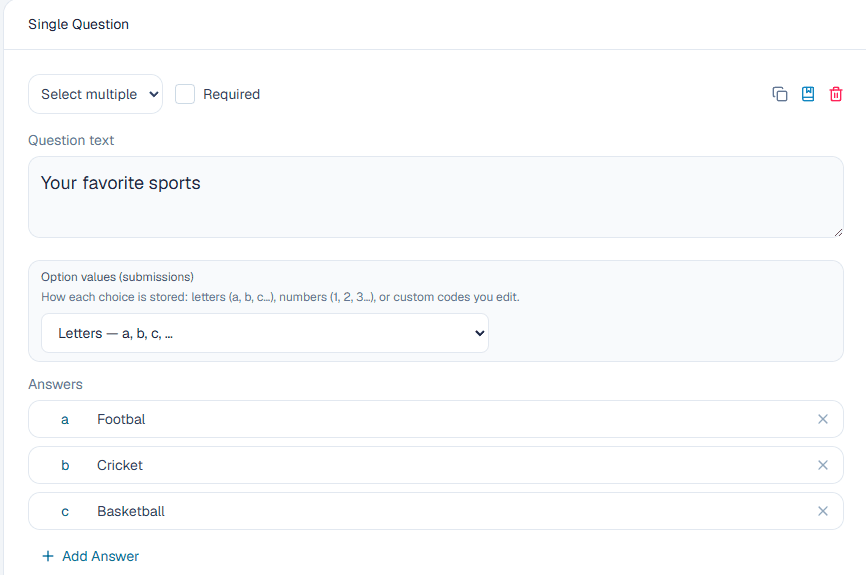
Select multiple
Let the collector choose more than one answer from a controlled option list.

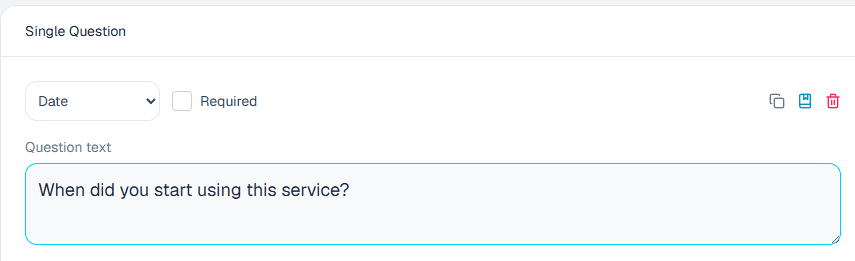
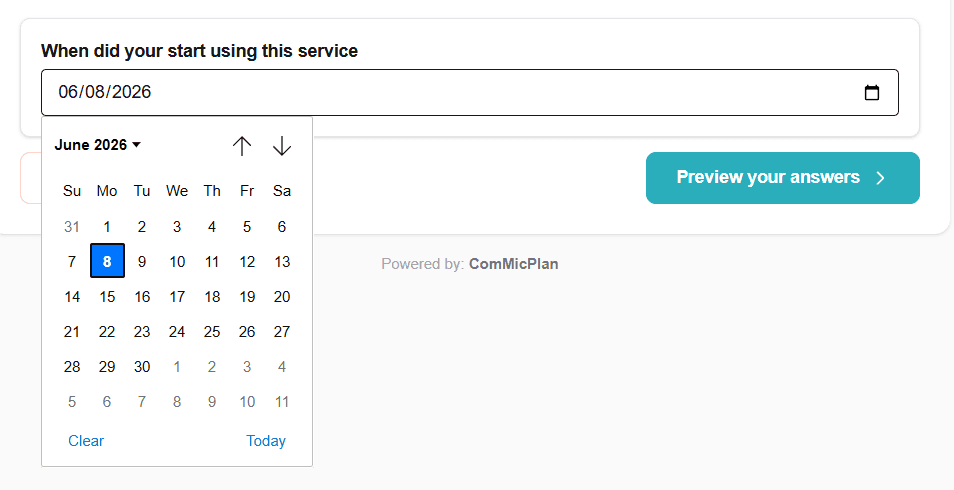
Date
Collect a calendar date such as birth date, event date, start date, or visit date.
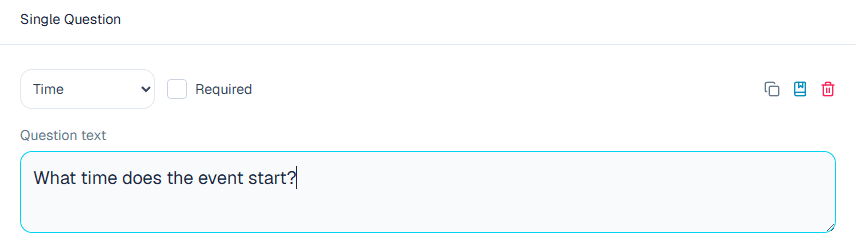
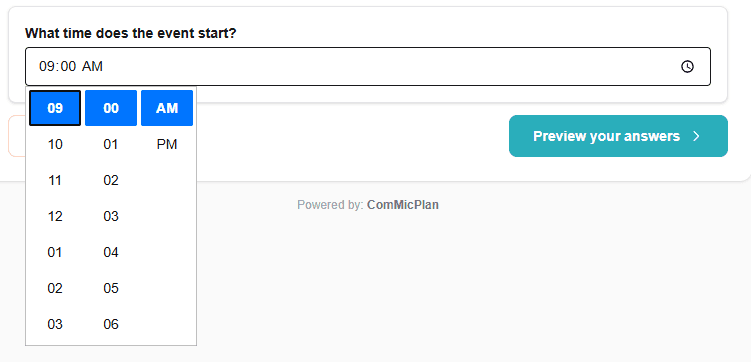
Time
Collect time-of-day values when the date is not part of the answer.
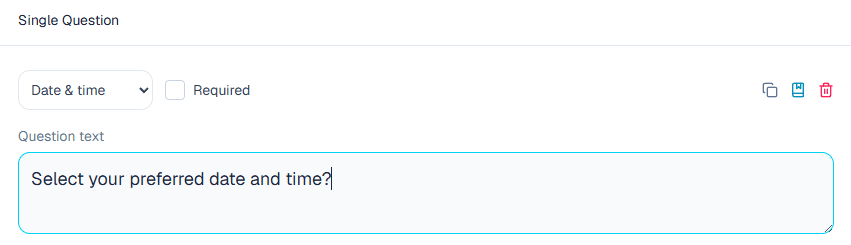
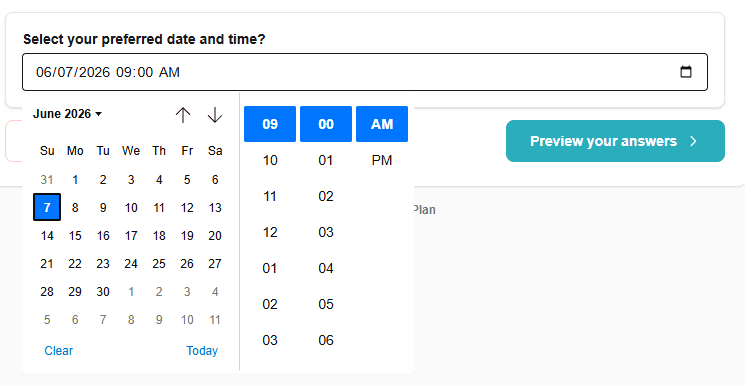
Date & time
Collect a full timestamp when the exact date and time both matter.
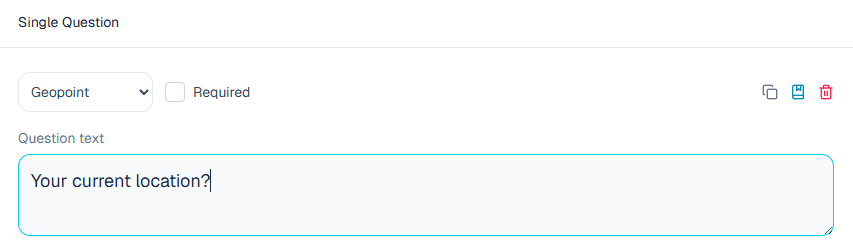
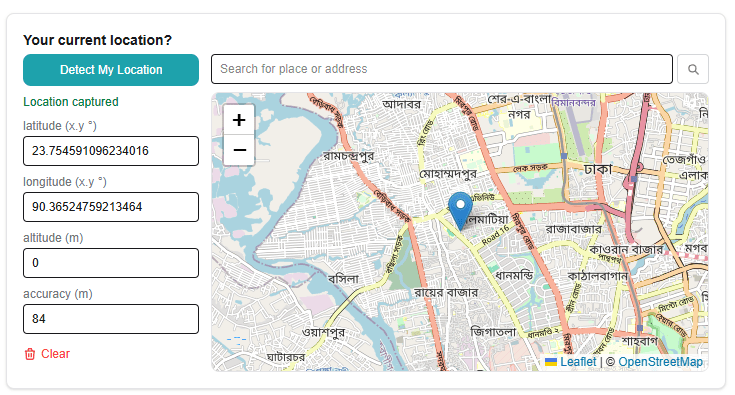
Geopoint
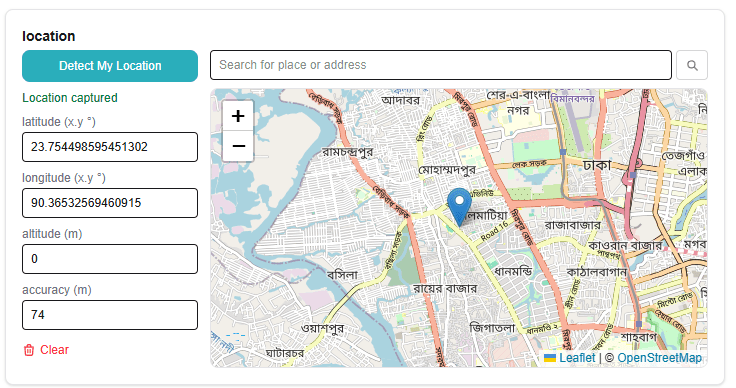
Capture one GPS point for a household, facility, asset, interview, or service location.
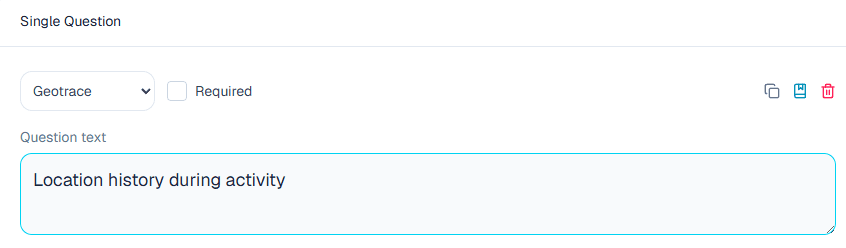
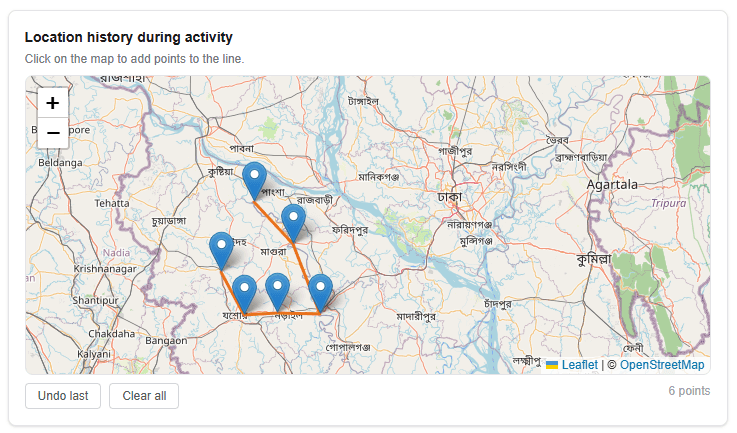
Geotrace
Capture a line or route, such as a road, walking path, river segment, or movement trace.
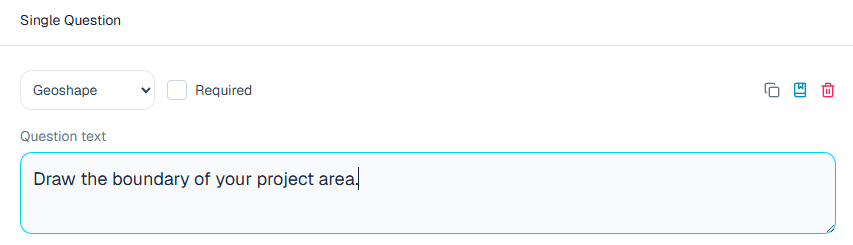
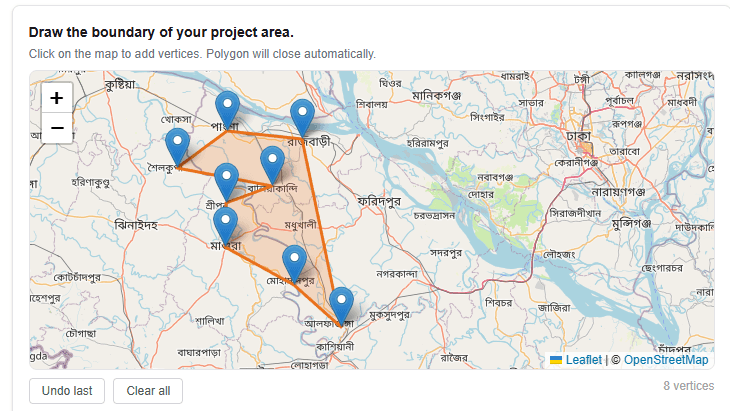
Geoshape
Capture a polygon boundary, such as a land parcel, service area, or field boundary.
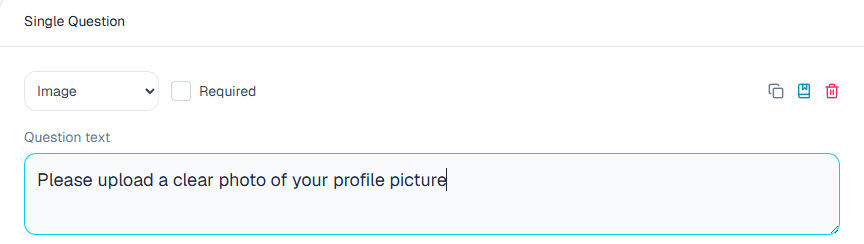
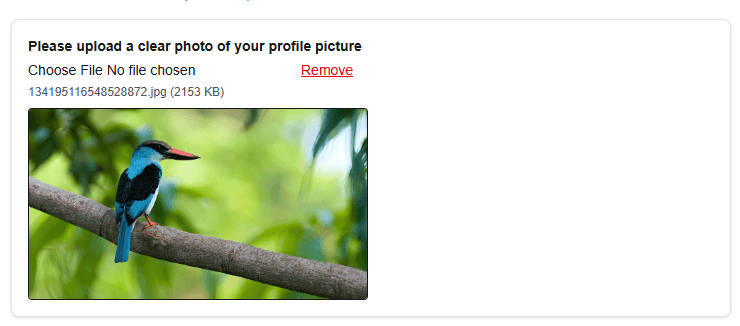
Image
Capture or upload a photo for evidence, verification, documentation, or visual records.
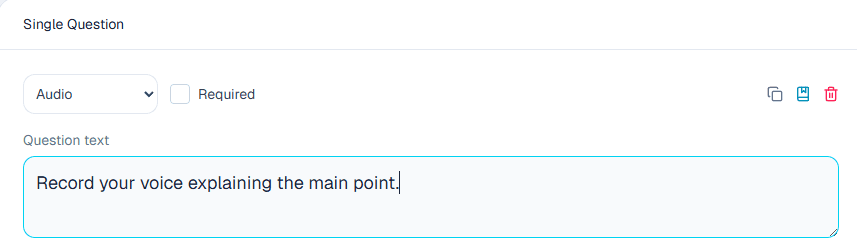
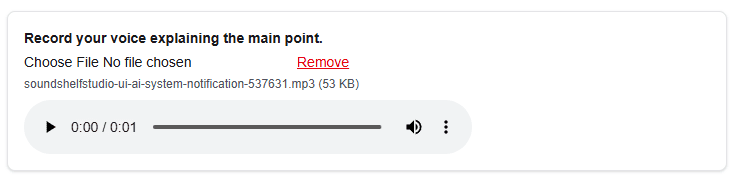
Audio
Capture or upload audio when spoken evidence or verbal records are required.
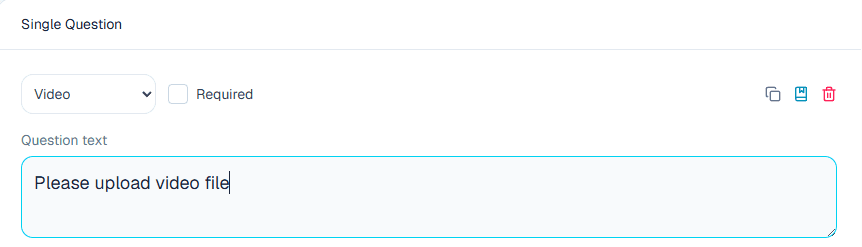
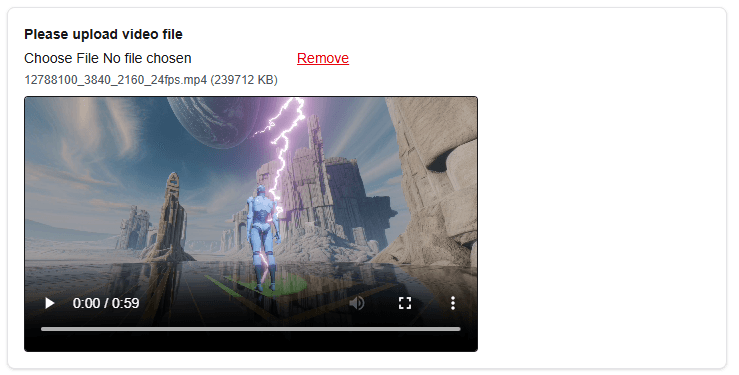
Video
Capture or upload video when motion or richer field evidence is needed.
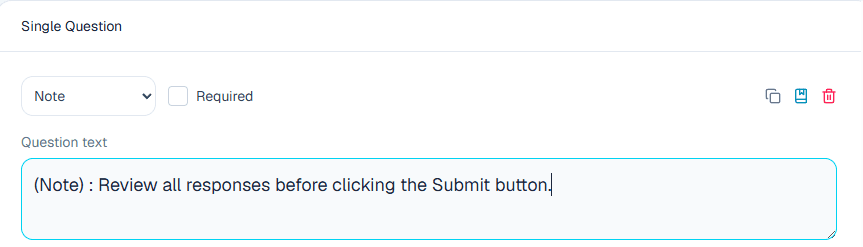
Note
Show read-only instructions, warnings, section introductions, consent text, or field guidance.

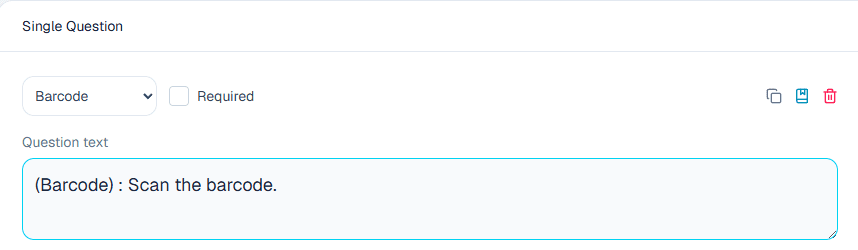
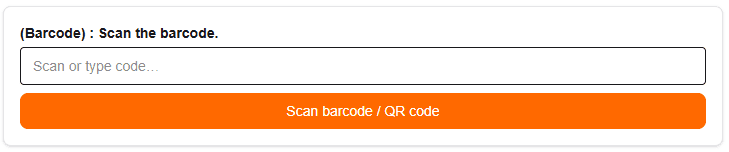
Barcode
Scan or store barcode and QR values for products, assets, IDs, vouchers, or labels.
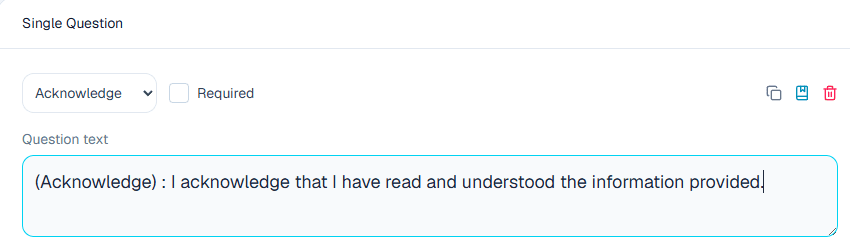
Acknowledge
Record confirmation or consent-style acknowledgement from the collector or respondent.

Rating
Collect rating or ranking-style answers where the user evaluates one or more choices.
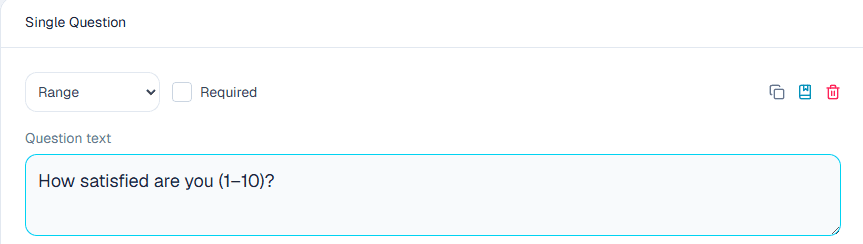

Range
Collect a bounded numeric answer with a defined minimum and maximum.
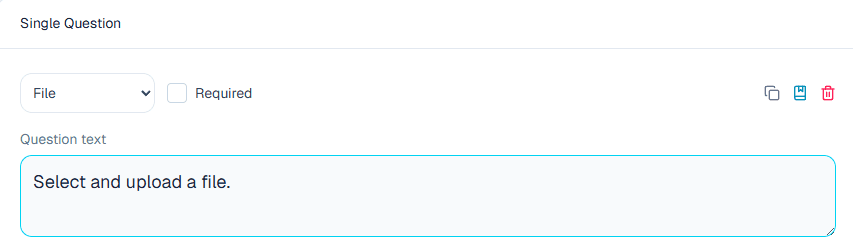

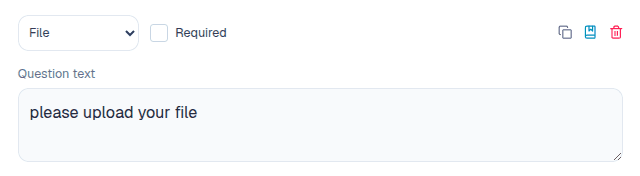
File
Upload a generic attachment that is not specifically image, audio, or video.

Group
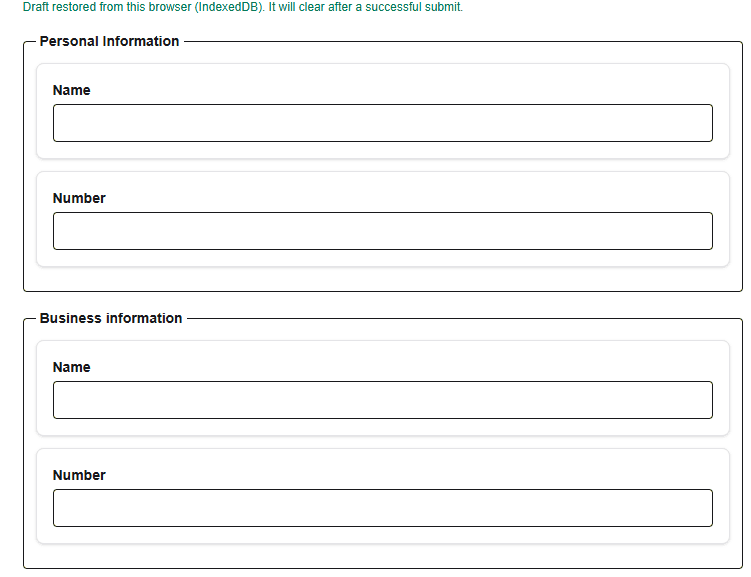
Organize related questions into a section without repeating it.
Question options
Each question has human text and a machine name. The label is what users read. The name becomes the submission column and is also used by logic, constraints, and calculations.
- 1.Keep labels readable and field-friendly.
- 2.Keep names stable after testing; changing names affects saved logic references.
- 3.Use Required only for questions that must be answered.
- 4.When a question name changes, review logic and formulas before saving.
Answers and stored values
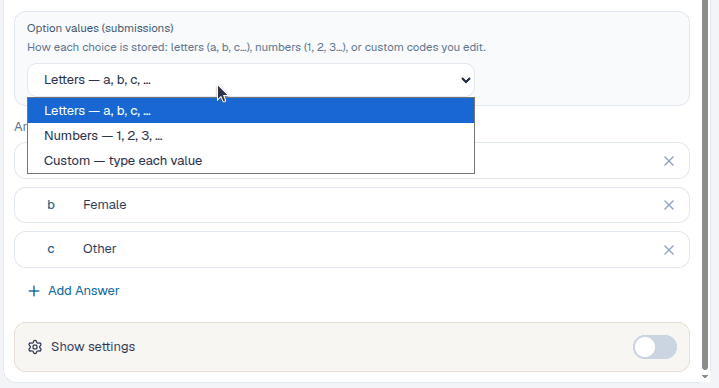
Choice questions have display labels and stored values. Labels are what collectors see. Values are what submissions store, and they are used in skip logic, constraints, reports, and exports.
- 1.Use letters when you want quick stable codes such as a, b, c.
- 2.Use numbers when analysis workflows expect numeric choice codes.
- 3.Use custom values when you already have a coding standard.
- 4.Do not change stored values after live collection unless you also plan the data cleanup.
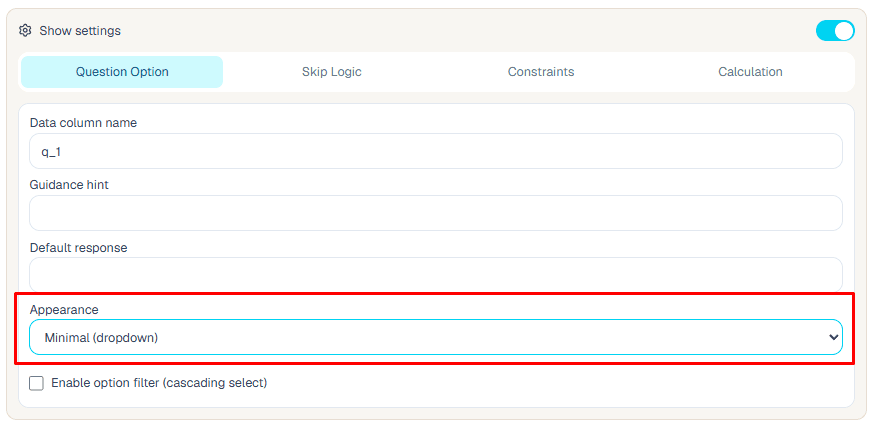
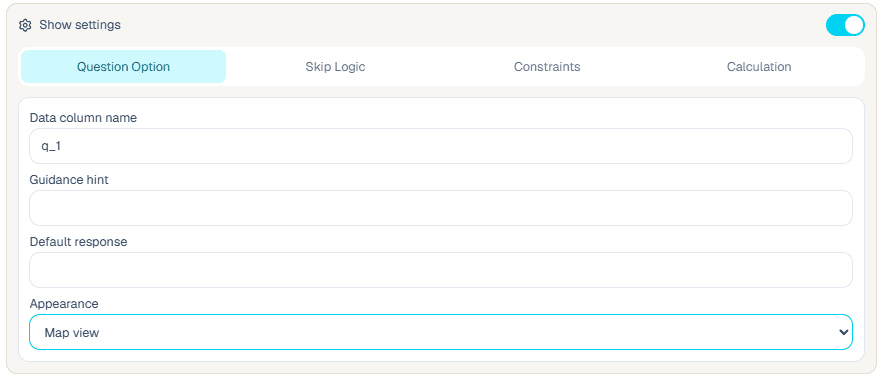
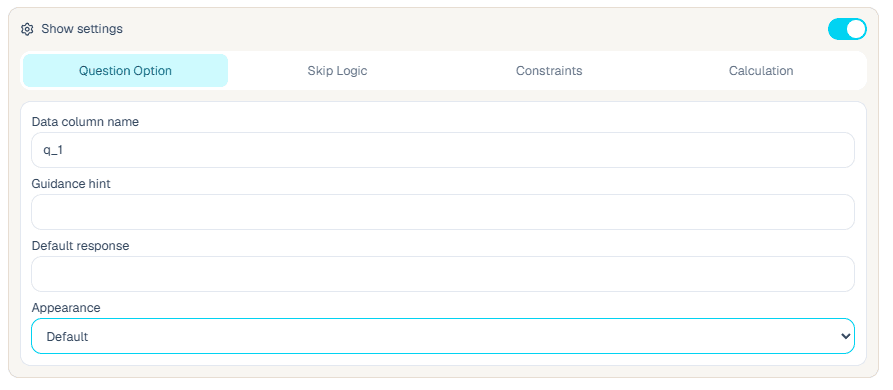
Appearance
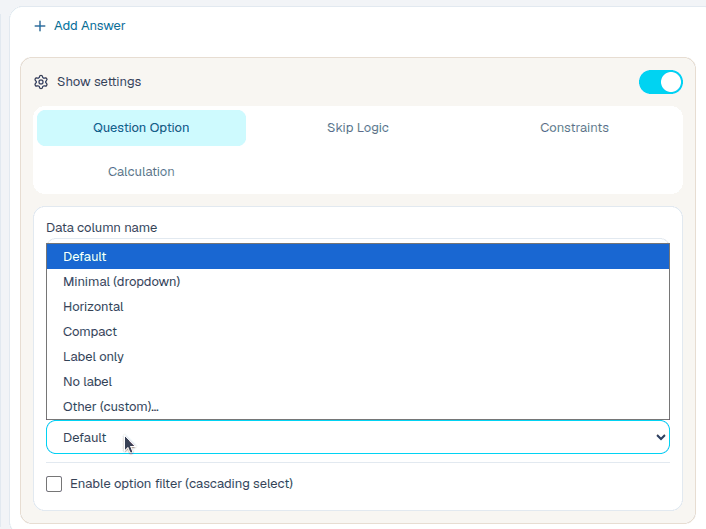
Appearance changes how the question is displayed without changing the stored answer type. Default response pre-fills an answer when that is appropriate for the field workflow.
- 1.Use minimal or autocomplete for long select lists.
- 2.Use horizontal or compact choice appearances for short lists.
- 3.Use multiline for longer text answers.
- 4.Use default response only when the default is safe and expected most of the time.
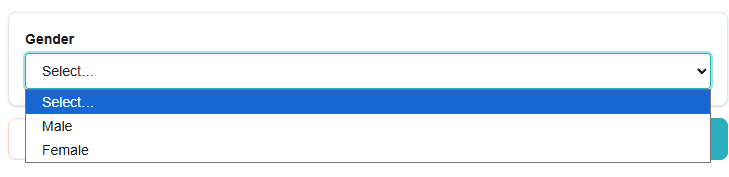
Minimal dropdown
Use minimal dropdown when a select question should take less space in the form preview.
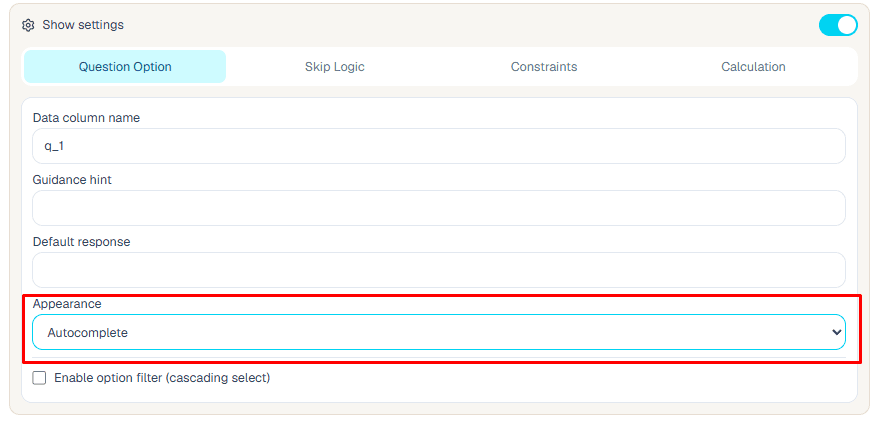
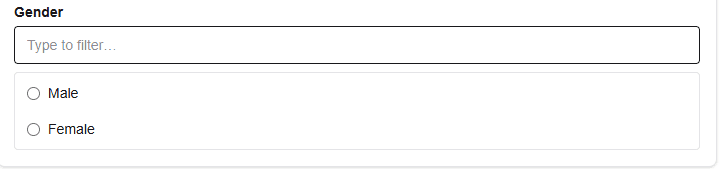
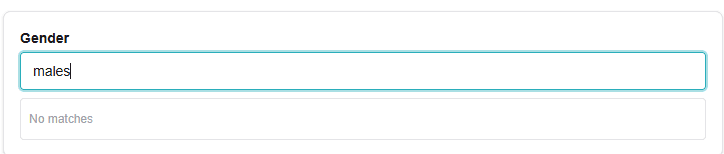
Autocomplete
Use autocomplete when collectors need to search through a longer list of options.
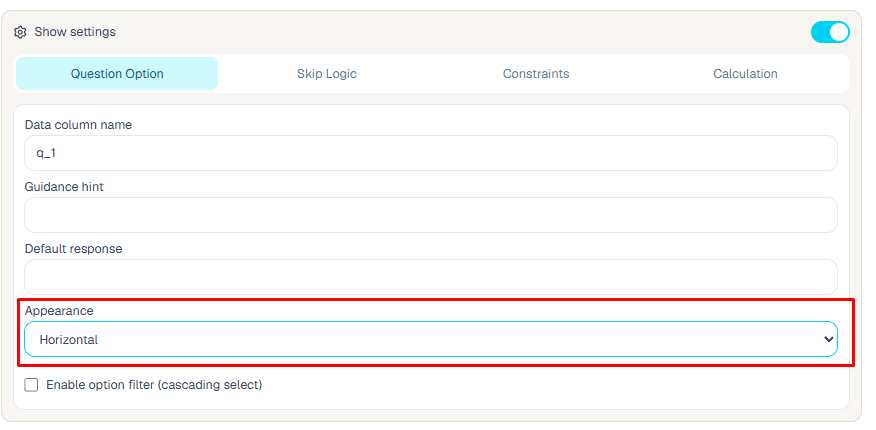
Horizontal choices
Use horizontal choices for short option lists that are easier to scan side by side.

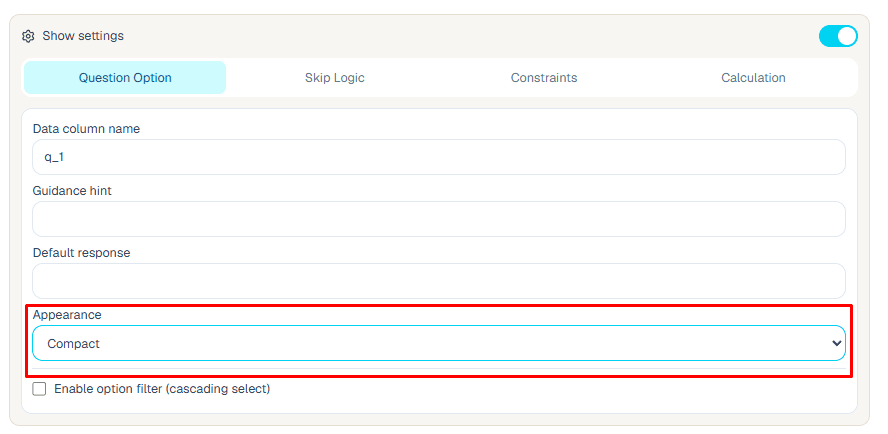
Compact choices
Use compact choices when a short option list should stay tight on the page.

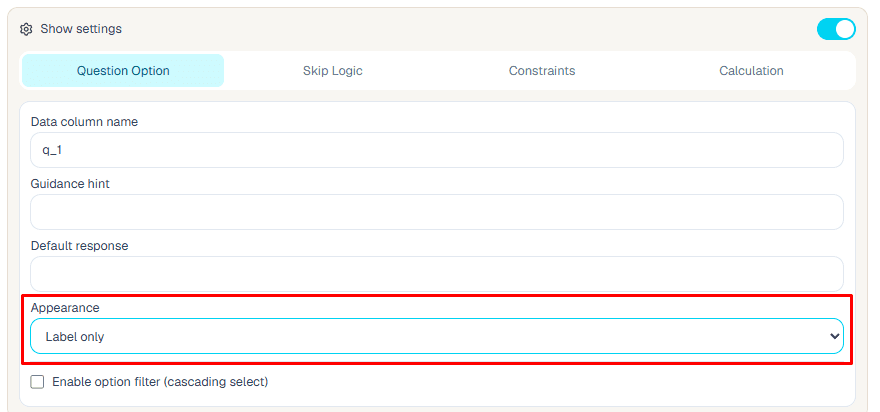
Label only
Use label only when the form needs helper text or a section label without an answer input.

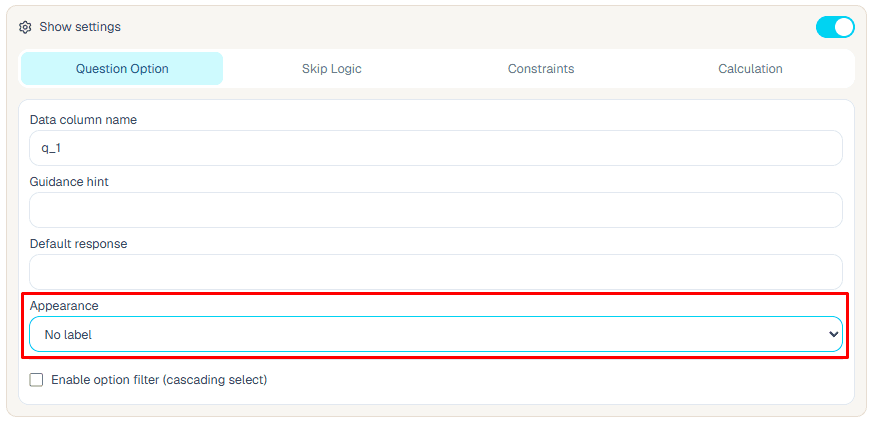
No label
Use no label only when the surrounding group or previous text already gives enough context.

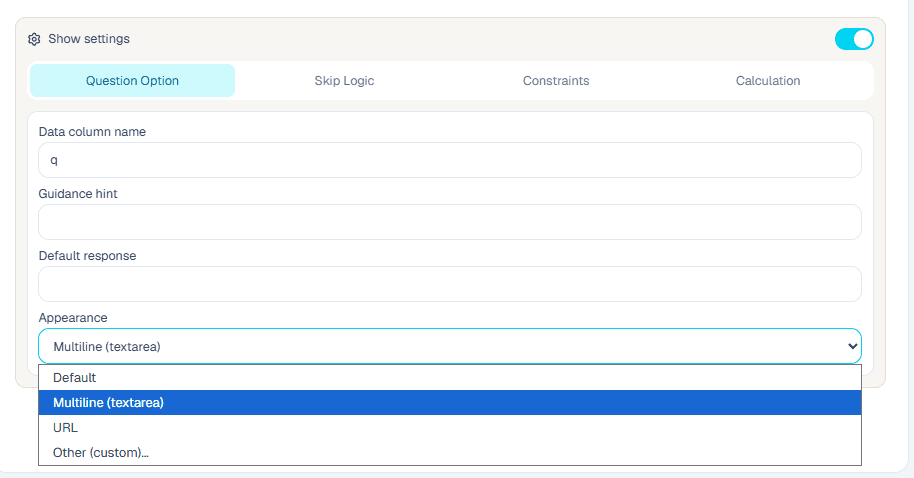
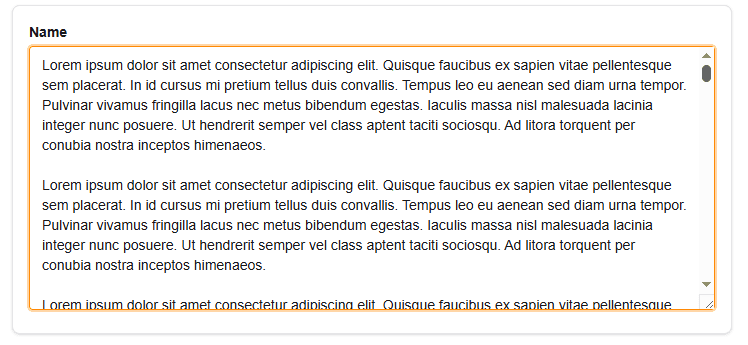
Multiline text area
Use multiline text area when collectors need room for notes, descriptions, or longer written answers.
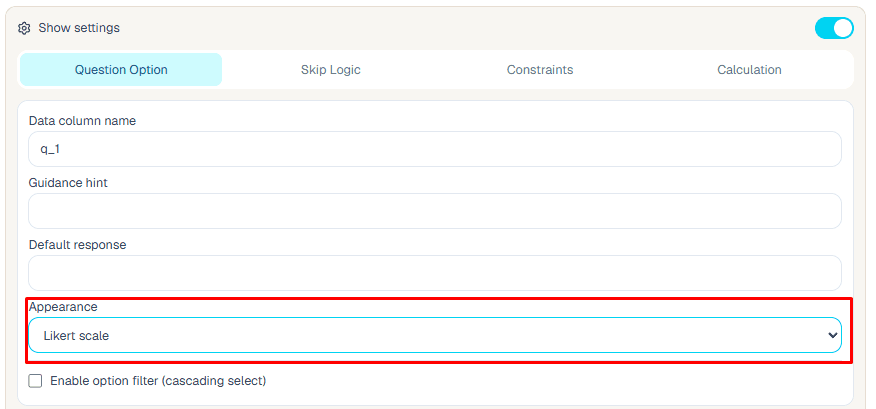
Likert scale
Use Likert scale when the answer represents agreement, satisfaction, frequency, or another ordered rating.

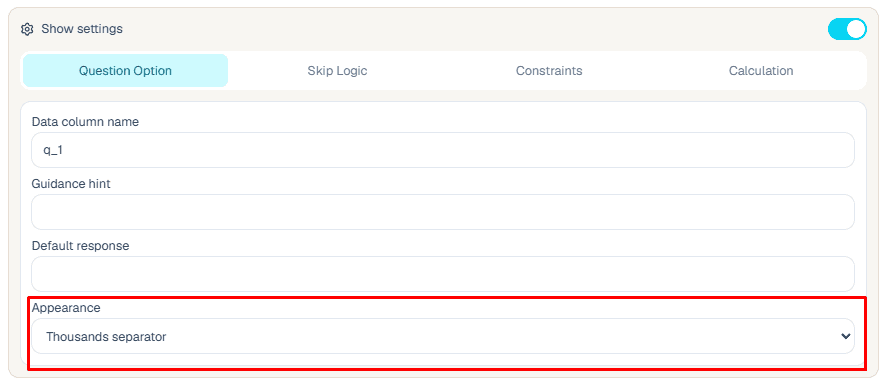
Thousands separator
Use thousands separator when large numeric values should be easier for collectors to read and check.

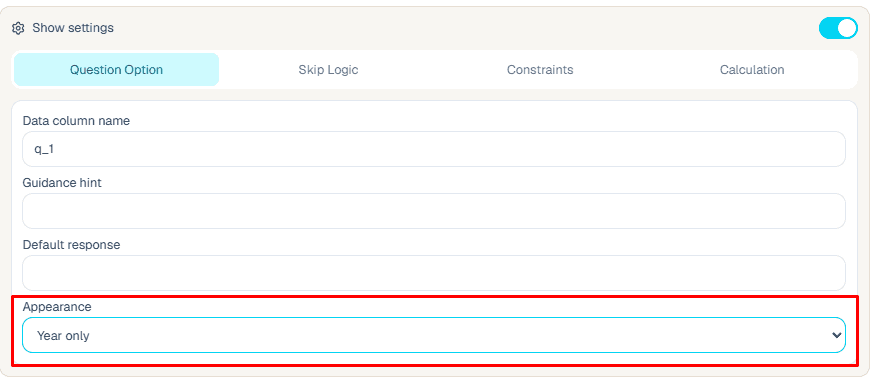
Year only
Use year only when the exact month and day are not needed.

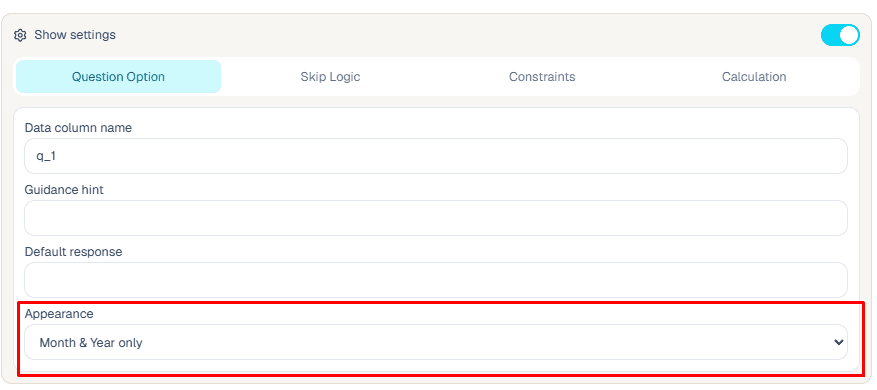
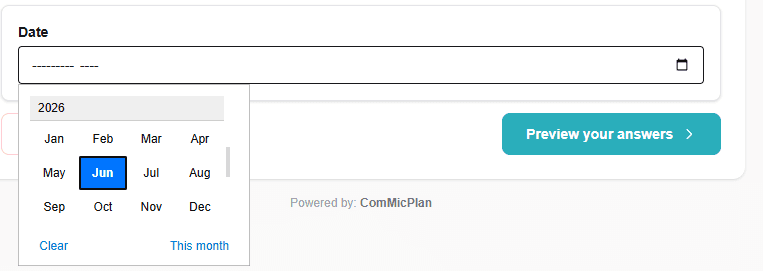
Month and year only
Use month and year only when a date needs monthly precision without a specific day.
Default range
Use a default range value when the expected answer is usually the same and collectors should only change it when needed.
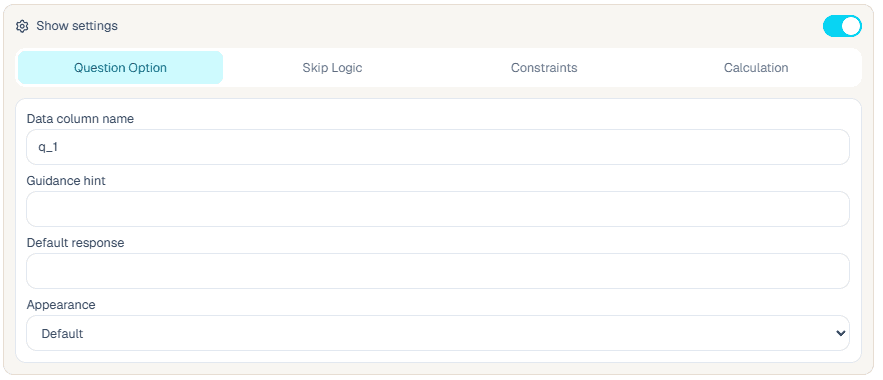

Map view
Use map view when a location question should open with a map-focused collection experience.
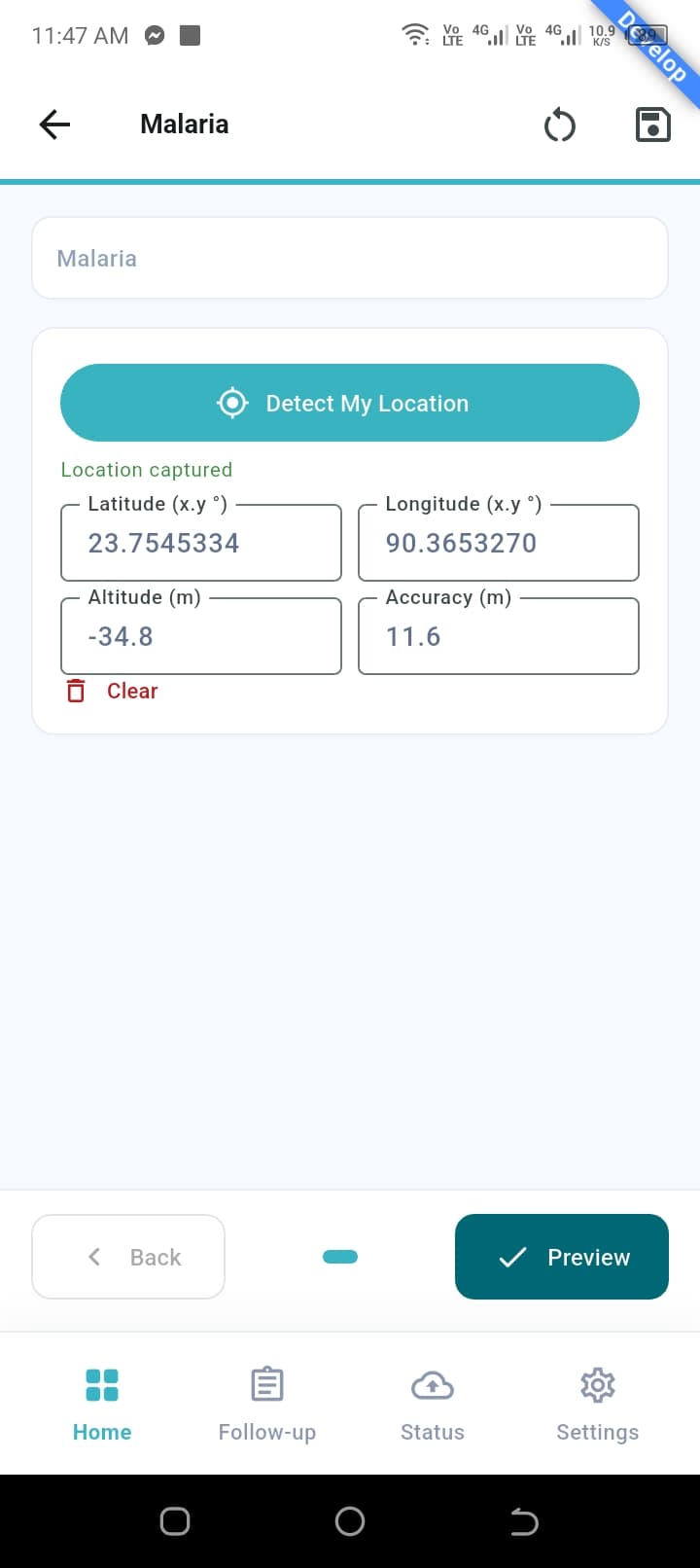
Default map
Use a default map value when the location should start from a known place before collectors adjust it.
Skip logic
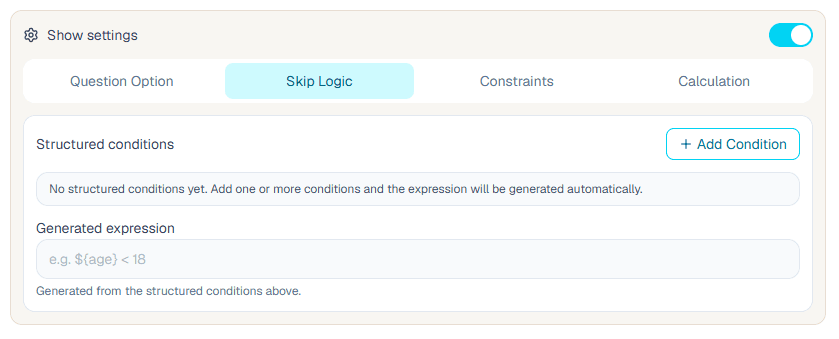
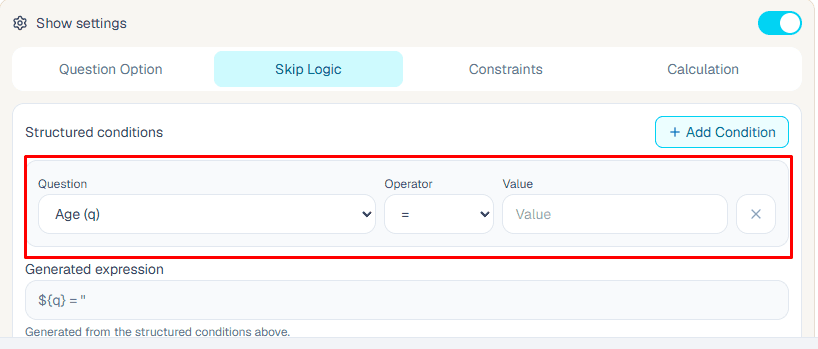
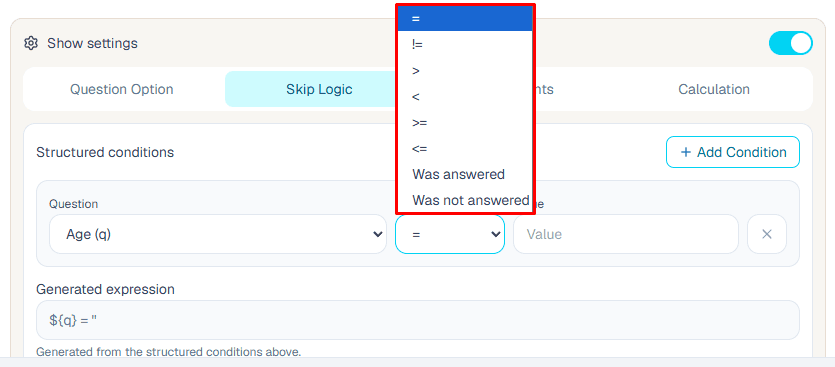
Skip logic controls whether a question is shown in the ComMicPlan preview and during collection. Add logic to the target question, choose a previous source question, select an operator, and set the value or answer state that should make the target question visible.
- 1.Open the target question that should appear or stay hidden.
- 2.Open Skip logic from the question settings.
- 3.Choose the source question, operator, and value or answer state.
- 4.Preview the form and test every expected show and hide path before saving.
Equal to
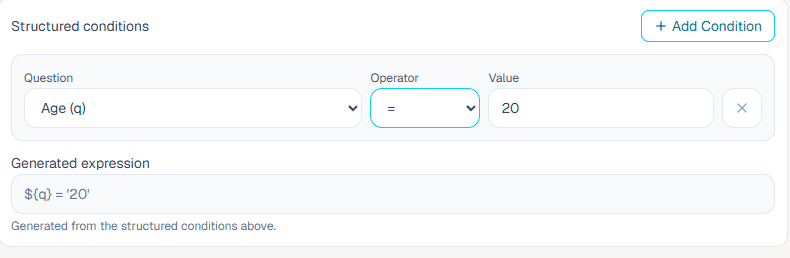
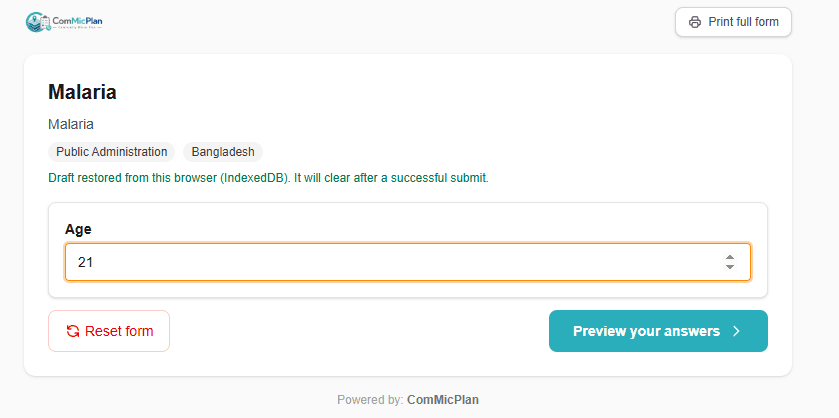
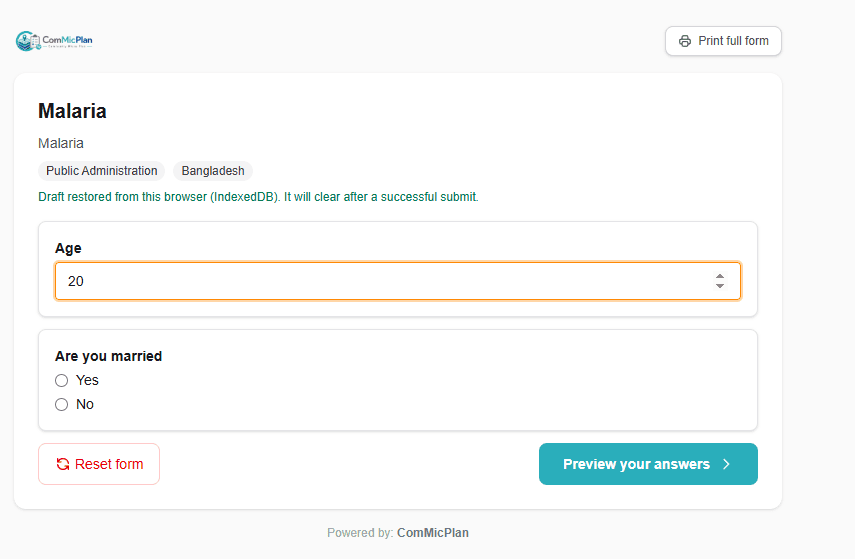
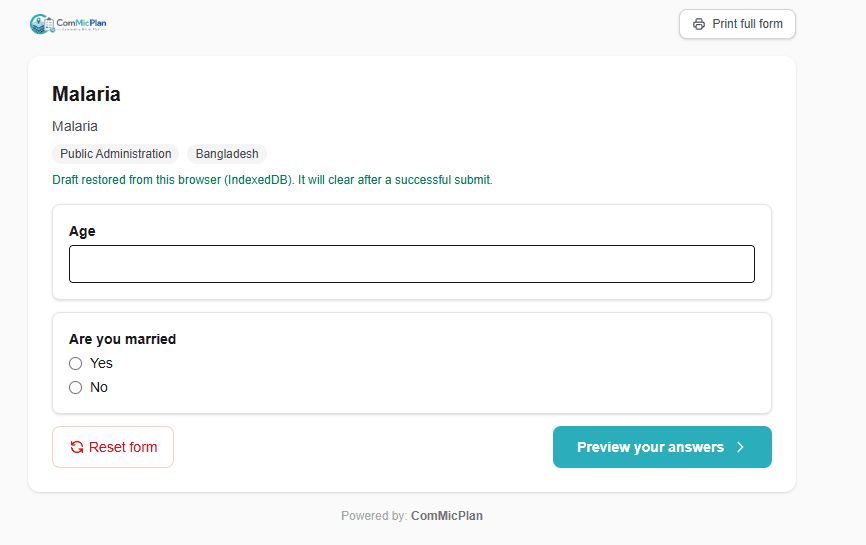
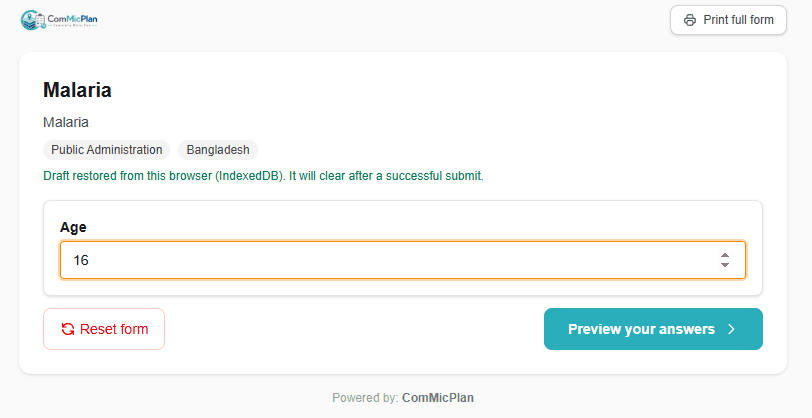
Use equal to when the target question should appear only after the source question exactly matches one expected value. In this case, Q2 appears only when Age is 20.
- 1.Age = 18 keeps Q2 hidden.
- 2.Age = 20 shows Q2.
- 3.Age = 25 keeps Q2 hidden.
Not equal to
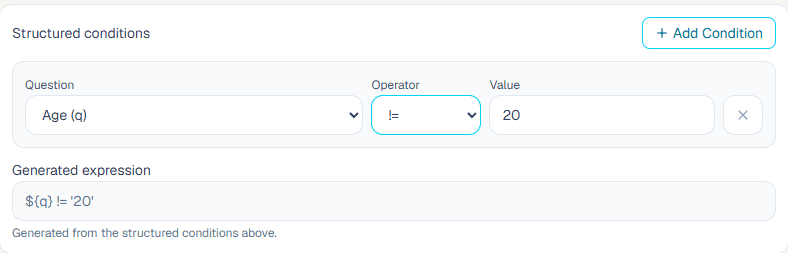
Use not equal to when the target question should appear for every value except one blocked value. In this case, Q2 is hidden only when Age is 20.
- 1.Age = 18 shows Q2.
- 2.Age = 20 keeps Q2 hidden.
- 3.Age = 25 shows Q2.
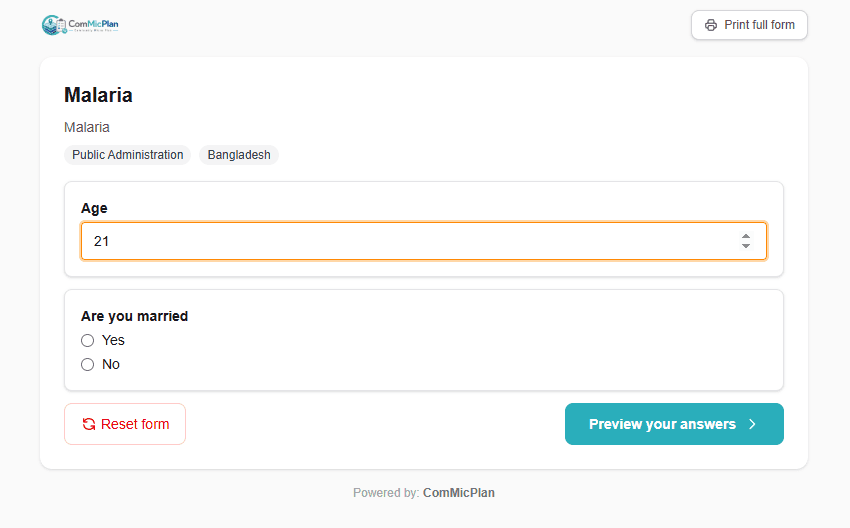
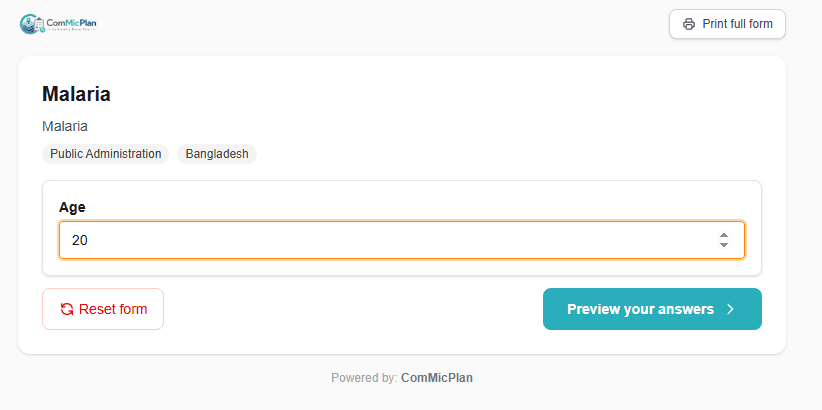
Greater than
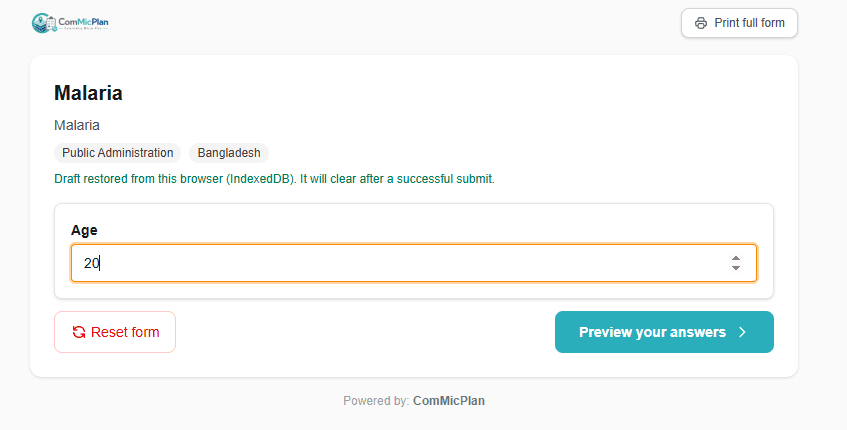
Use greater than when the target question should appear only after the numeric source answer is higher than the configured value. In this case, Q2 appears only when Age is greater than 20.
- 1.Age = 18 keeps Q2 hidden.
- 2.Age = 20 keeps Q2 hidden.
- 3.Age = 25 shows Q2.
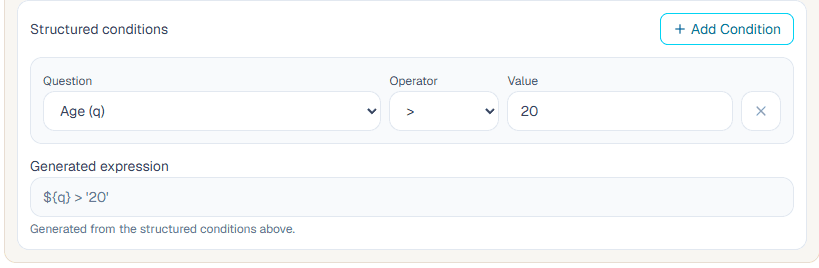
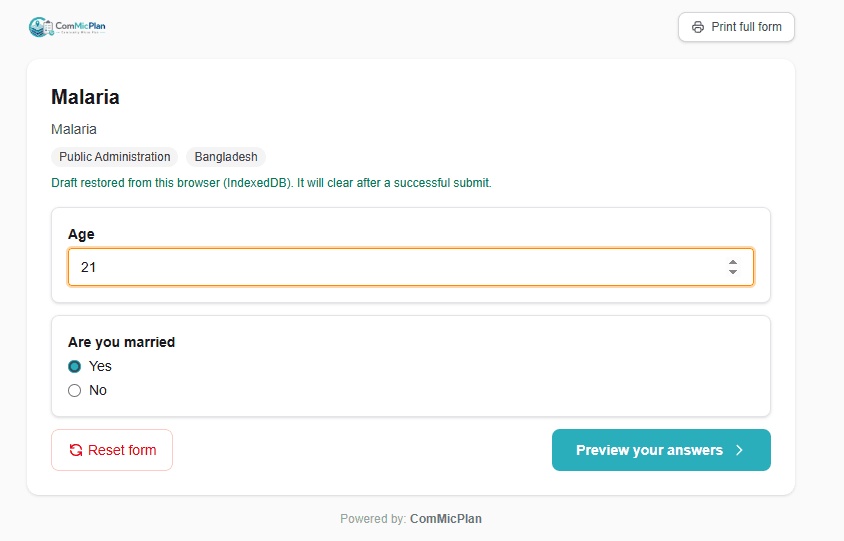
Less than
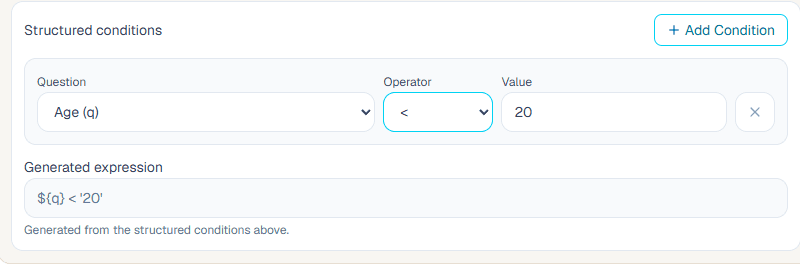
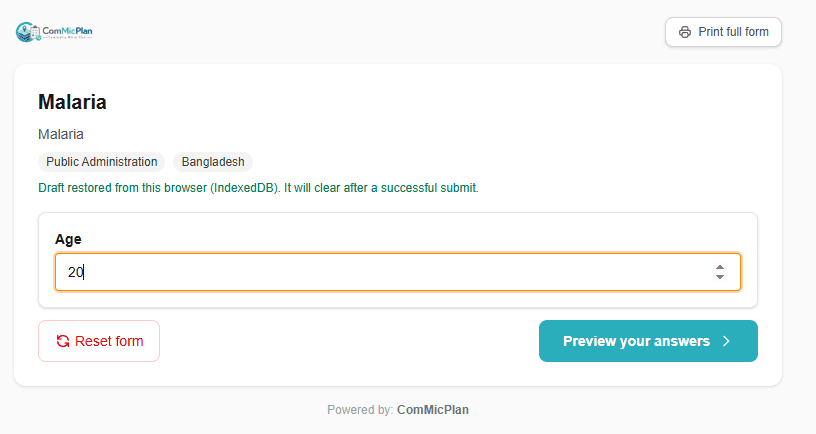
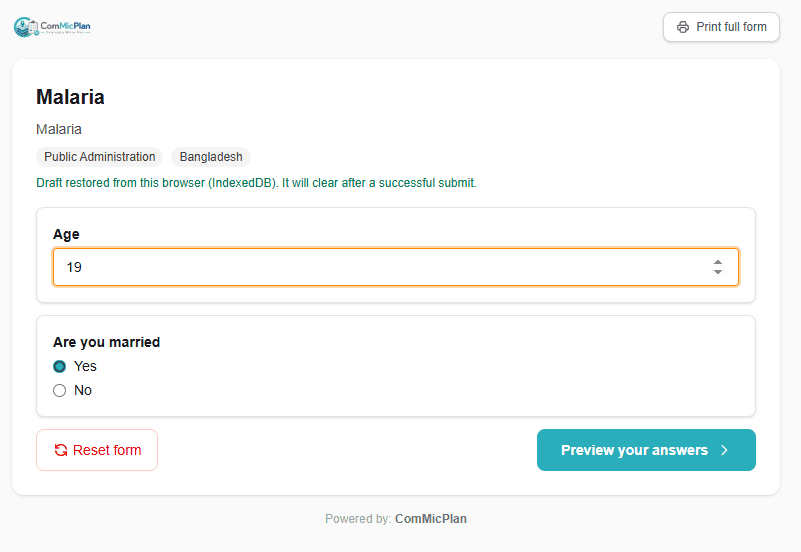
Use less than when the target question should appear only after the numeric source answer is lower than the configured value. In this case, Q2 appears only when Age is less than 20.
- 1.Age = 18 shows Q2.
- 2.Age = 20 keeps Q2 hidden.
- 3.Age = 25 keeps Q2 hidden.
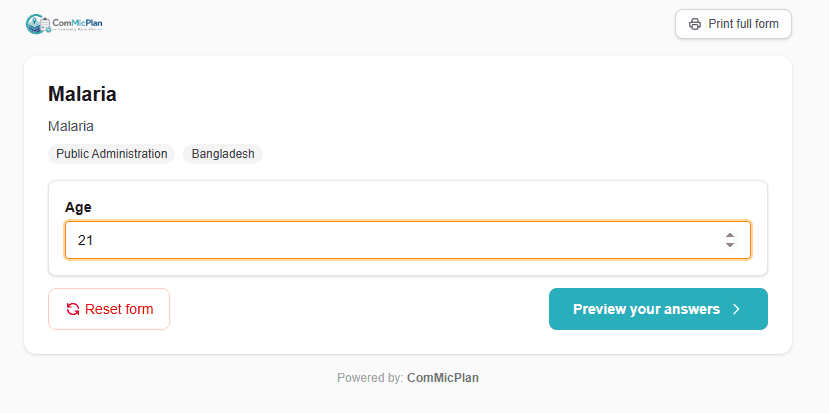
Greater than or equal to
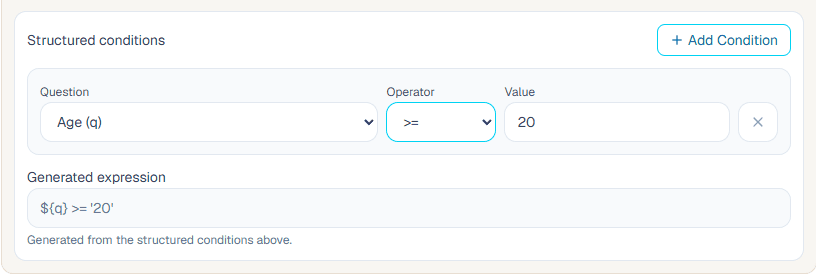
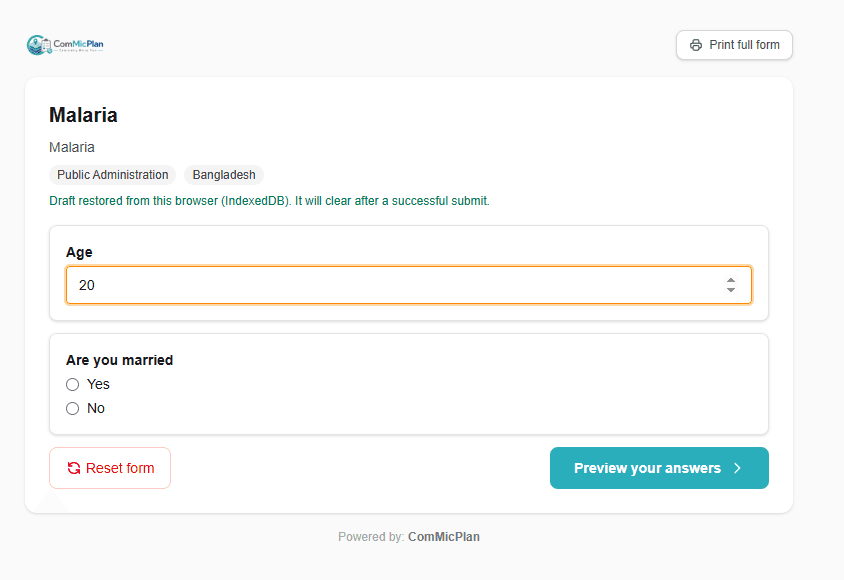
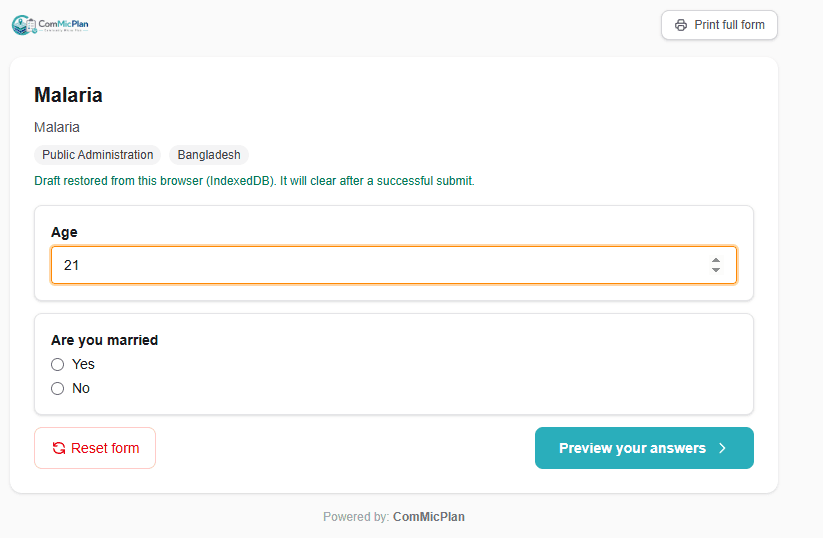
Use greater than or equal to when the target question should appear at the threshold value and above it. In this case, Q2 appears when Age is 20 or higher.
- 1.Age = 18 keeps Q2 hidden.
- 2.Age = 20 shows Q2.
- 3.Age = 25 shows Q2.
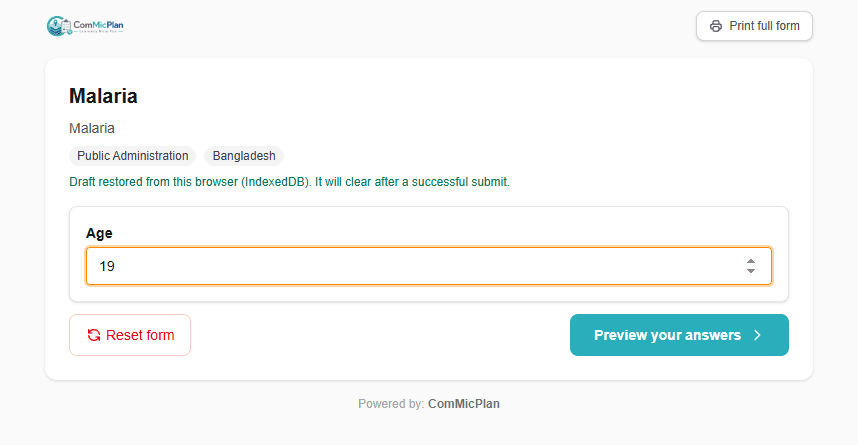
Less than or equal to
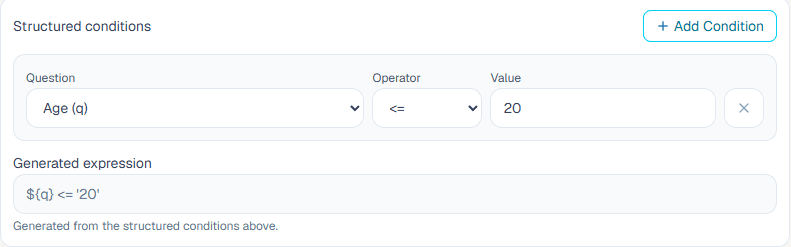
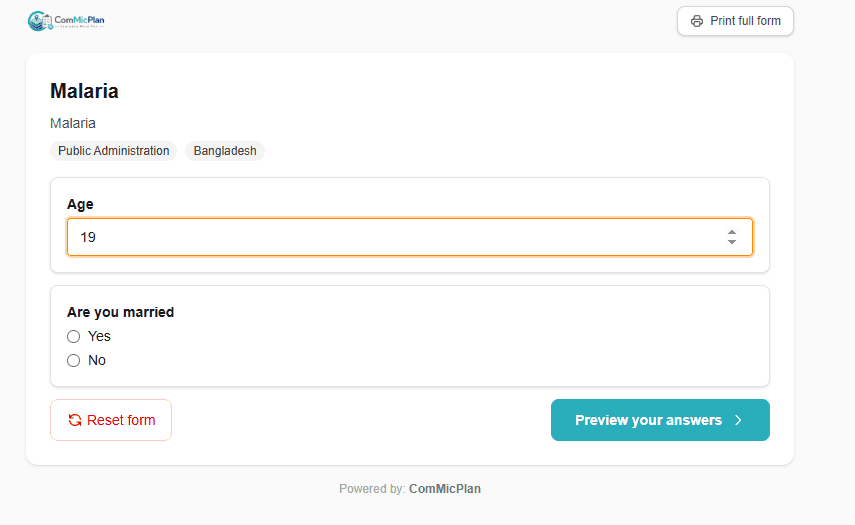
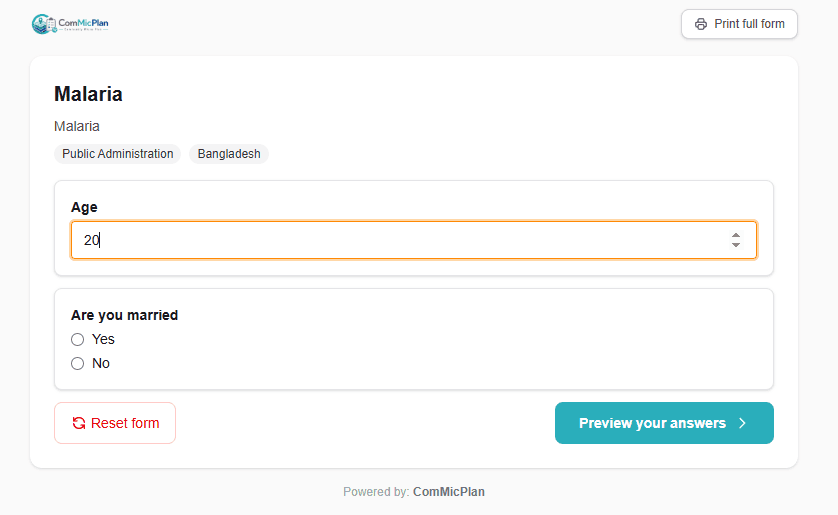
Use less than or equal to when the target question should appear at the threshold value and below it. In this case, Q2 appears when Age is 20 or lower.
- 1.Age = 18 shows Q2.
- 2.Age = 20 shows Q2.
- 3.Age = 25 keeps Q2 hidden.
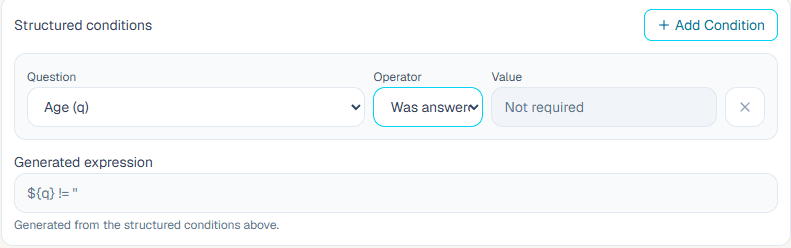
Was answered
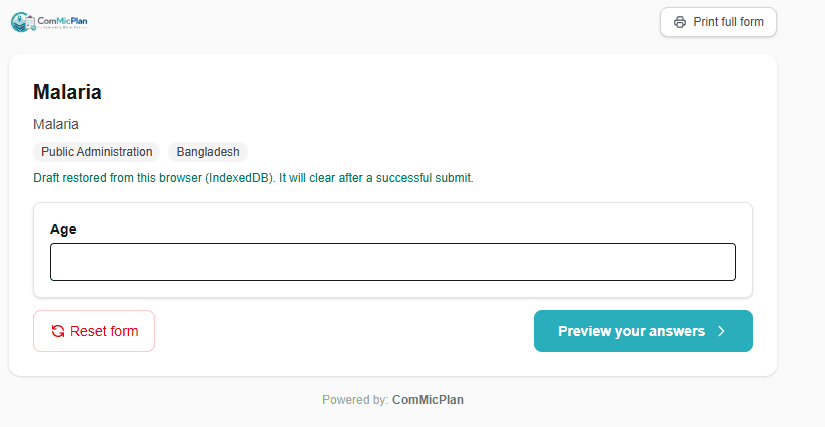
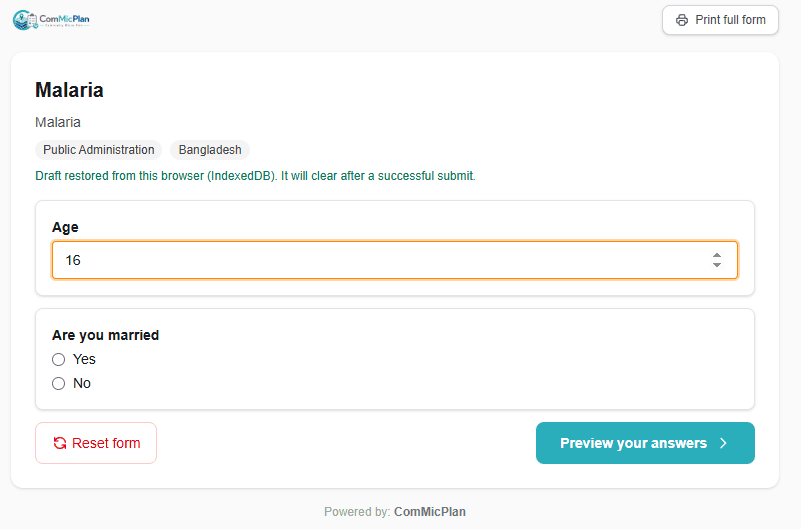
Use was answered when the target question should appear as soon as the source question has any response. In this case, Q2 stays hidden while Age is blank and appears after Age has a value.
- 1.Empty Age keeps Q2 hidden.
- 2.Age = 18 shows Q2.
- 3.Age = 20 shows Q2.
- 4.Age = 25 shows Q2.
Was not answered
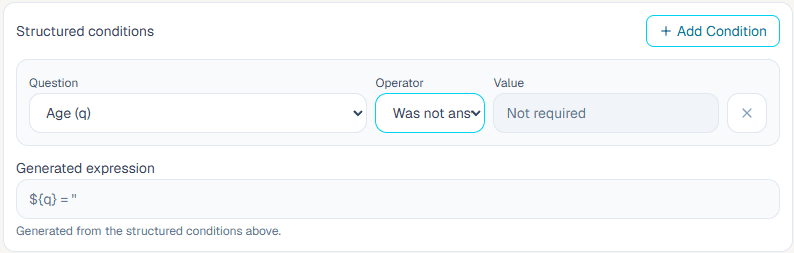
Use was not answered when the target question should appear only while the source question is still blank. In this case, Q2 appears before Age is answered and hides after any Age value is entered.
- 1.Empty Age shows Q2.
- 2.Age = 18 keeps Q2 hidden.
- 3.Age = 20 keeps Q2 hidden.
- 4.Age = 25 keeps Q2 hidden.
Constraints
Constraints validate answers before submission. They are used for ranges, length rules, required patterns, and other field-level data quality checks.
- 1.Use range constraints for age, quantity, score, or measurement limits.
- 2.Use a clear constraint message so collectors know how to fix the answer.
- 3.Keep constraints strict enough for quality but not so strict that real field cases cannot be submitted.
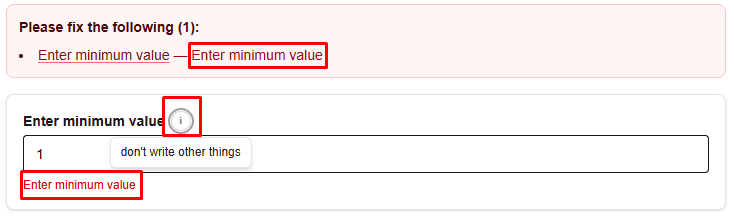
Minimum value
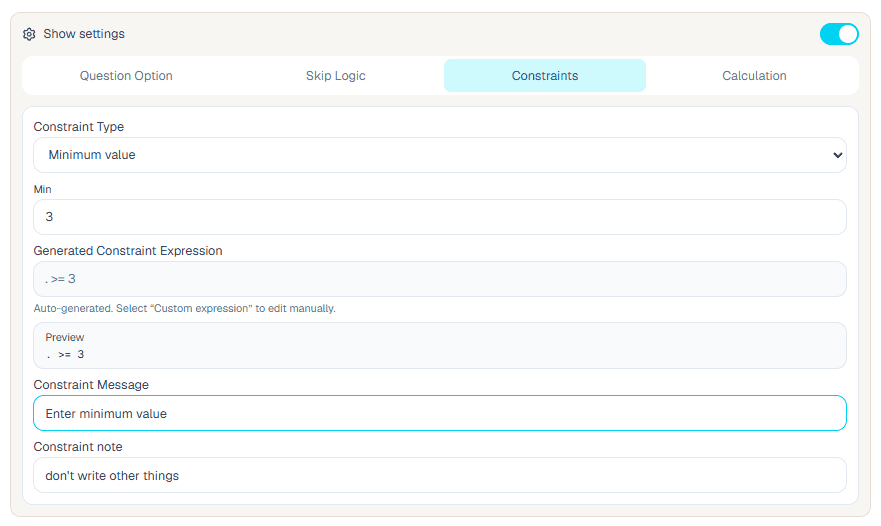
Use a minimum value when a numeric answer must be at or above a threshold, such as age, quantity, count, or score.

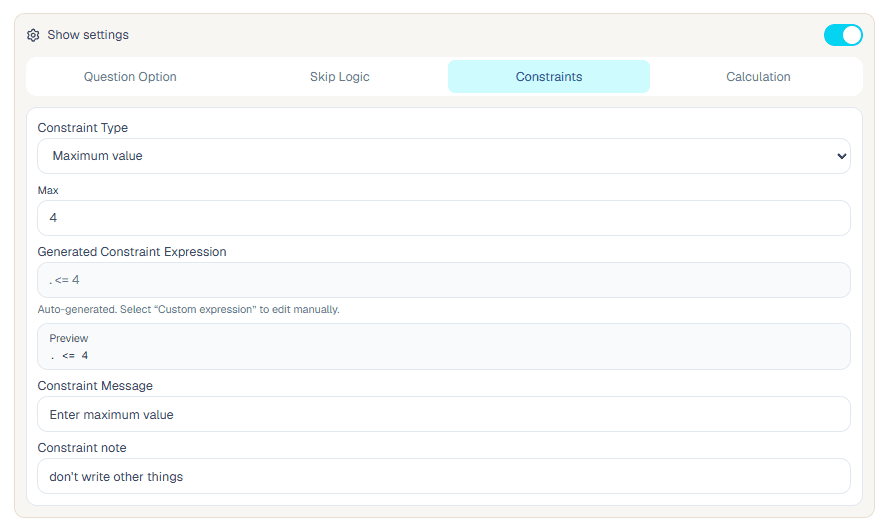
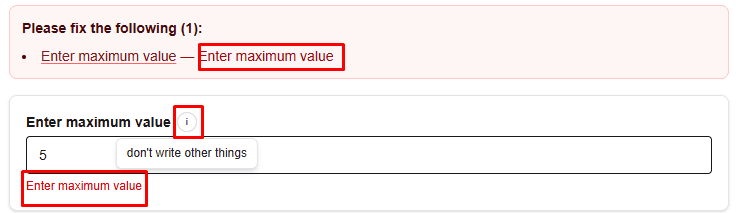
Maximum value
Use a maximum value when a numeric answer must not exceed an upper limit.

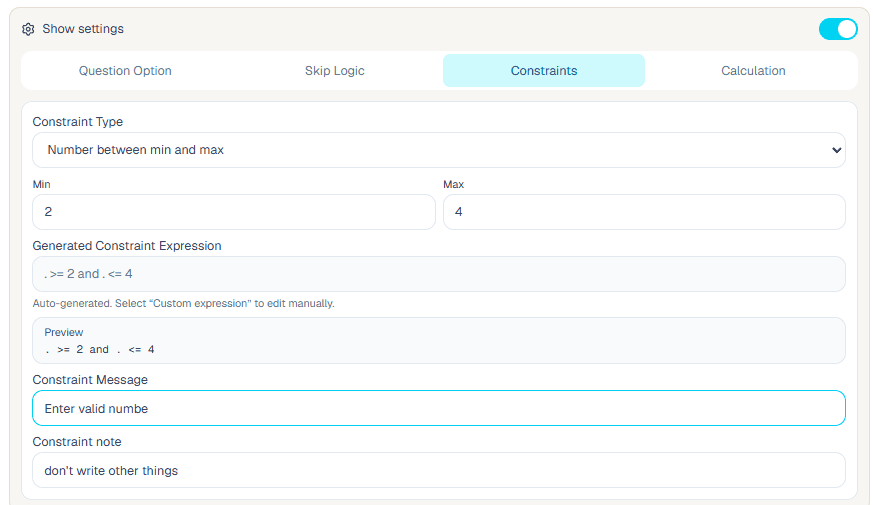
Number between minimum and maximum
Use a between constraint when the answer must stay inside a defined numeric range.
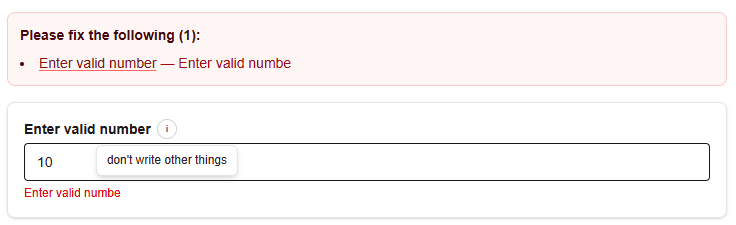

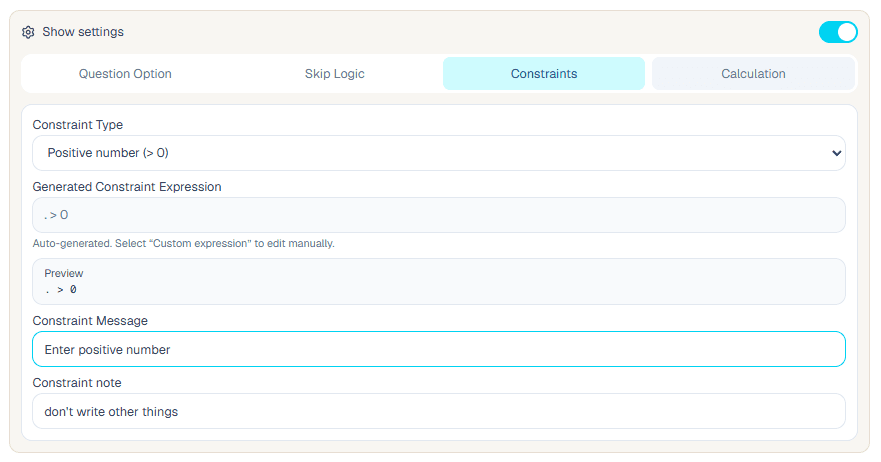
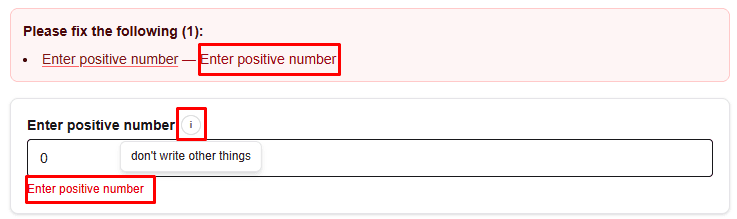
Positive number
Use a positive number constraint when zero and negative values are not allowed.

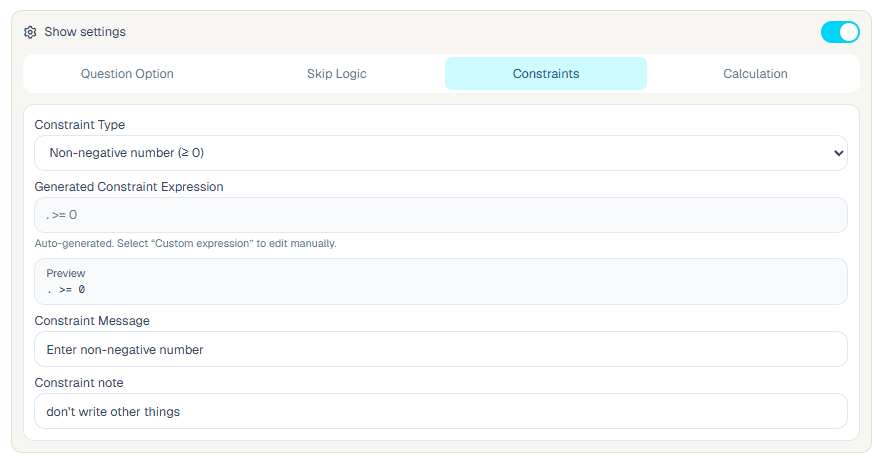
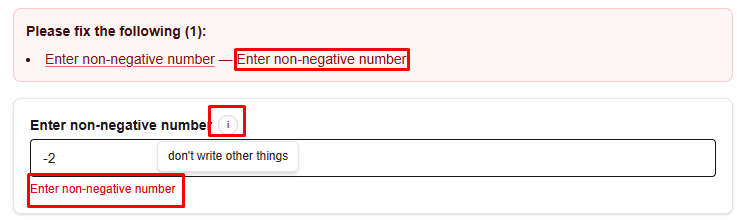
Non-negative number
Use a non-negative number constraint when zero is allowed but negative values are not.

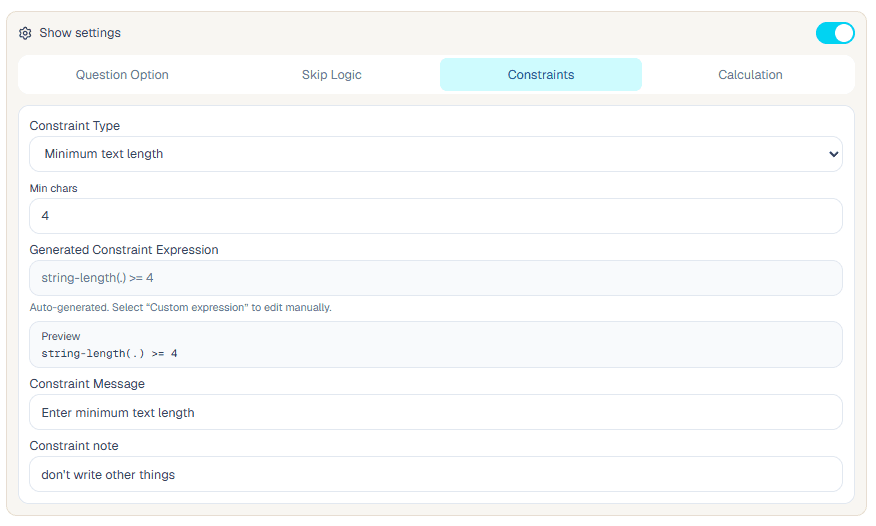
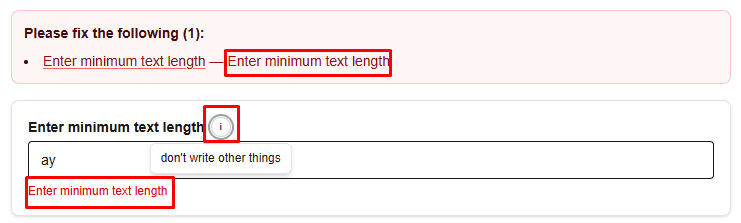
Minimum text length
Use a minimum text length constraint when short answers would be too incomplete to use.

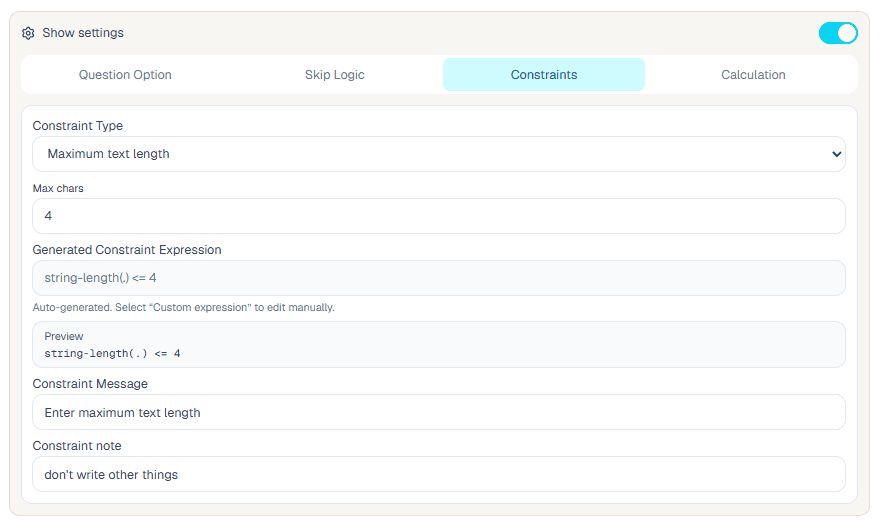
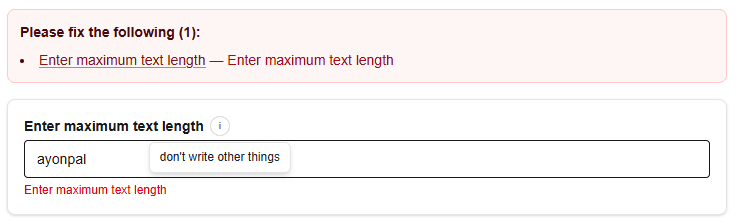
Maximum text length
Use a maximum text length constraint when an answer should stay within a practical character limit.

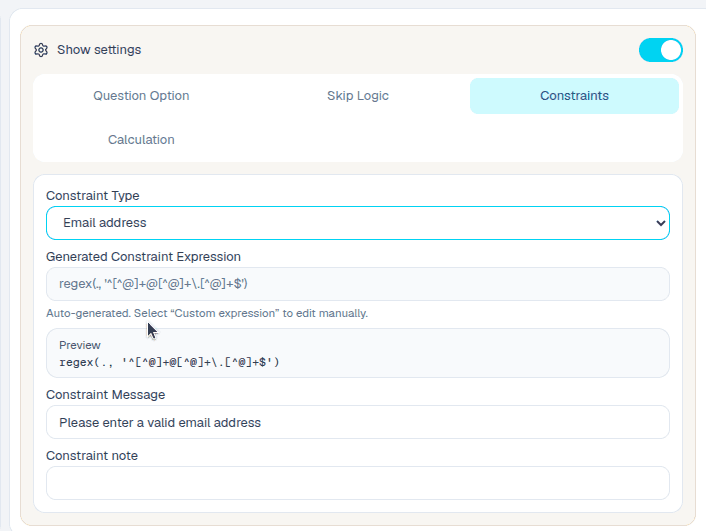
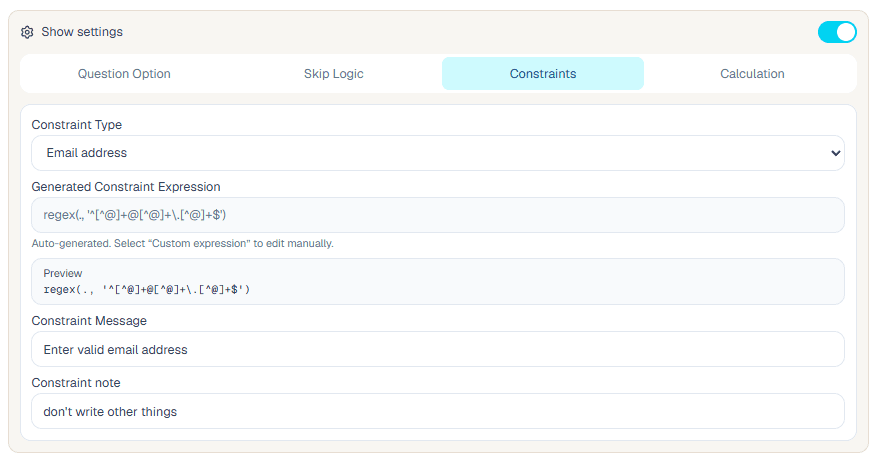
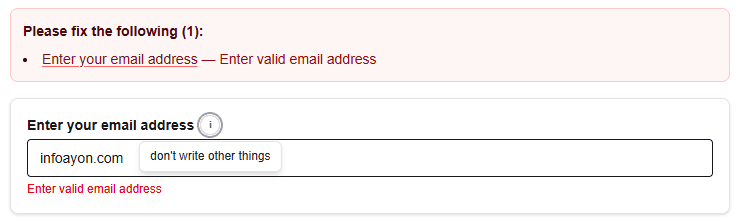
Email address
Use an email address constraint when the response must follow a valid email format.
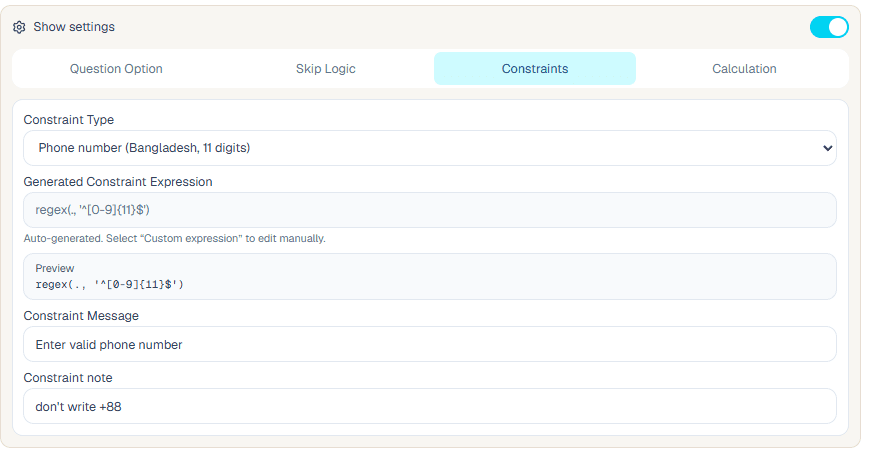
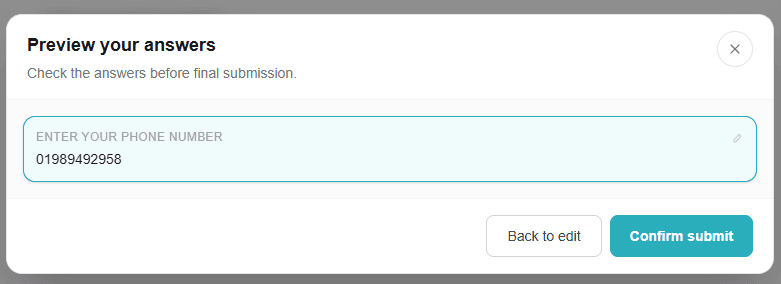
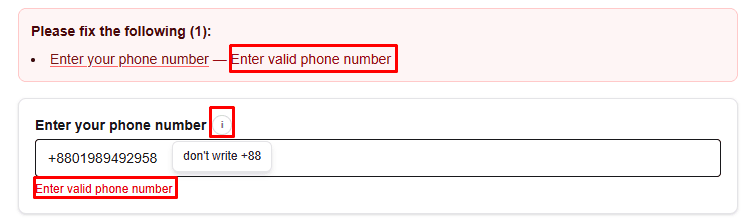
Phone number
Use a phone number constraint when entries should match the expected phone format for your collection workflow.

Calculations
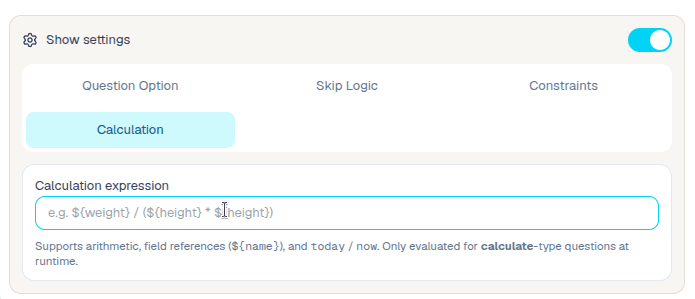
Calculate questions store derived values. They are useful for totals, scores, flags, ratios, and other values that should be generated from previous answers.
- 1.Use Calculate when the value should not be typed manually.
- 2.Reference question names in formulas.
- 3.Set triggers so the calculation updates when source answers change.
- 4.Preview and validate calculations before field deployment.
Group and repeat questions
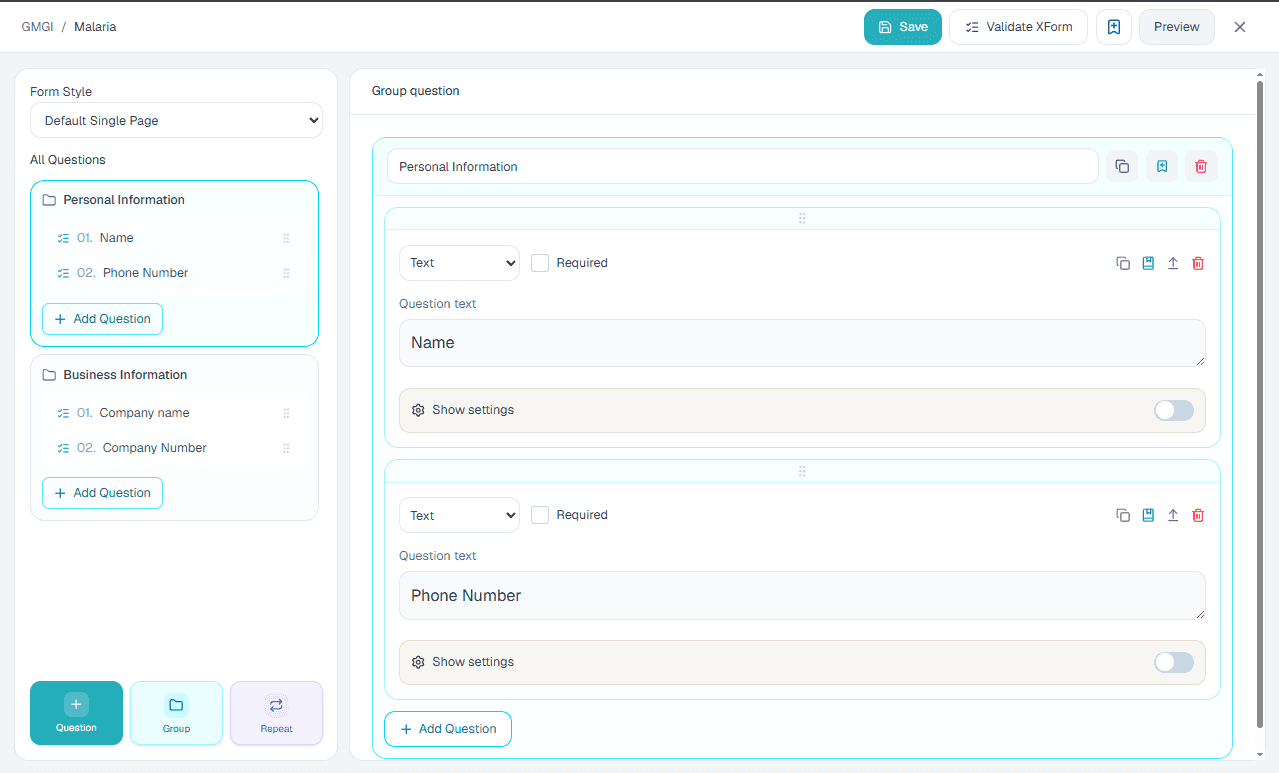
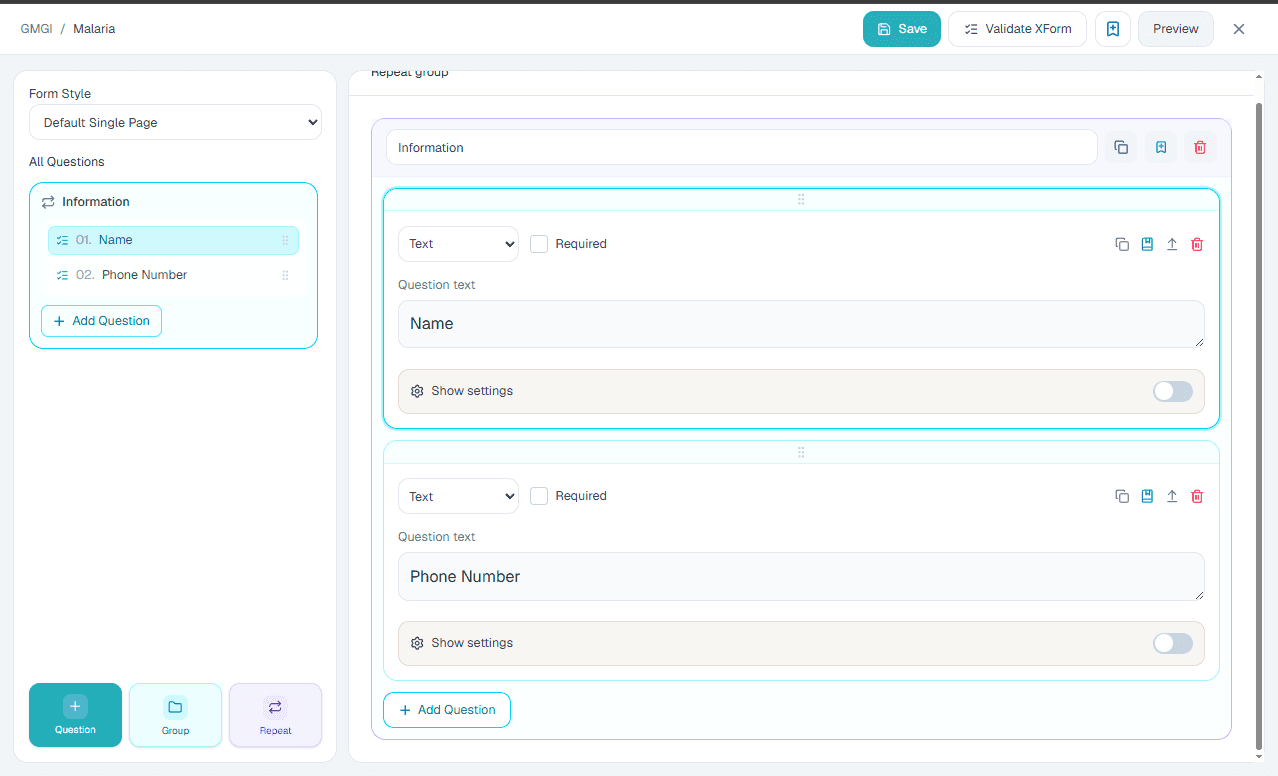
Groups and repeats help large forms stay organized. A group keeps related questions together once, while a repeat collects the same child questions multiple times for rosters, visits, assets, crops, or other repeating records.
- 1.Create a group for a normal section of related questions.
- 2.Create a repeat when the same set of child questions may be answered more than once.
- 3.Add child questions inside the group or repeat.
- 4.Preview the form to confirm the section title, child question order, and repeat behavior.
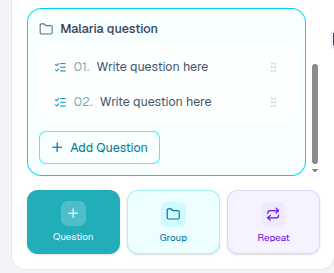
Group
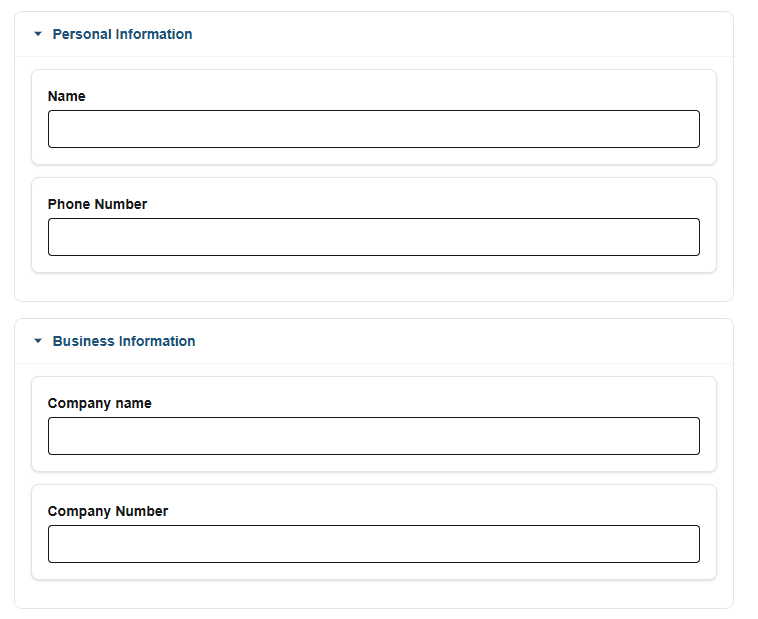
Use a group when several questions belong under one shared section heading but should be collected only once.
- 1.Add a Group from the question list controls.
- 2.Enter a clear group label.
- 3.Add or move child questions into the group.
- 4.Check the preview to make sure the grouped questions appear under the right heading.

Repeat group
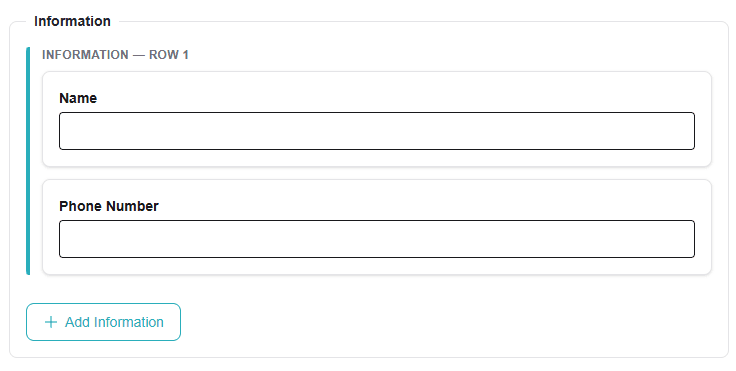
Use a repeat group when collectors need to enter the same set of questions for multiple records, such as household members, land plots, facilities, or visits.
- 1.Add a Repeat from the question list controls.
- 2.Enter a repeat label that explains what one repeated record represents.
- 3.Add the child questions that should be answered for each repeat item.
- 4.Preview and add more than one repeat item to test the collection flow.
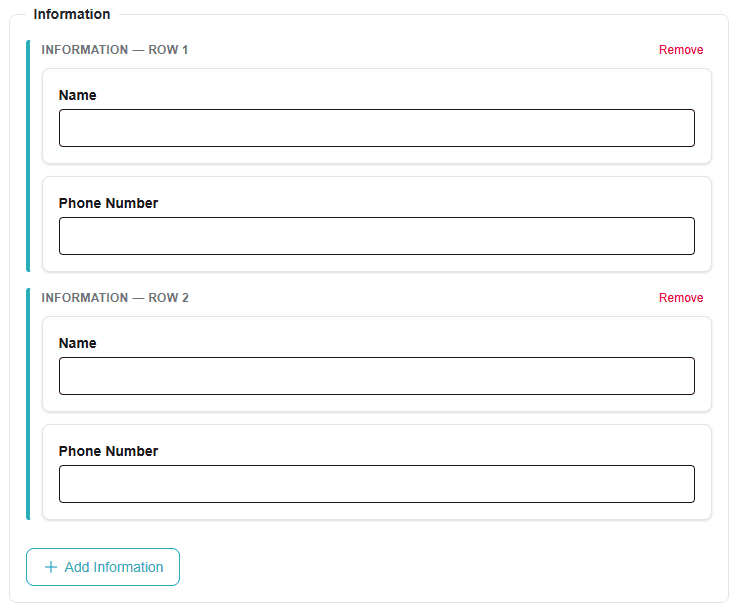
Question library
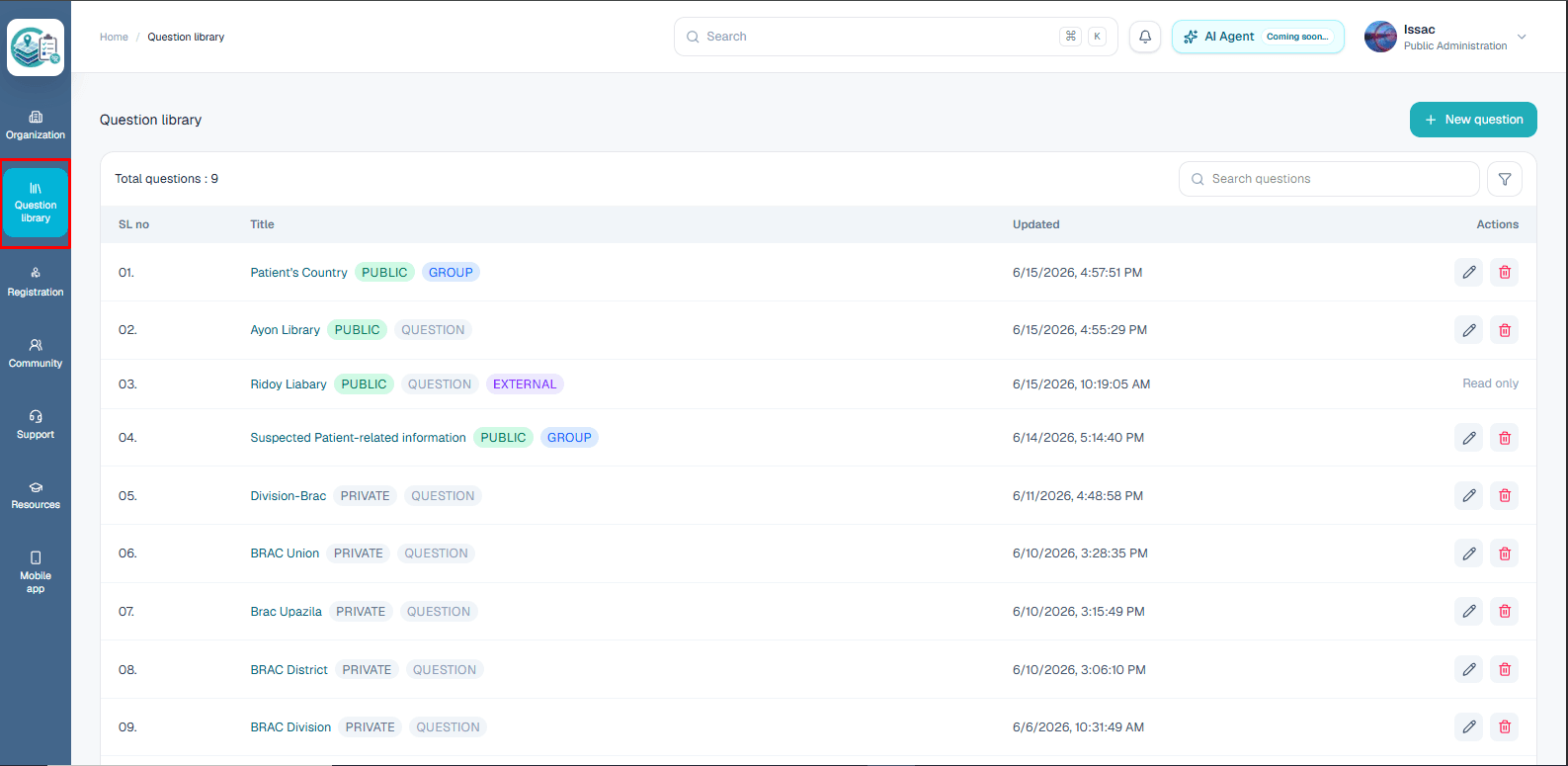
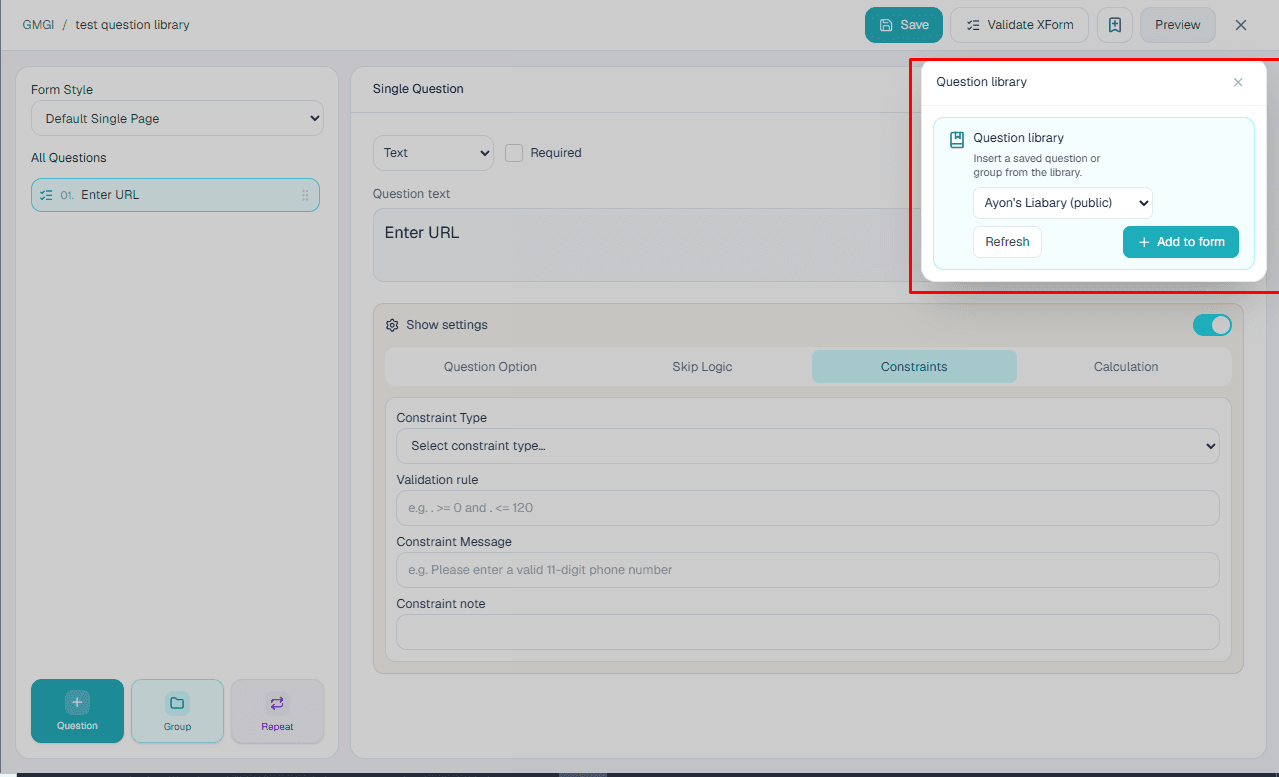
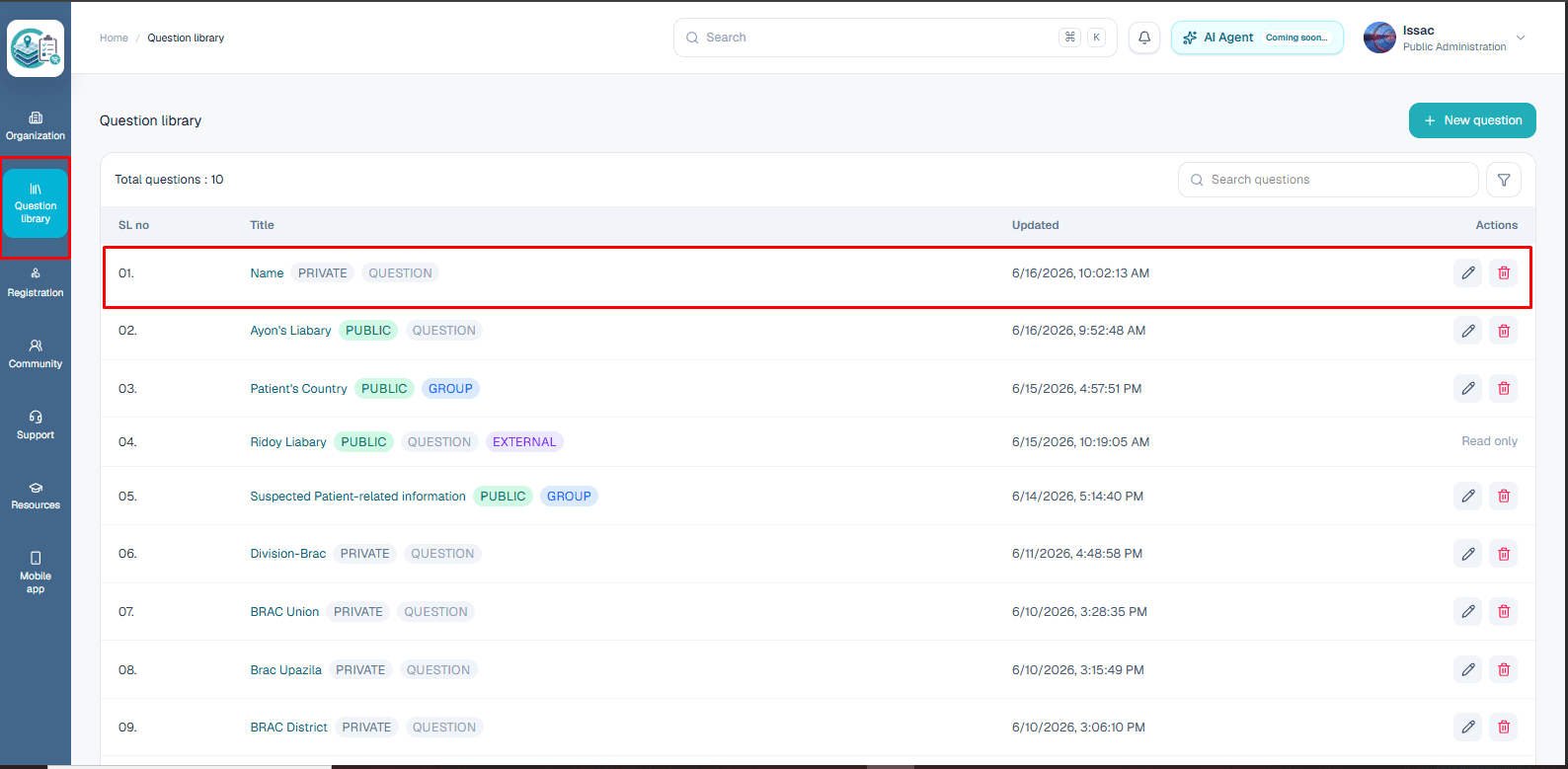
The question library lets teams reuse approved questions. It helps keep wording, names, choices, validation, and settings consistent across forms.
- 1.Open the question library from the organization workflow or from a form when adding reusable questions.
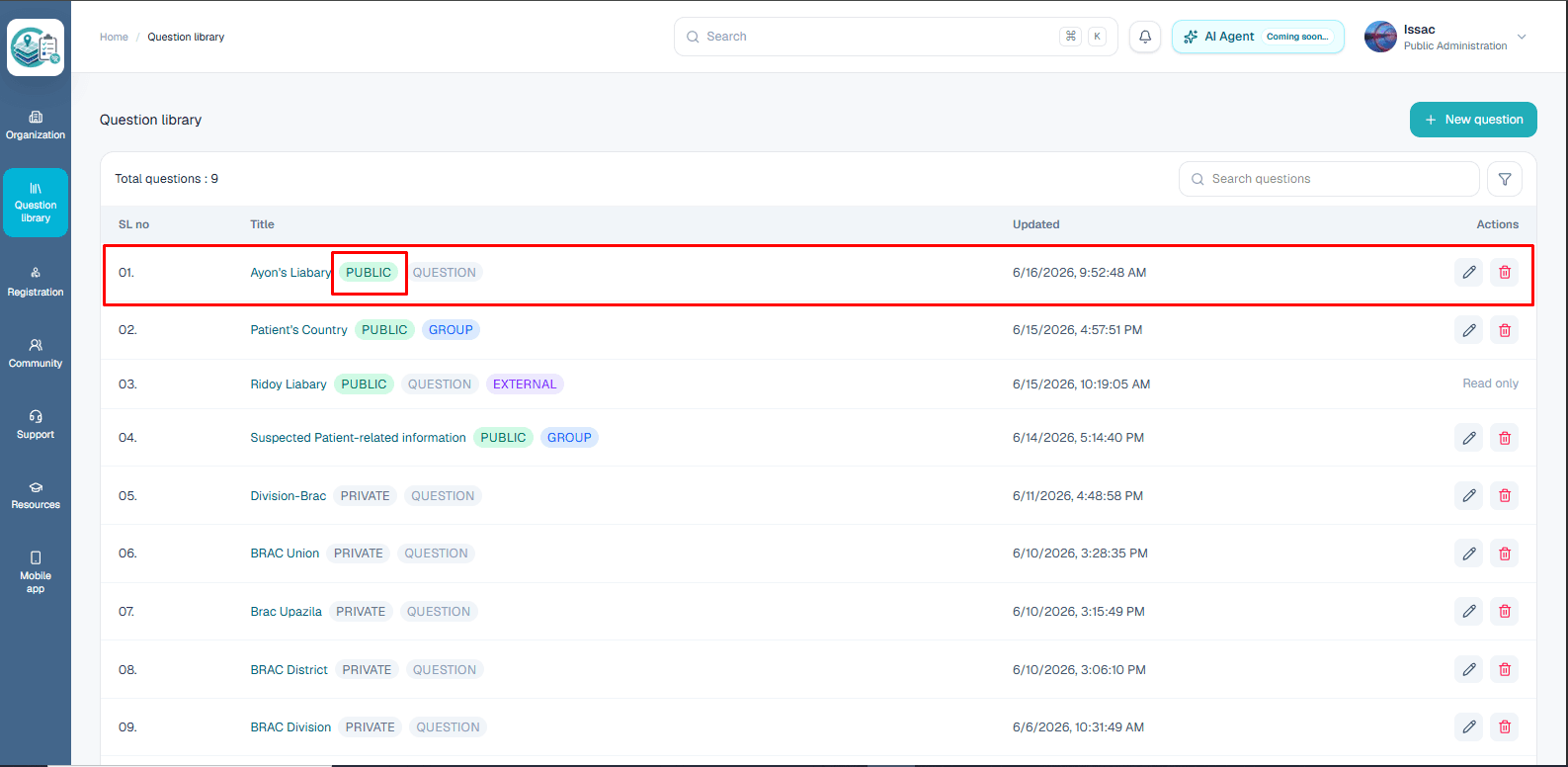
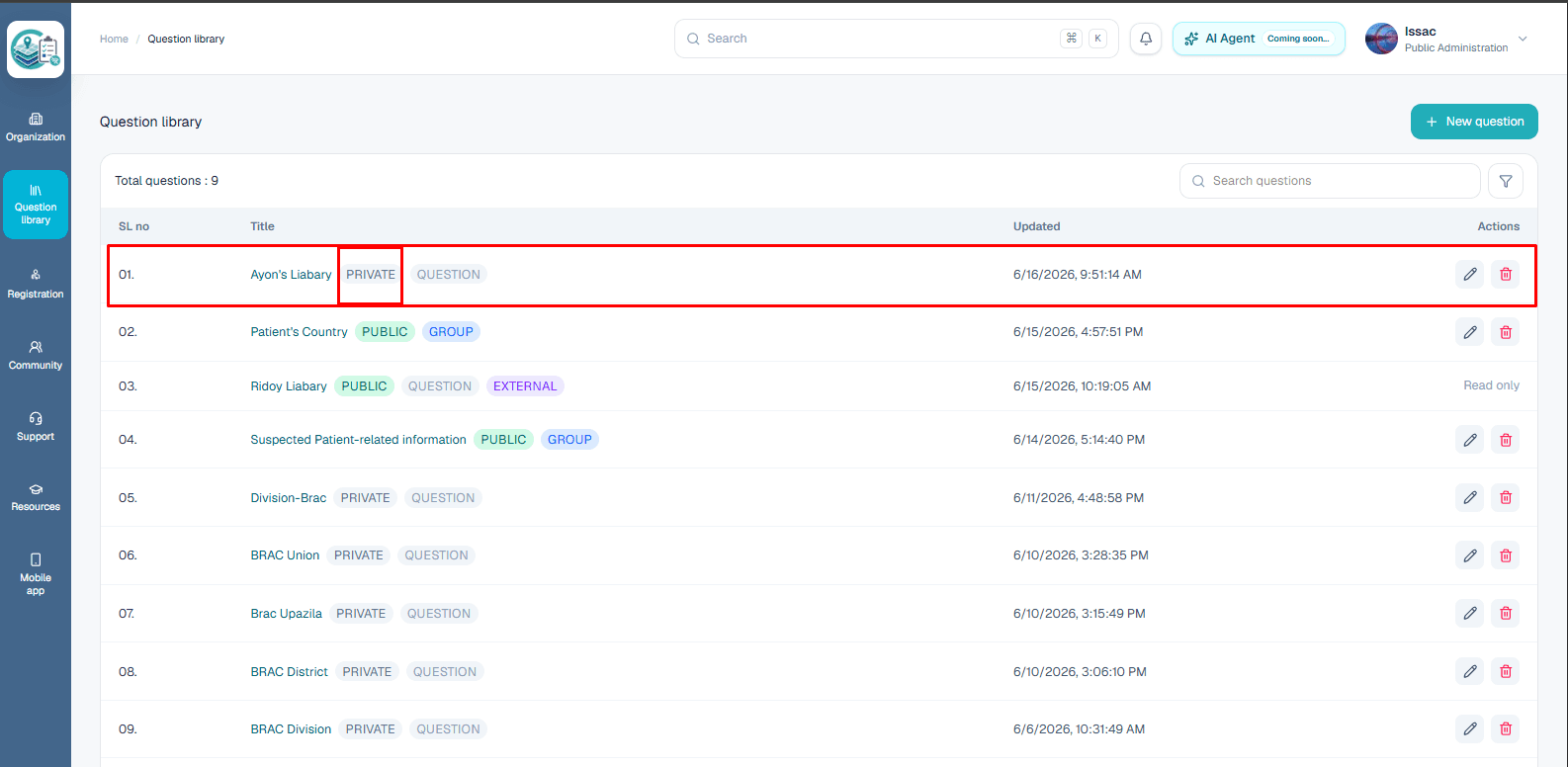
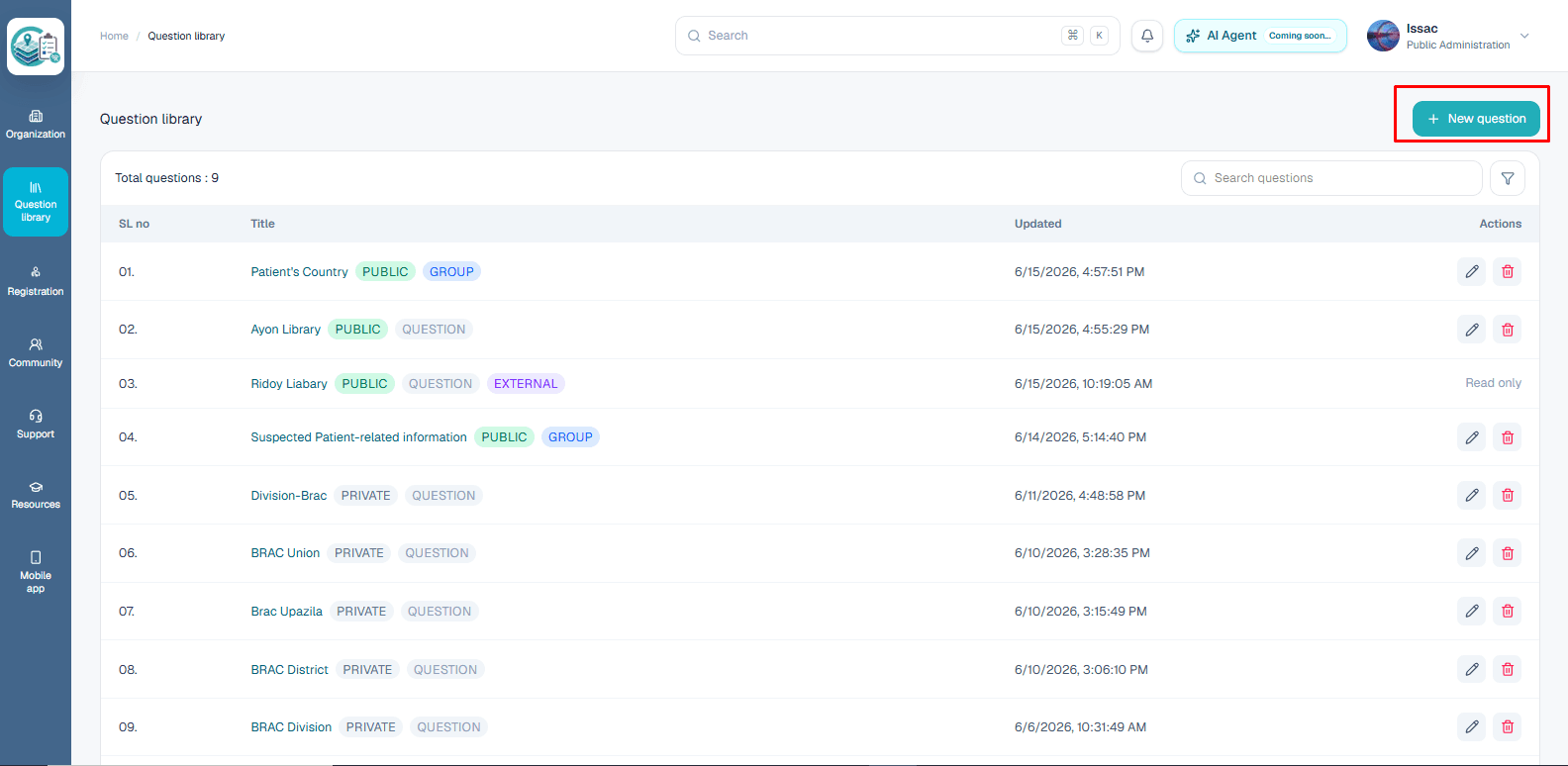
- 2.Review whether a library question is public, private, read-only, or external before using it.
- 3.Add new reusable questions only after the wording and options are ready to share.
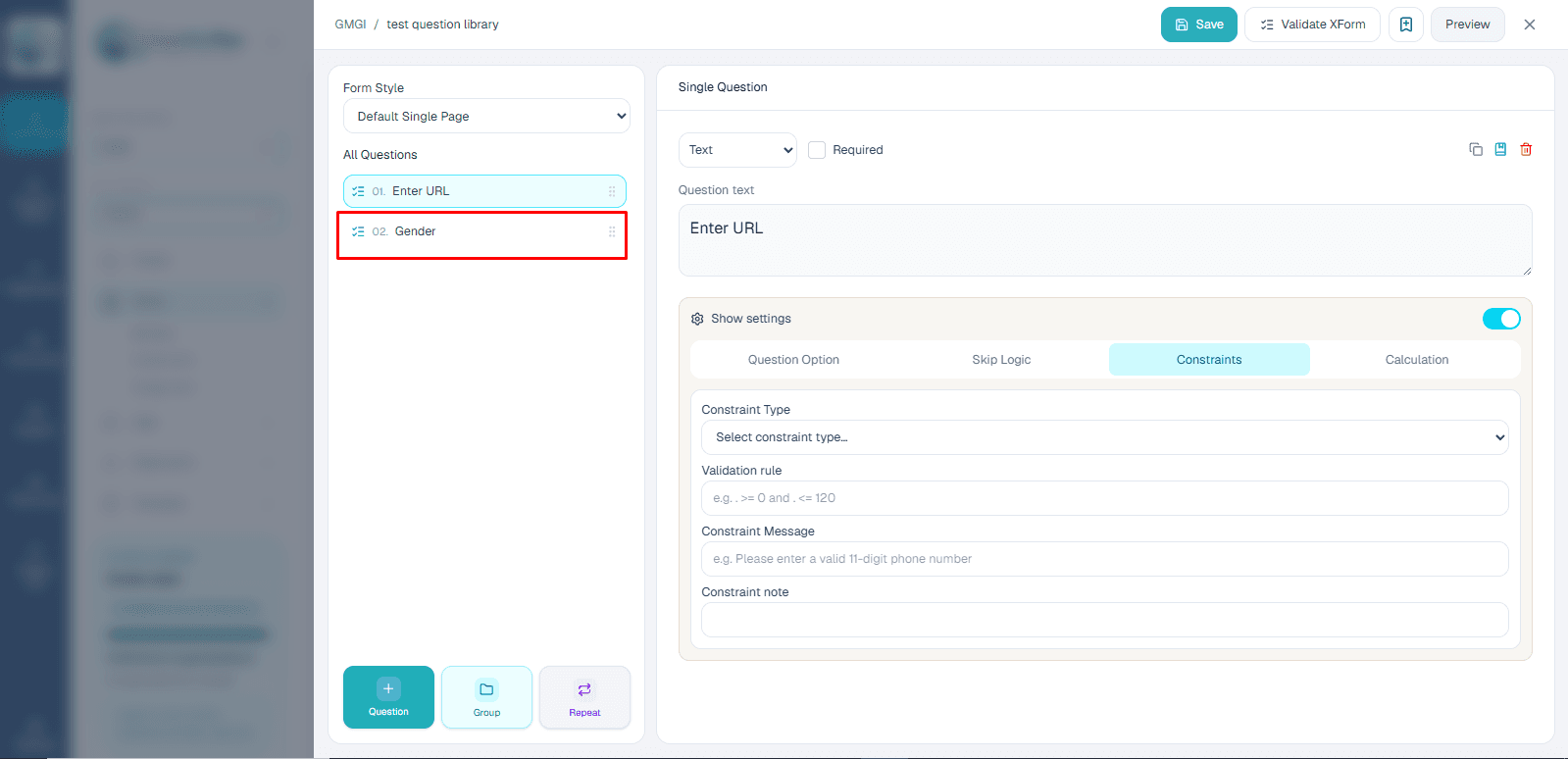
- 4.Review imported library questions inside the form builder before saving.
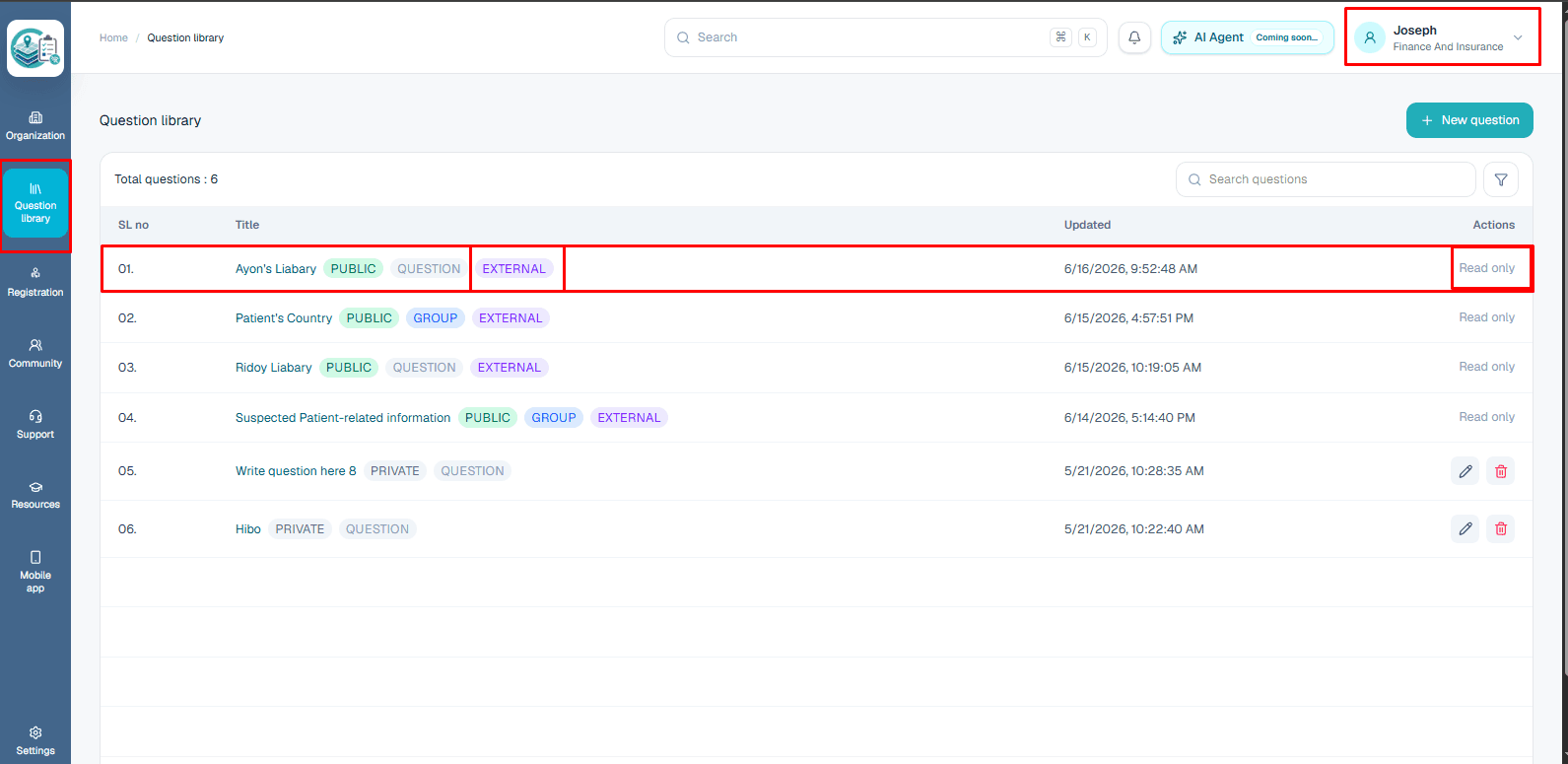
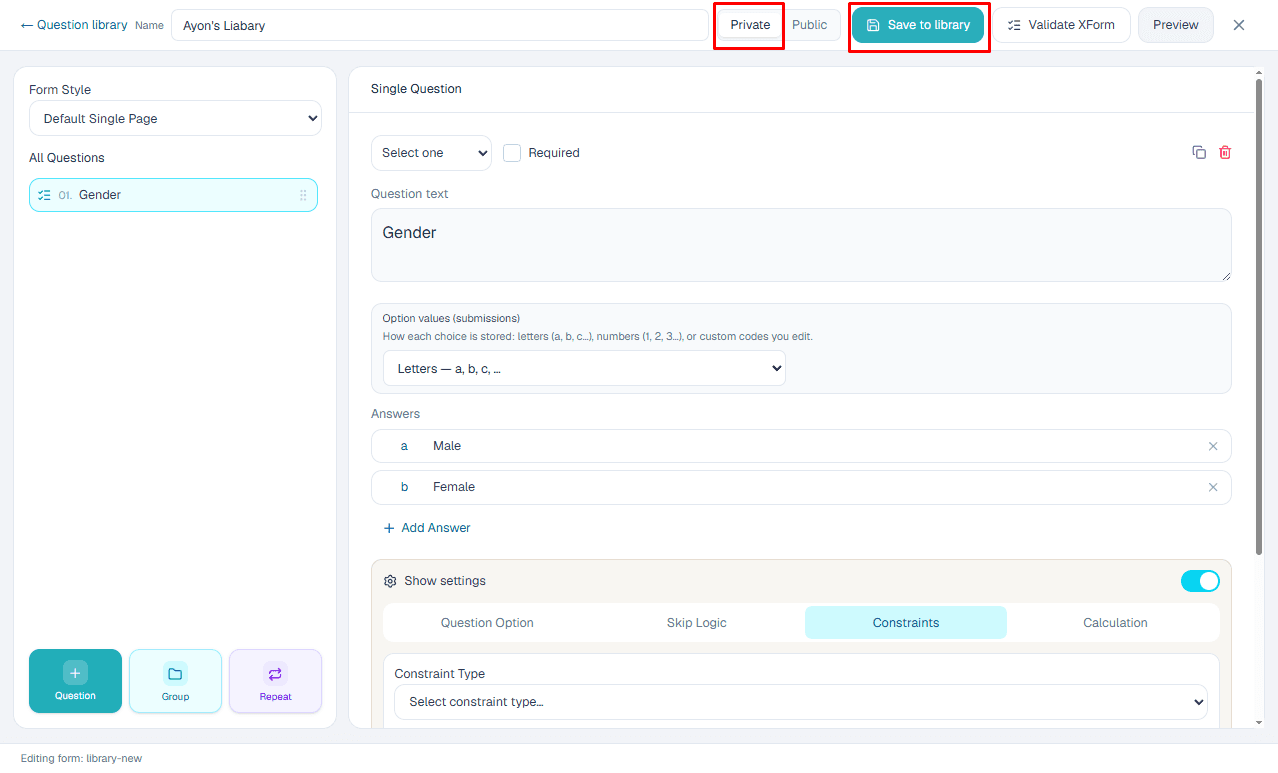
Public and private questions
Use public library questions for shared organizational standards. Use private library questions when reuse should stay limited to the owner or working team.
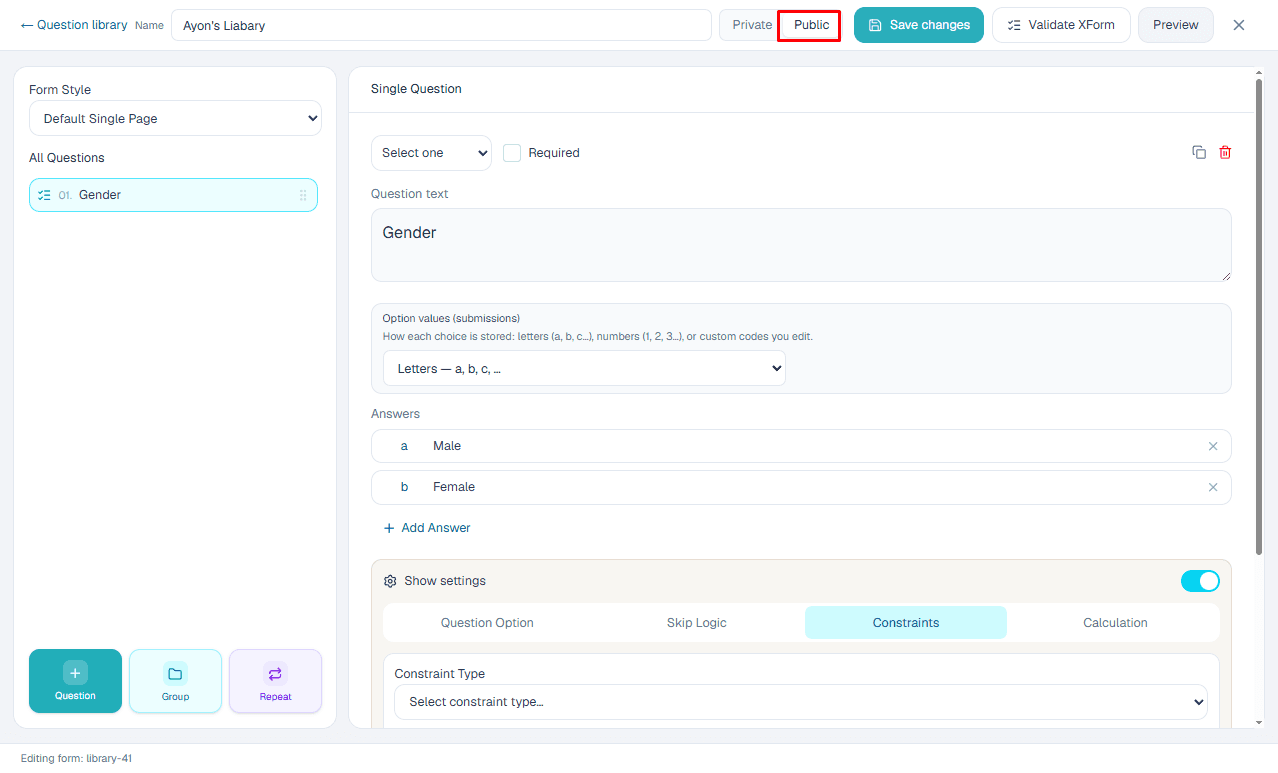
Add a library question
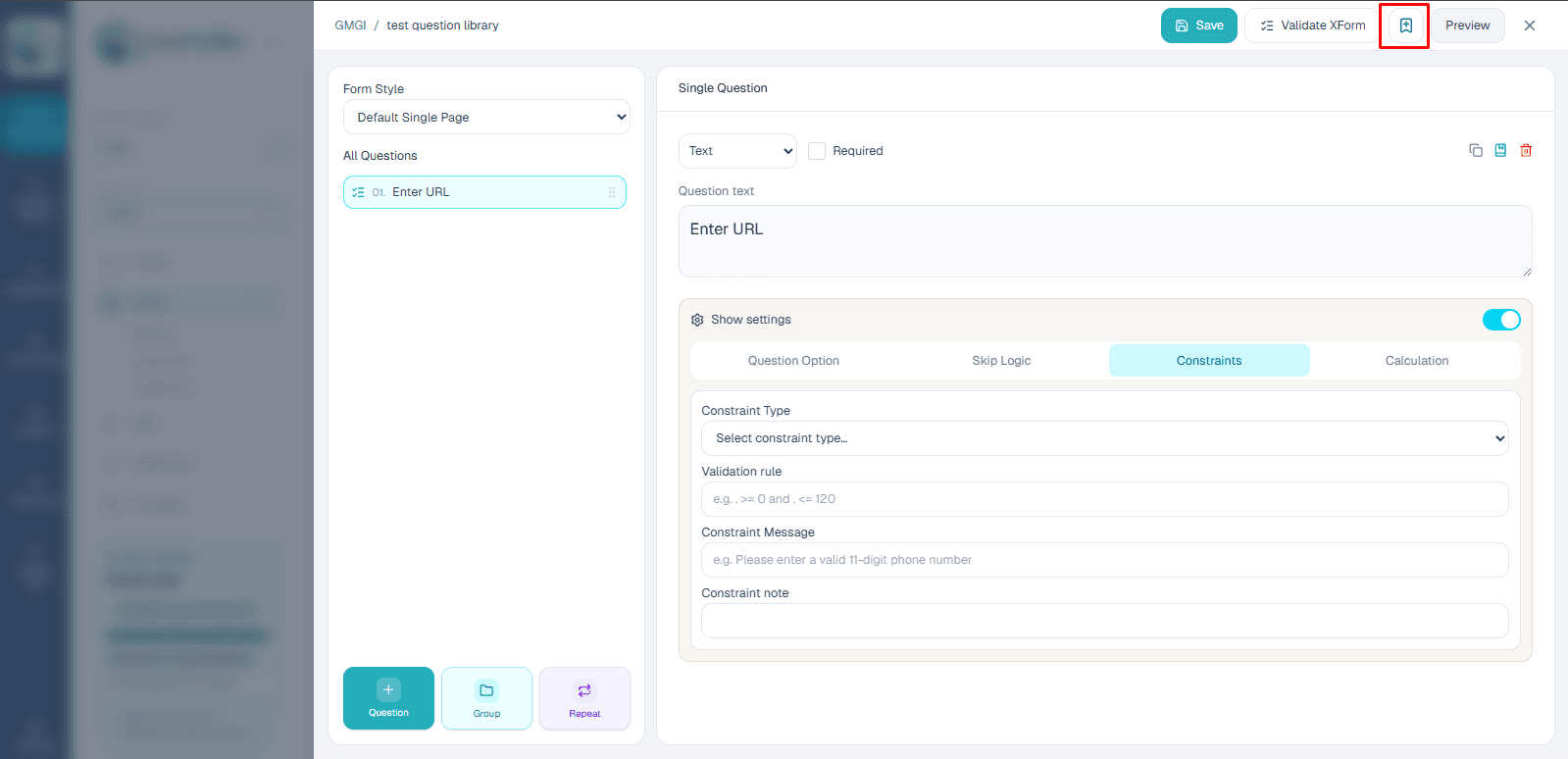
Add a question to the library when it should become a reusable template for future forms.
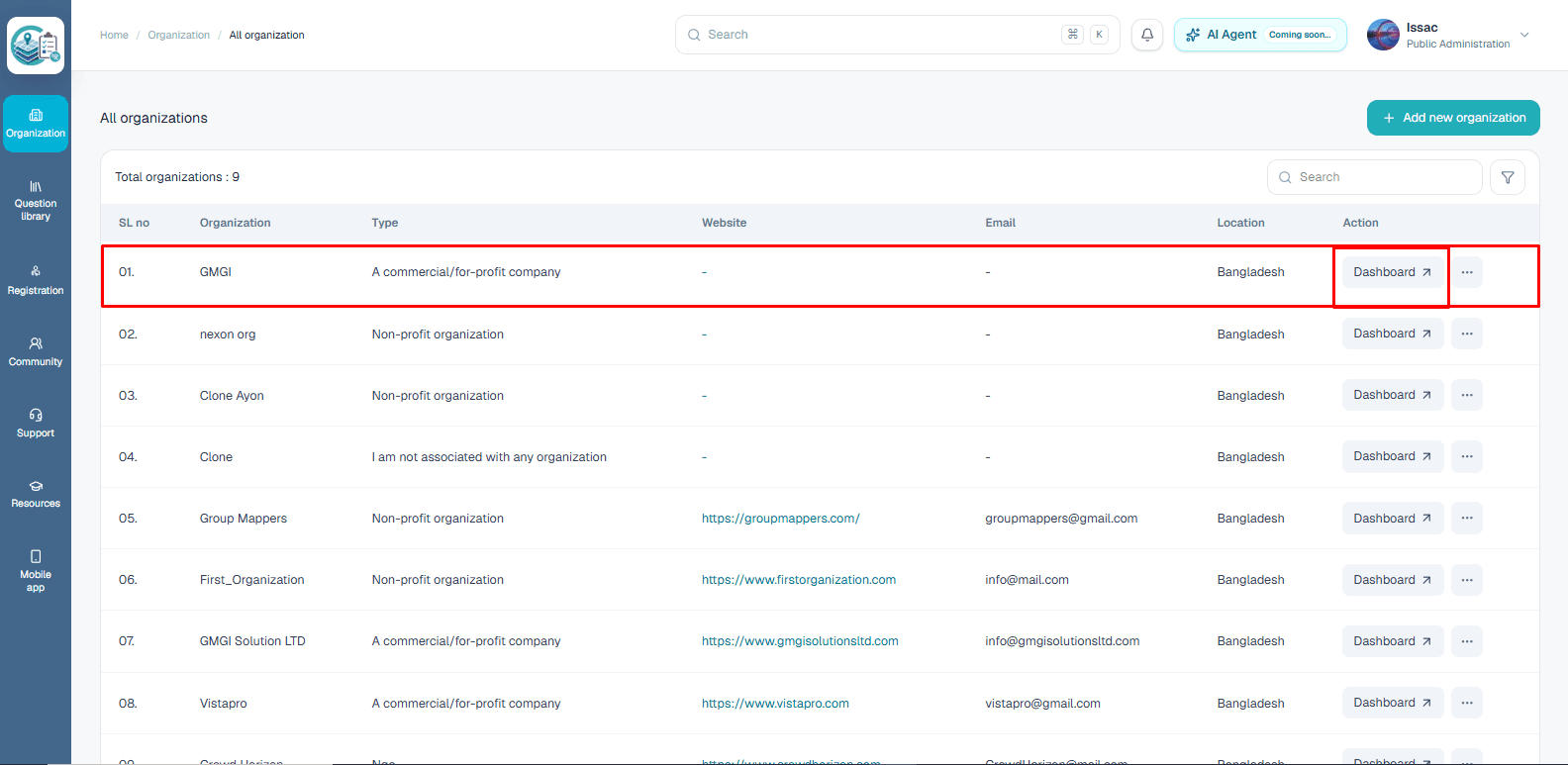
- 1.Enter the organization where the library question should live.
- 2.Create the question and configure its details.
- 3.Save the new library question.
- 4.Use the preview to confirm the question is available for reuse.
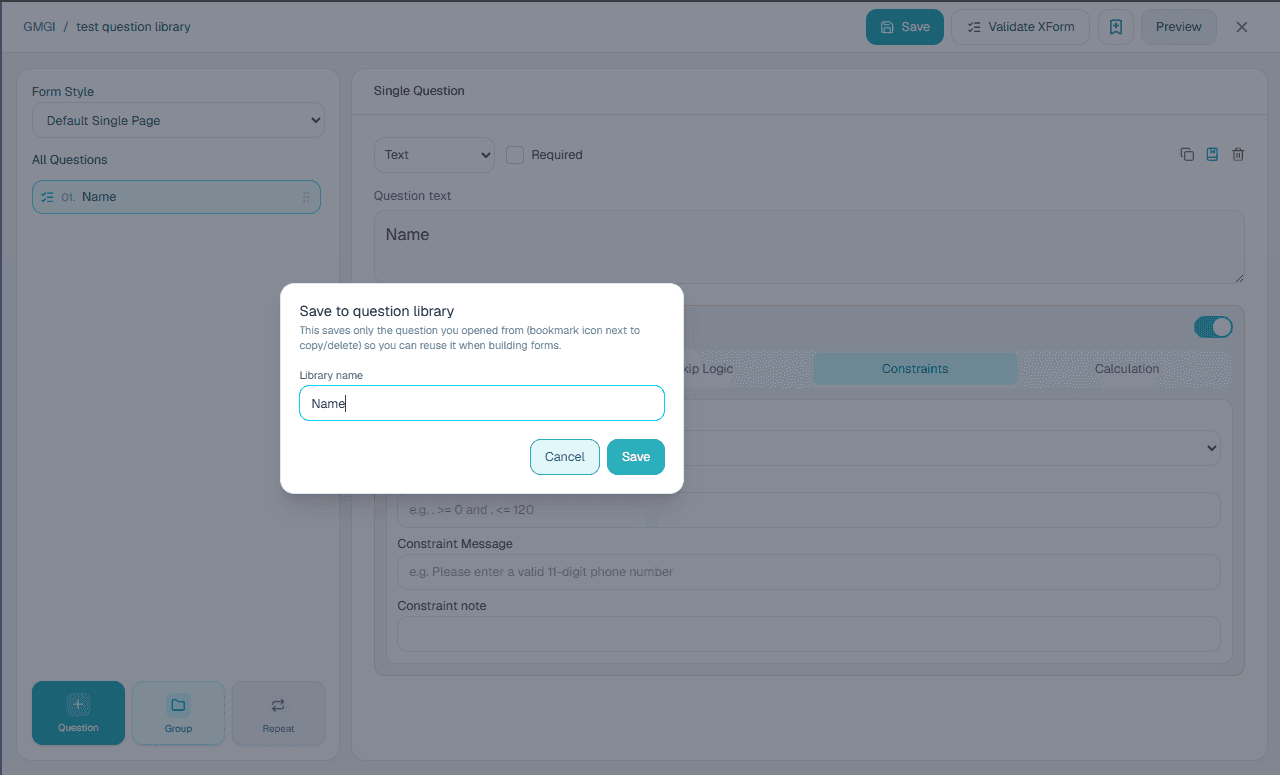
Add from a form
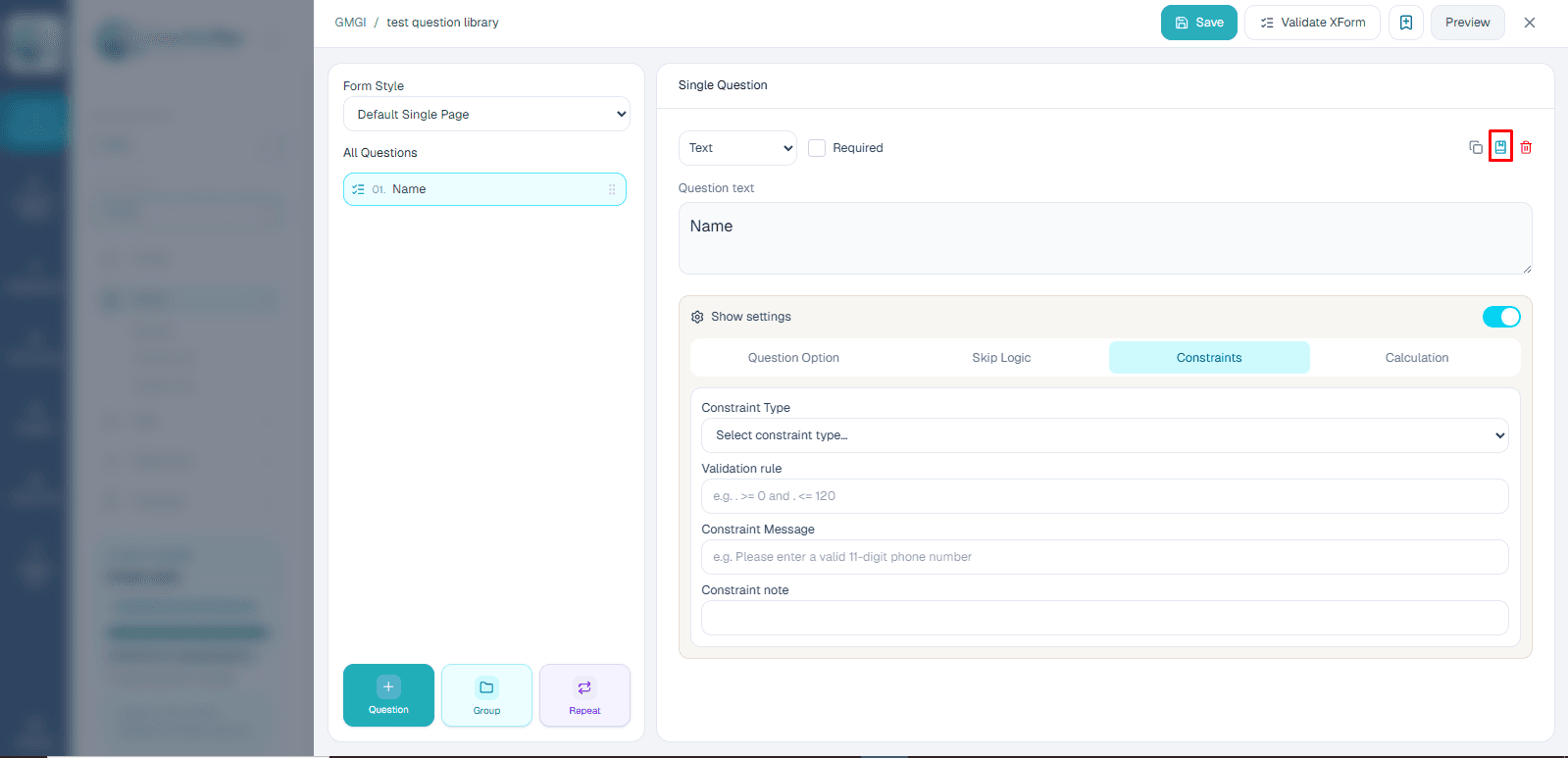
A form question can also be added into the question library when the team decides it should be reused later.
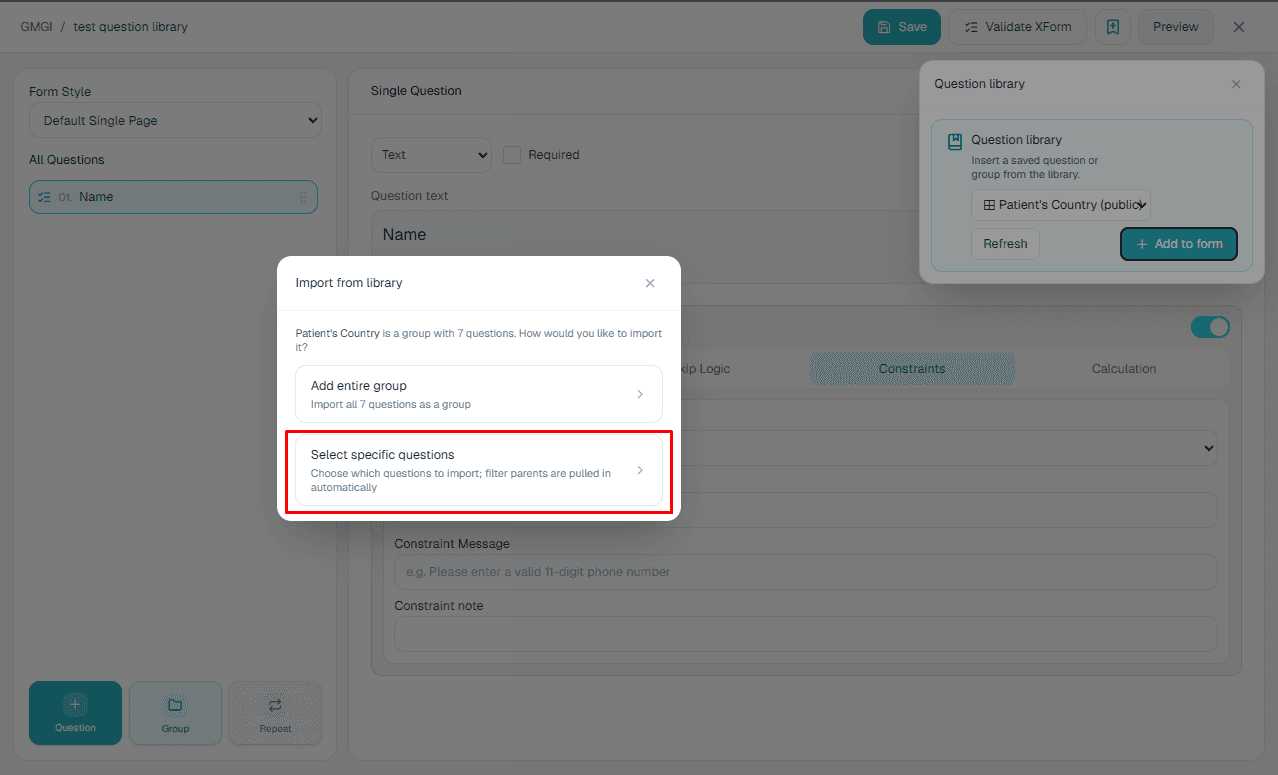
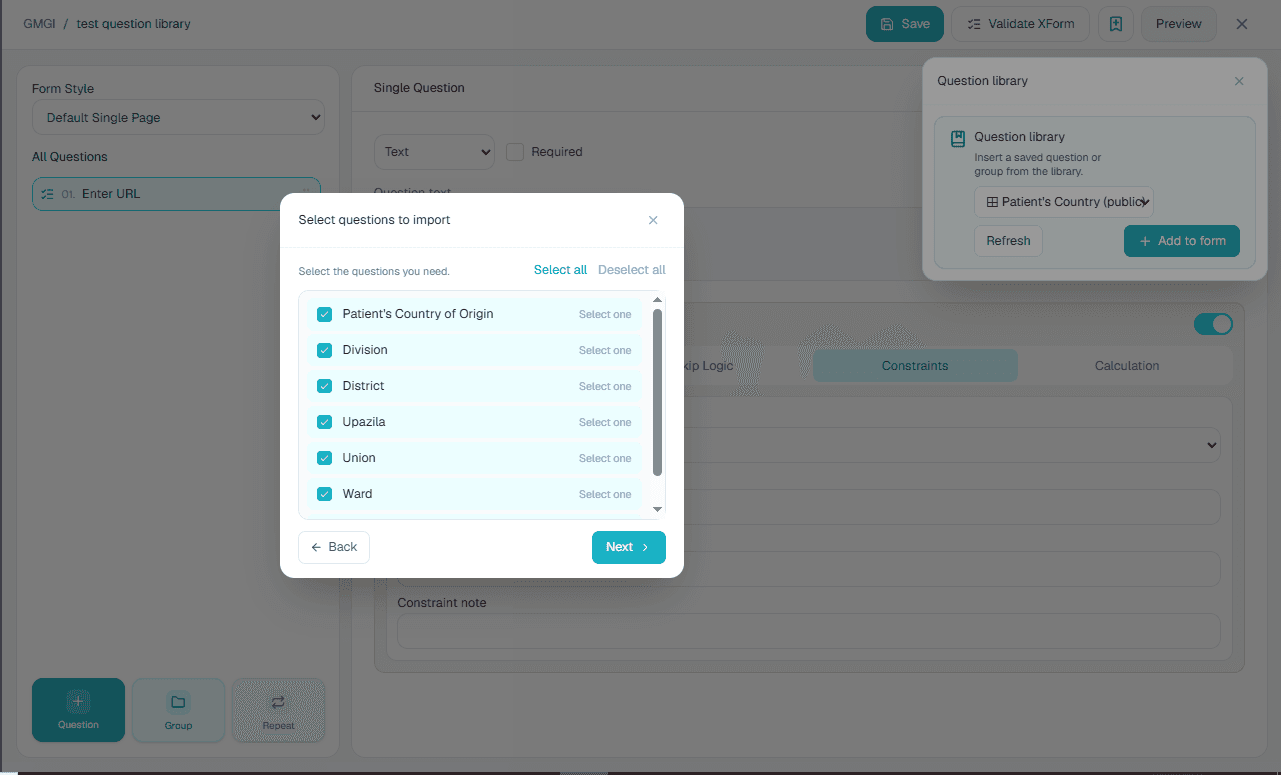
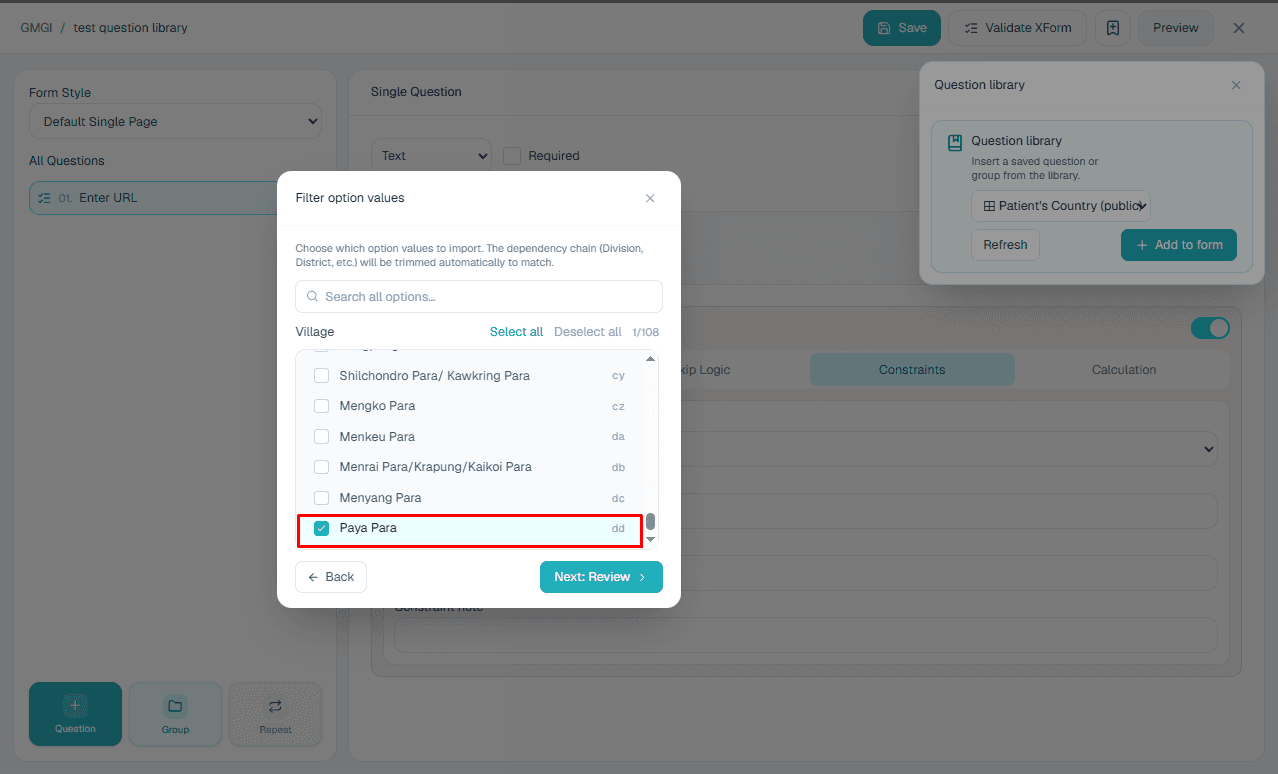
Import questions
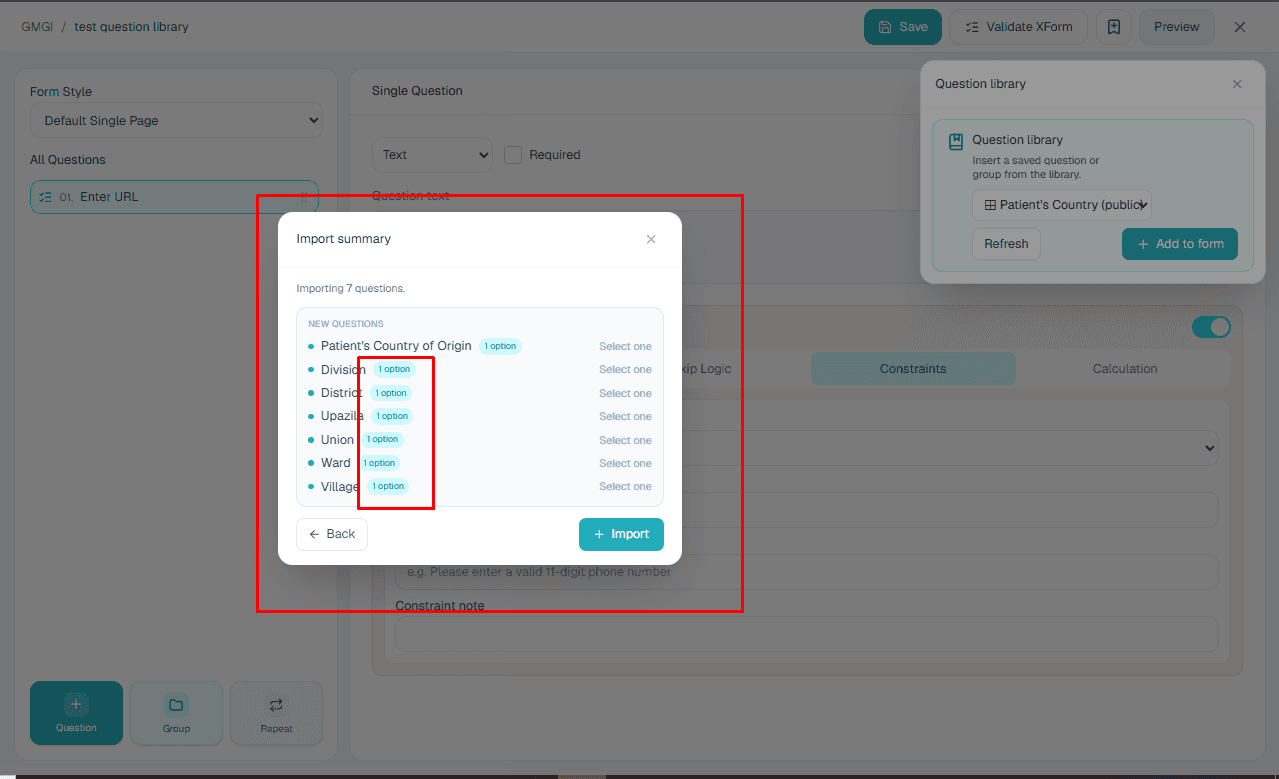
Import library questions into a normal form when approved reusable content already exists.
- 1.Open the normal form where the question should be used.
- 2.Choose Import question from the question library flow.
- 3.Select the specific question or questions.
- 4.Review the imported question in the form builder.
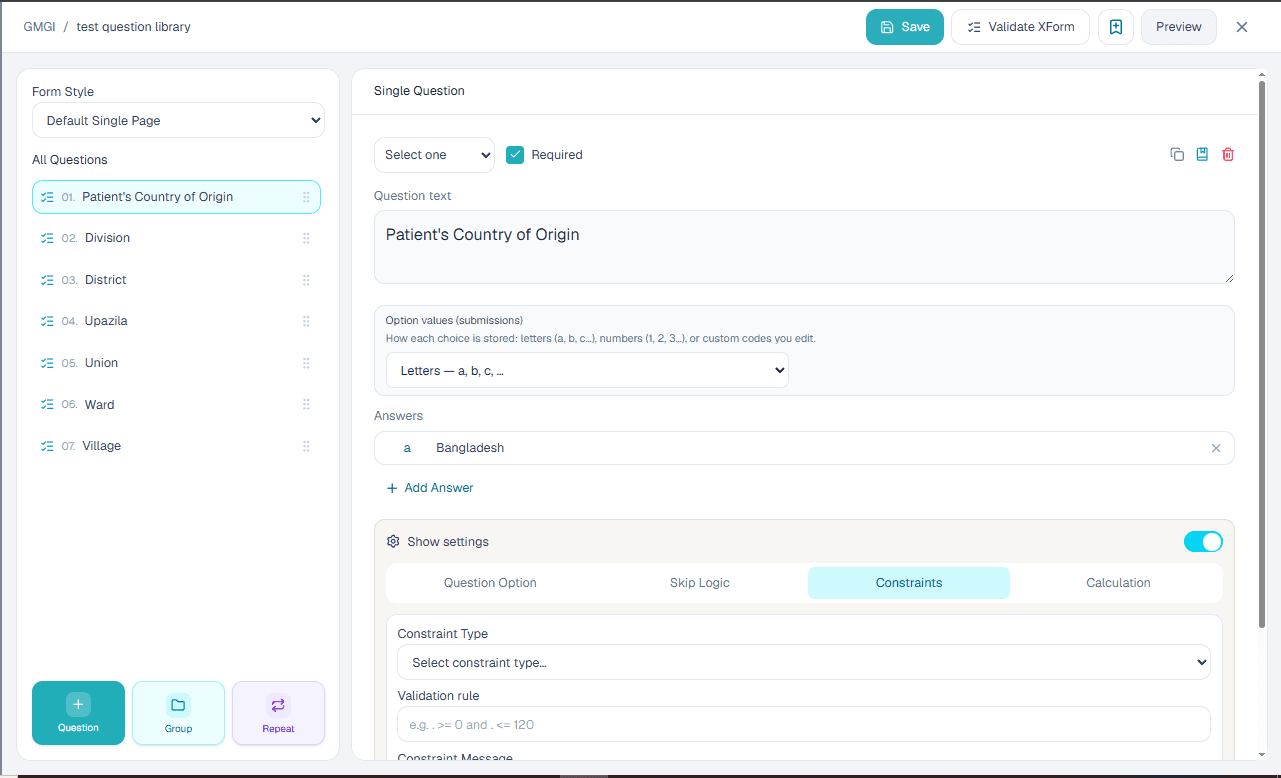
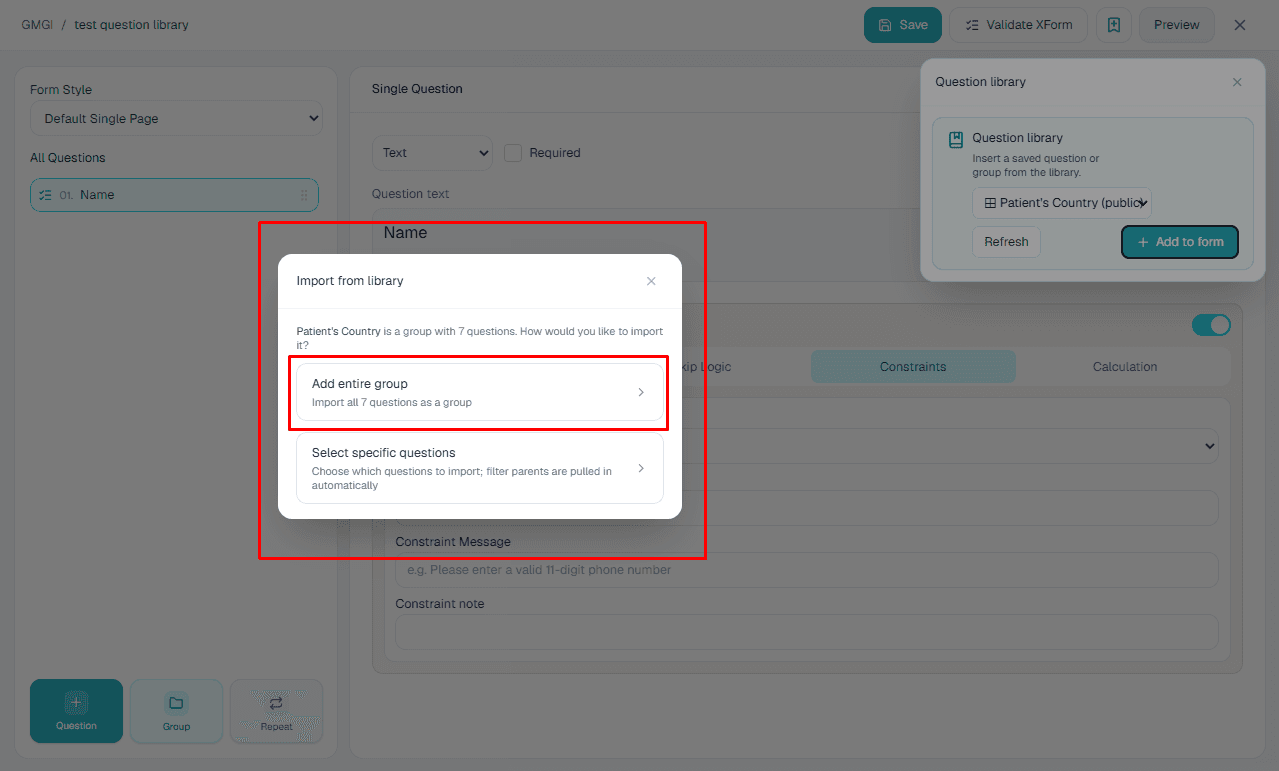
Import groups
Import a library group when several approved questions should be reused together as one section.
Clone, reorder, and delete
The builder supports duplicating questions and containers, dragging questions into the right order, and deleting entries that no longer belong in the form.
- 1.Clone when a new question is similar to an existing one.
- 2.Reorder questions so the interview flow matches the collection process.
- 3.Delete unused questions before saving.
- 4.Preview the form after these changes so the final order and remaining questions are correct.
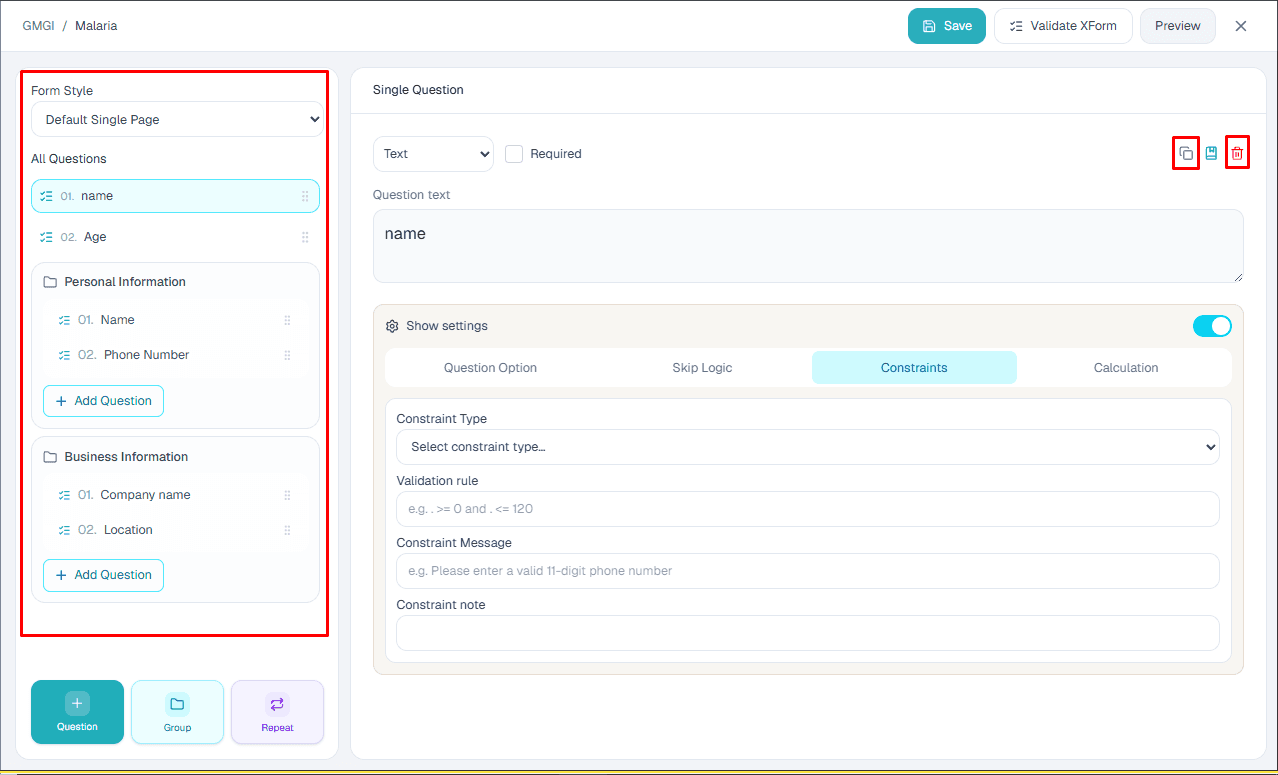
Clone
Clone a question when a new question should start from the same type, options, settings, or validation as an existing question.
- 1.Select the question that should be duplicated.
- 2.Use Clone to create a copy.
- 3.Update the copied label and question name.
- 4.Review options, skip logic, constraints, calculations, and defaults before saving.
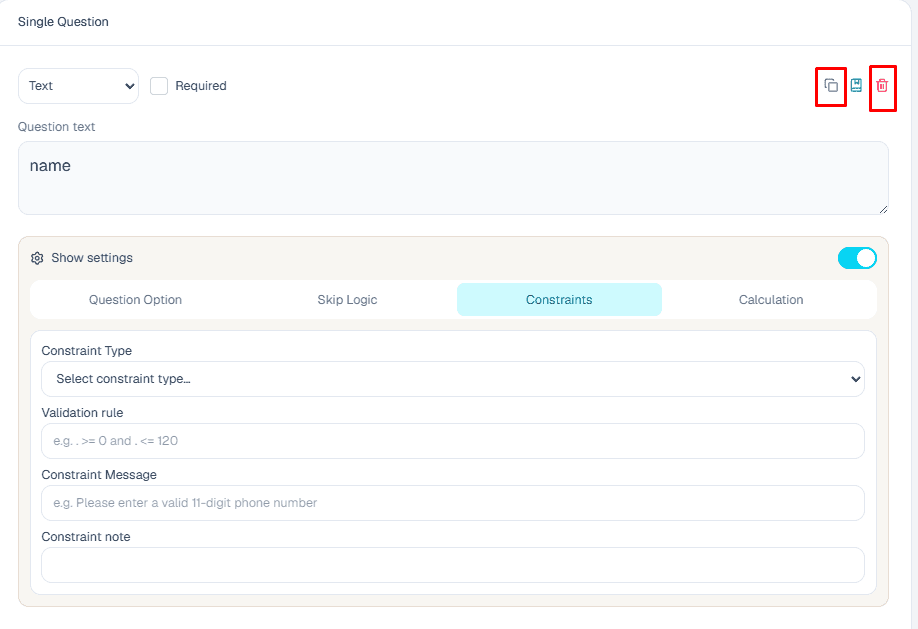
Reorder
Reorder questions when the form flow should change. Top-level questions, groups, repeat groups, and child questions can be arranged to match the interview sequence.
- 1.Drag the question row to the intended position.
- 2.Keep child questions inside the correct group or repeat.
- 3.Check skip logic and calculations after moving referenced questions.
- 4.Preview the form and walk through the updated order.
Delete
Delete questions only when they are no longer needed. Before saving, make sure remaining skip logic, constraints, calculations, and reports do not depend on the deleted question name.
- 1.Select the question, group, or repeat that should be removed.
- 2.Use Delete from the question controls.
- 3.Confirm the remaining question list is still complete.
- 4.Validate and preview before final save.
Finish and save
Preview shows the form experience before deployment. Validate XForm checks whether the current export is structurally acceptable for runtime collection.
- 1.Preview after adding major sections or logic.
- 2.Walk through each skip path, constraint, repeat, and calculation.
- 3.Validate the XForm before assigning the form to collectors.
- 4.Fix any validation issues before saving the final version.

Export and save
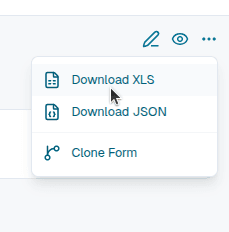
Export XForm downloads the current form definition for review or interoperability. Save persists the questionnaire JSON to the form, returns to the form dashboard, and makes the saved builder state available for later collection workflows.
- 1.Save often while building long forms.
- 2.Export XForm when another team needs to inspect or archive the definition.
- 3.After saving, open the form dashboard and use Collect Data only when the form is ready.
Continue tutorials
View all
6 steps
Getting started with the platform
Follow the full setup path from account registration through organization, project, form, user, and assignment work.

3 steps
Creating your first project
Create a project inside the organization, connect forms, and prepare the workspace for field activity.
7-step guide
Microplanning: areas, assignments, and tracking
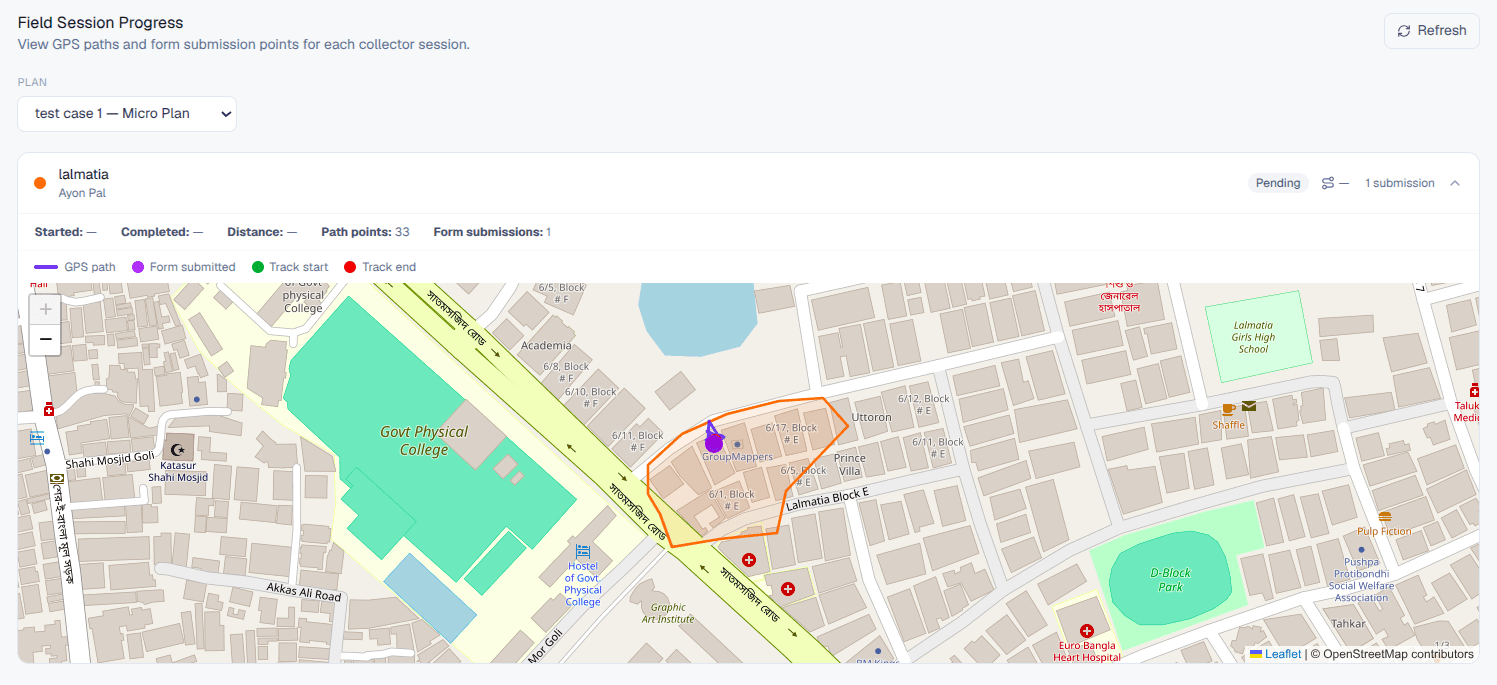
Enable microplanning, create or import geographic areas, assign field users, manage boundaries, and monitor progress from the overview dashboard.
Complete guide
Mobile app user manual
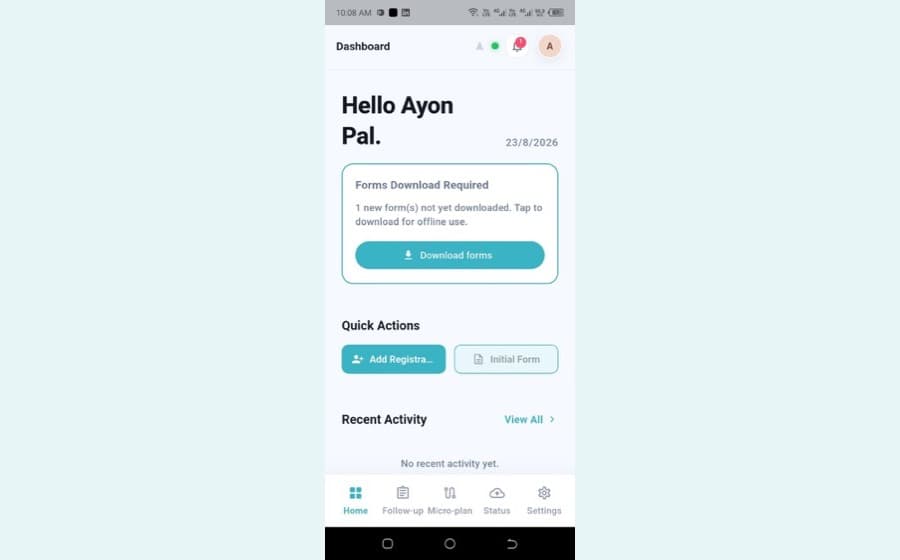
Log in, grant permissions, read the dashboard and navigation bar, add registrations with NID capture, work through follow-ups, track microplanning areas, and check status and settings.